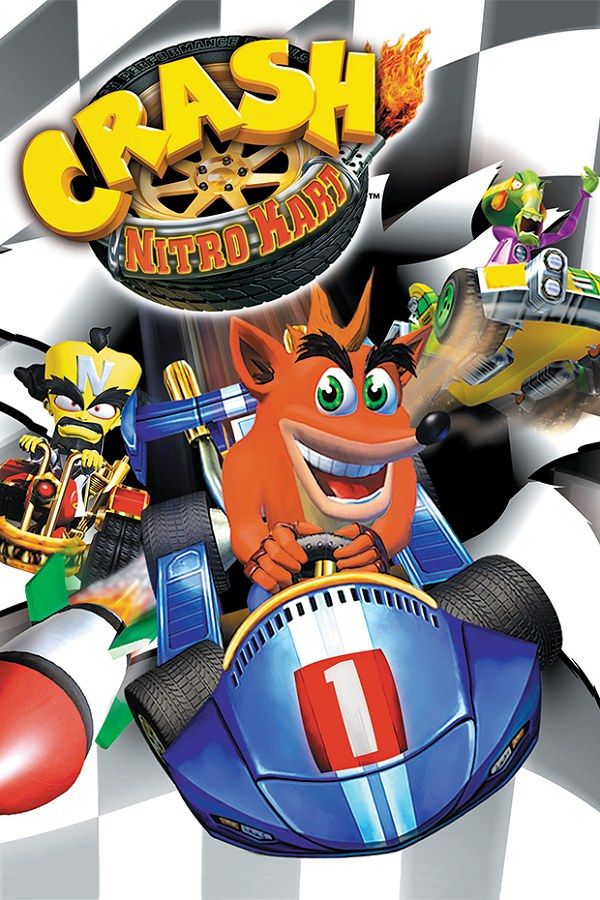
Vicarious Visions’ 2003 kart racer is the follow-up to Crash Team Racing. Emperor Velo XXVII abducts Crash, Cortex and their teams and makes them race in his Galaxy Circuit, threatening to destroy Earth if they refuse. Races mix weapon crates, Wumpa fruit and powerslide boosts: grab ten Wumpa fruit and your weapons get stronger. If you own the GameCube version, Nagori lets you play it on iPhone and iPad.
What you need
- An iPhone 12 or newer, or an iPad with an A14 chip or newer, with iOS 17.6 or later.
- Nagori from the App Store. Your first game is free.
- A disc image of your copy of the GameCube version:
.iso,.gcm,.rvz,.cisoor.gcz, or a.zipor.rarcontaining it. The game fits on a single disc.
No BIOS file is needed.
How to play Crash Nitro Kart on iPhone
- Install Nagori from the App Store.
- Copy your Crash Nitro Kart disc image to the Files app, in iCloud Drive or On My iPhone.
- Open Nagori, tap + and select the file. Add GameCube games from inside Nagori: the Files app’s Open in menu doesn’t hand formats like
.rvzand.gcmto Nagori. - Find Crash Nitro Kart on the GameCube shelf and press Play.
- Switch to a touch layout with a stick, or connect a controller. The default Standard layout has no stick. Pause, open Settings → Touch Layout and choose D-Pad + Stick or Stick Focus.
Controls: powerslides and boosts
You steer with the control stick, and boosts live on the shoulder buttons. Hold one while you steer to hop into a powerslide. A curved boost gauge appears next to your kart, and when it goes from green to red, press the other shoulder button for a burst of speed. Nagori reads L and R as full presses with no analog half press, which is all a boost needs.
On touch, steering, holding the gas and working both shoulder buttons is a lot for two thumbs. Open Edit Layout in the pause menu and drag L and R down to where your thumbs already rest, then pinch them bigger.
A controller makes this much easier, with the shoulder buttons under your index fingers. Bluetooth controllers that iOS supports work, including DualSense, DualShock 4 and Xbox controllers. A is the bottom face button, B the left one, X the right one and Y the top one; L and R are the triggers, and Z is on the right shoulder button. Pressing the left stick opens Nagori’s pause menu.
Adventure Mode with save states
Adventure Mode takes you world by world. Win races to earn trophies, and once you have every trophy in a world, you can race that world’s champion for a key. Later you return to the tracks for Relic Races against the clock, CNK Challenges where you collect the letters C, N and K, and Gem Cups.
Save states fit this structure well:
- Before a champion race. Pause on the grid and choose Save. Lose, and Load puts you back on the line.
- Before a Relic Race. One crash ruins a time, so save at the start and reload until the run is clean.
- Quit any time. Leave the app mid-race and Continue puts you back exactly where you were.
Nagori keeps your last four saves per game. The game’s own progress goes to its memory card, which works as on the GameCube but stays inside Nagori: it isn’t in the Files app, in Export Saves or in iCloud. Keep it as your main save, since a save state may not load after some Nagori updates.
Best settings
Open Settings → Quality in the pause menu. Medium, the default, is the place to start; Low keeps the device coolest, and High gives the smoothest motion on the newest iPhones and iPads. Boost timing is easier when the picture moves smoothly, so try High on a recent device. Nagori shows GameCube games at their original resolution, without rumble.
One player only
Crash Nitro Kart’s battle modes, such as Crystal Grab, Capture the Flag and Steal the Bacon, are built for two to four players on one screen. Nagori plays GameCube games for one player, so those and split-screen races with friends aren’t available.







