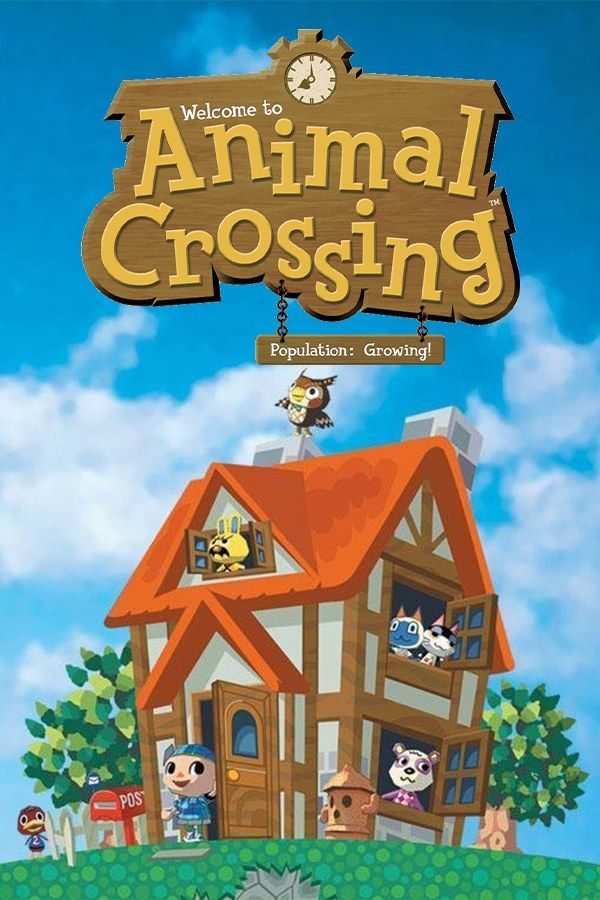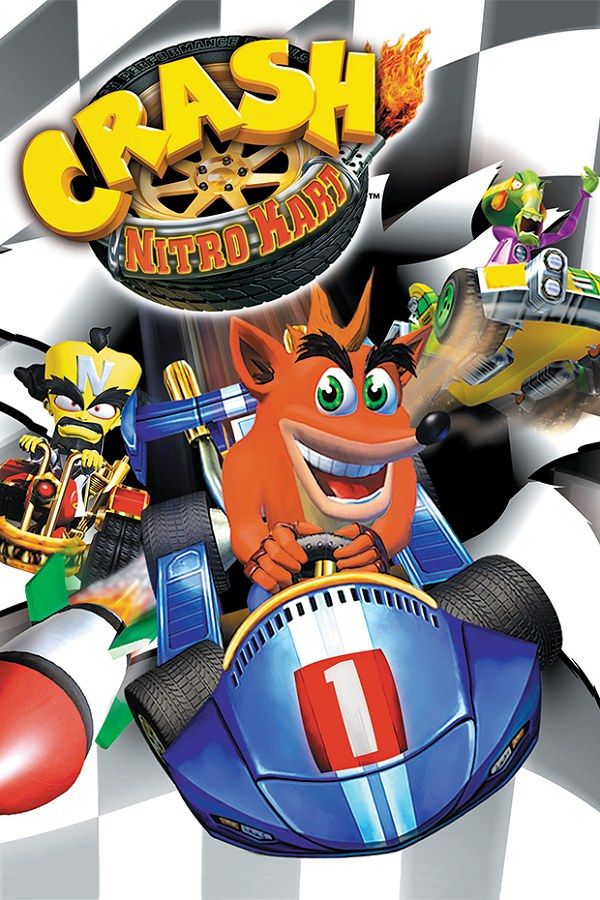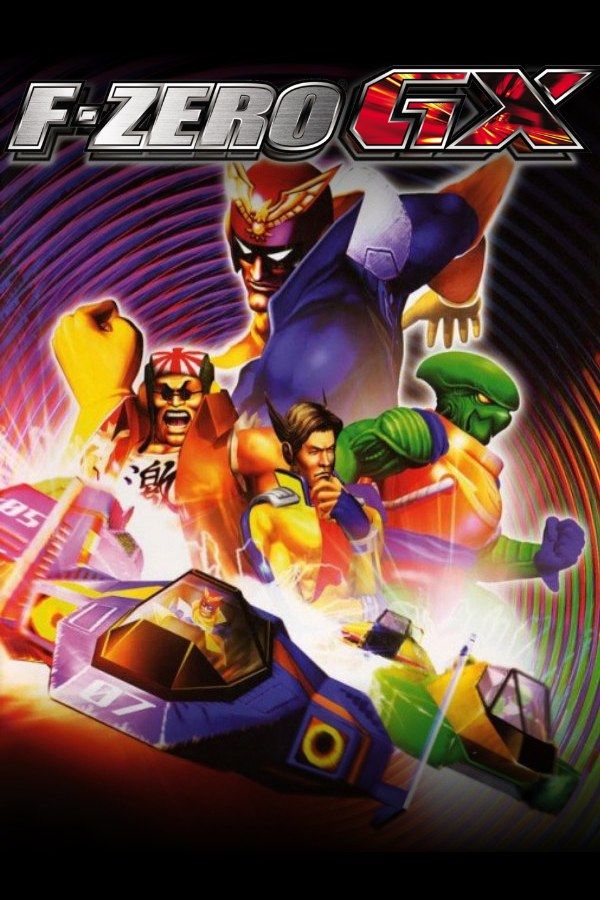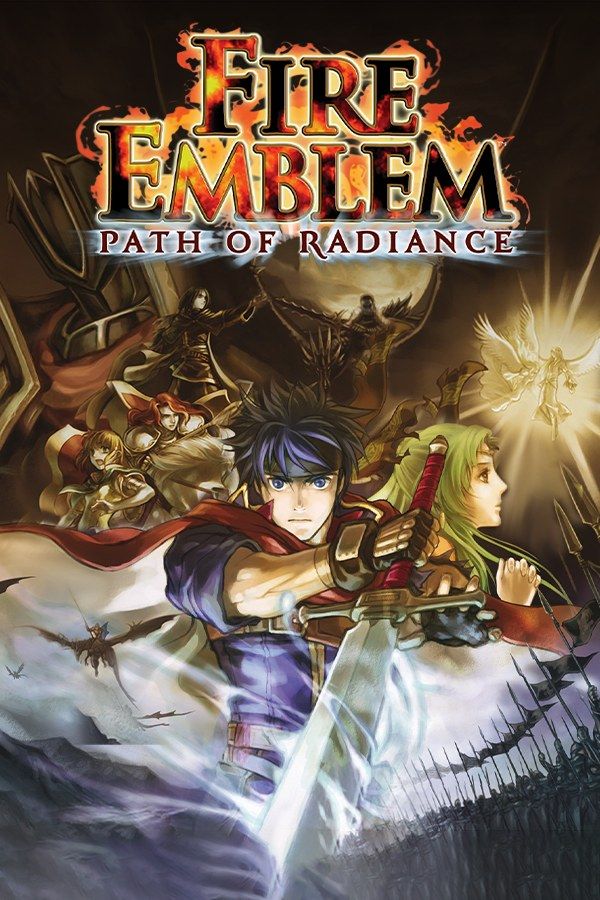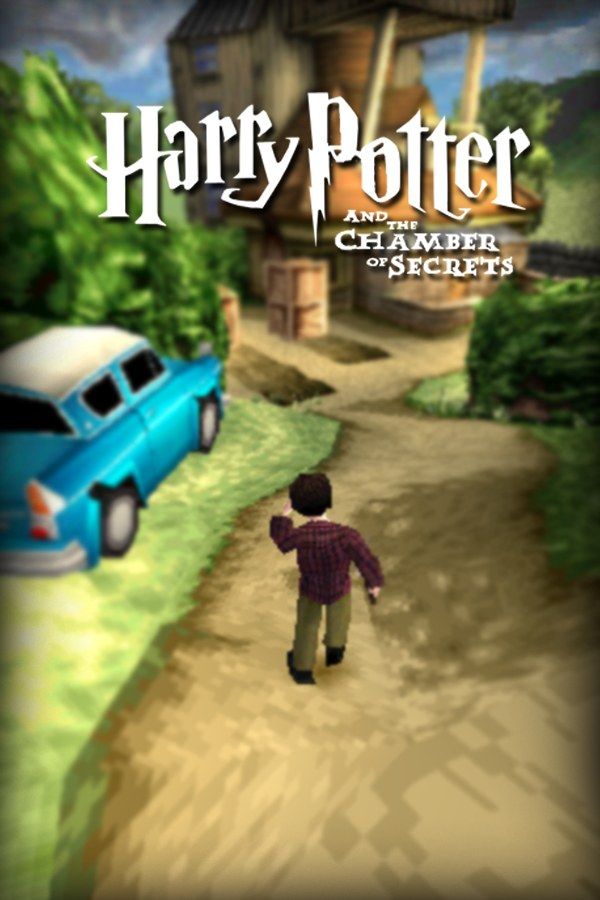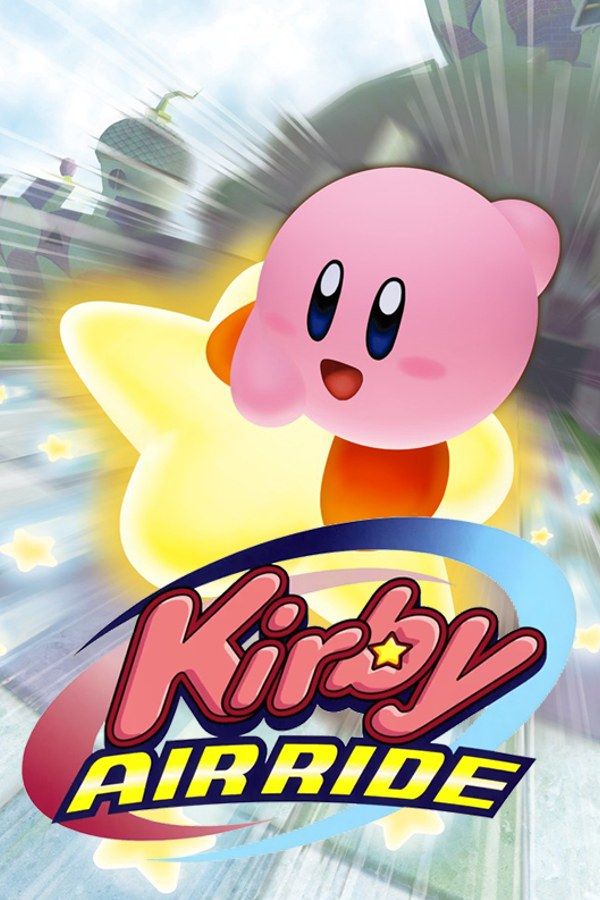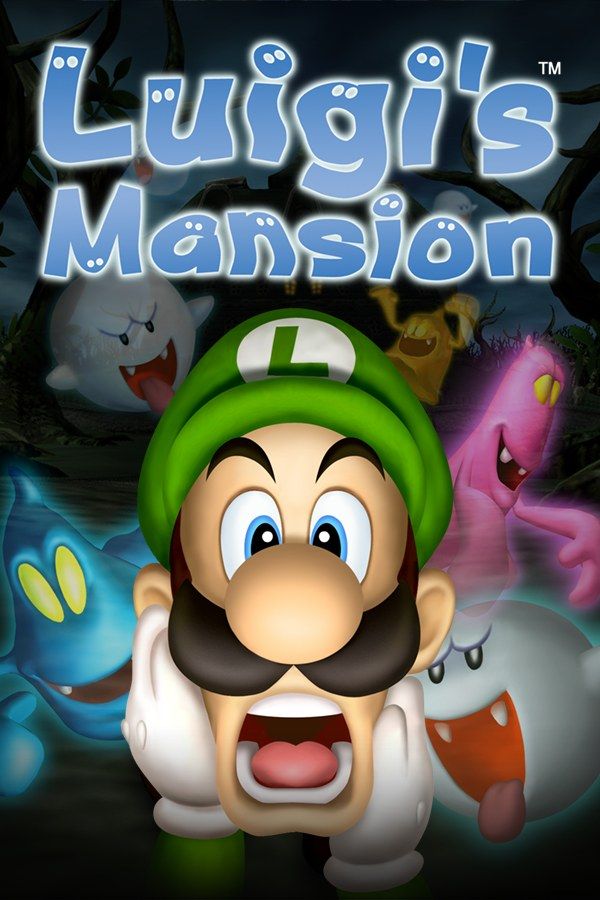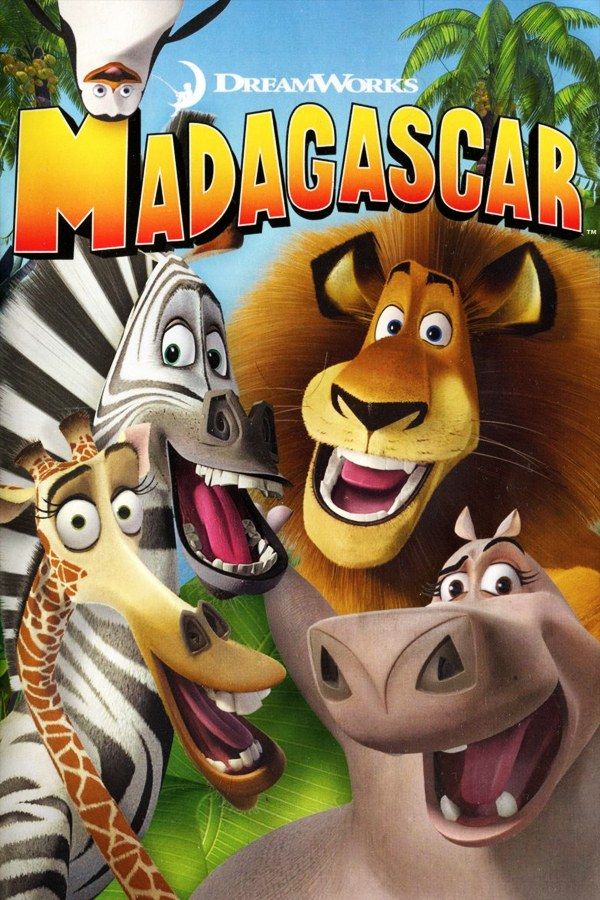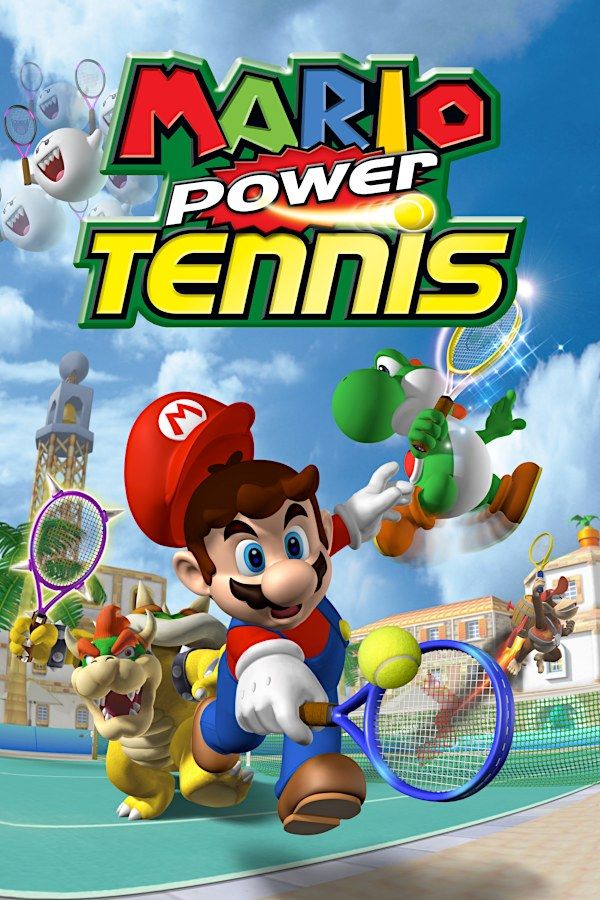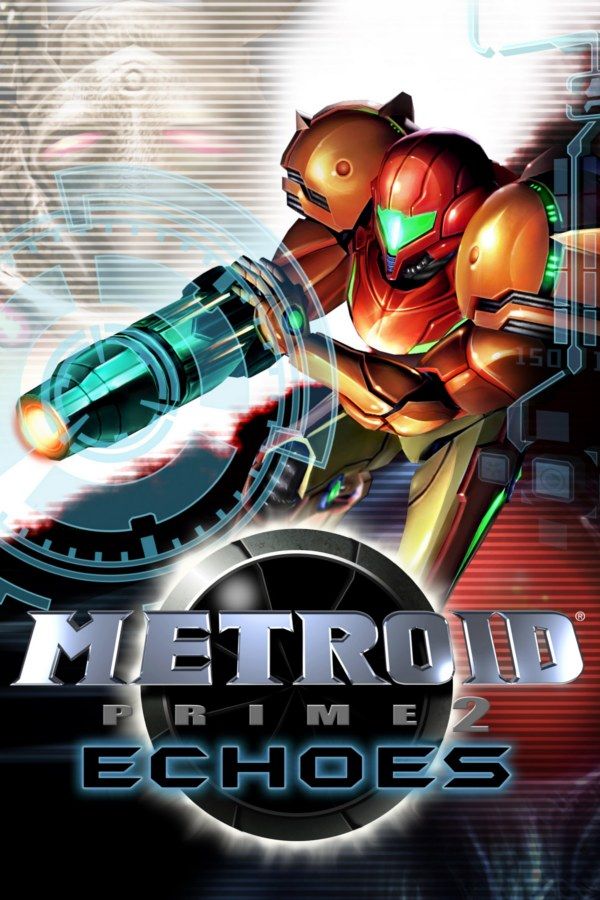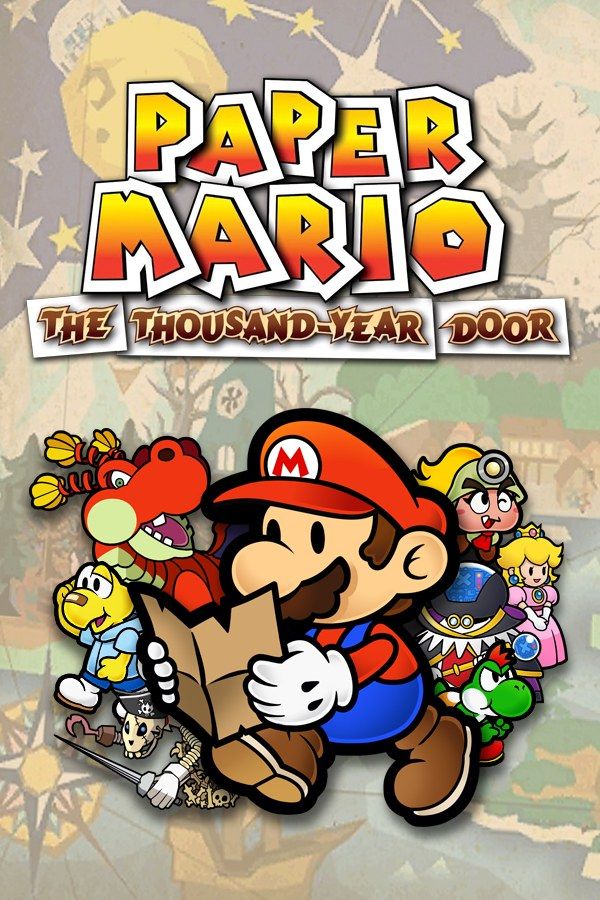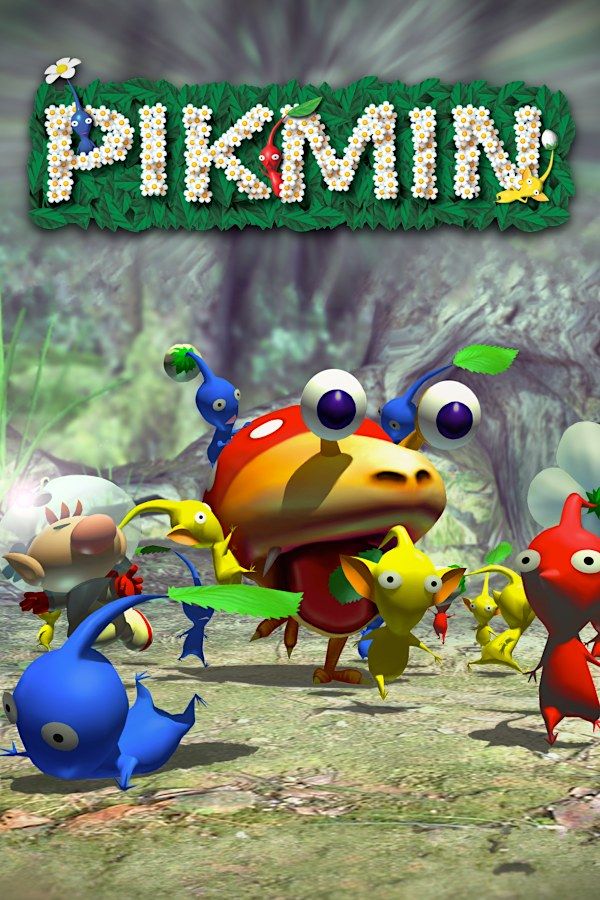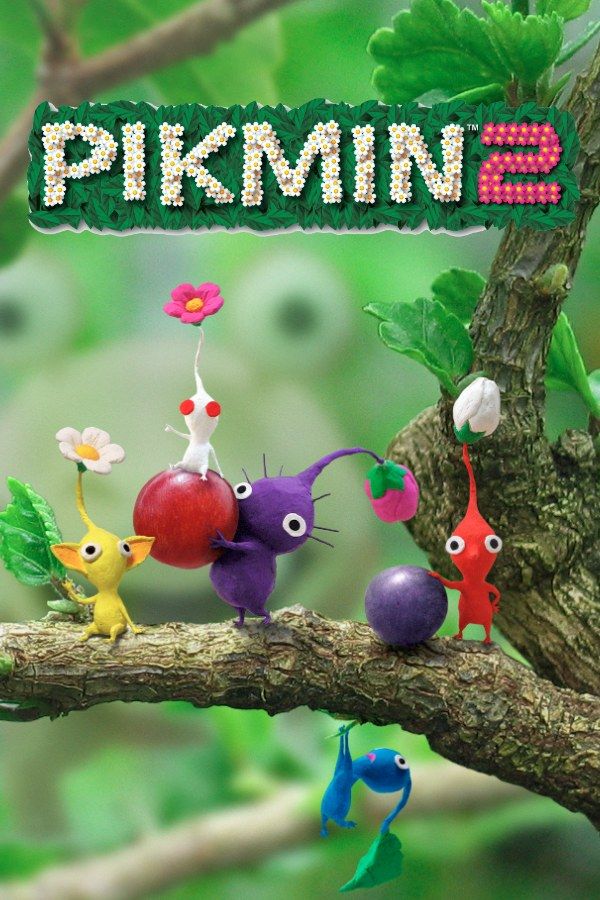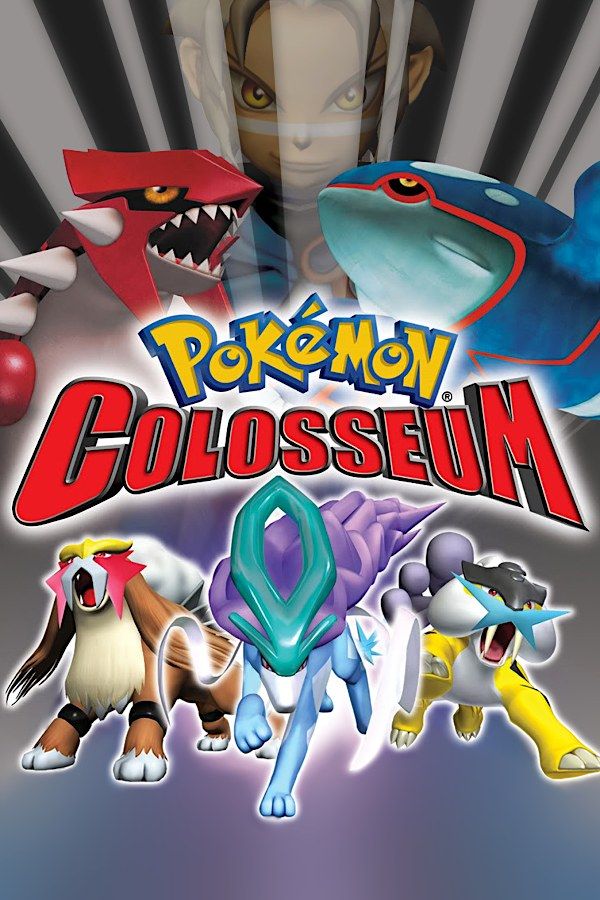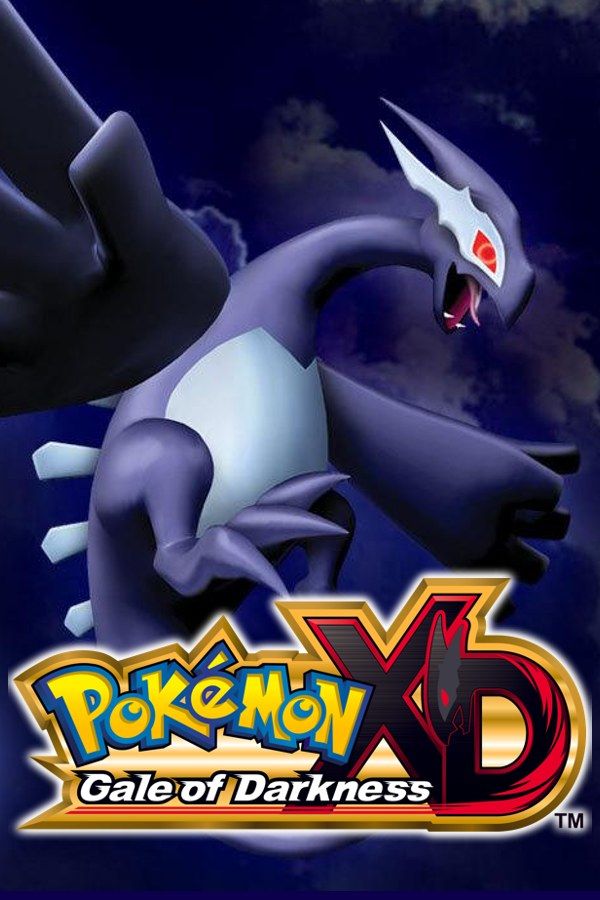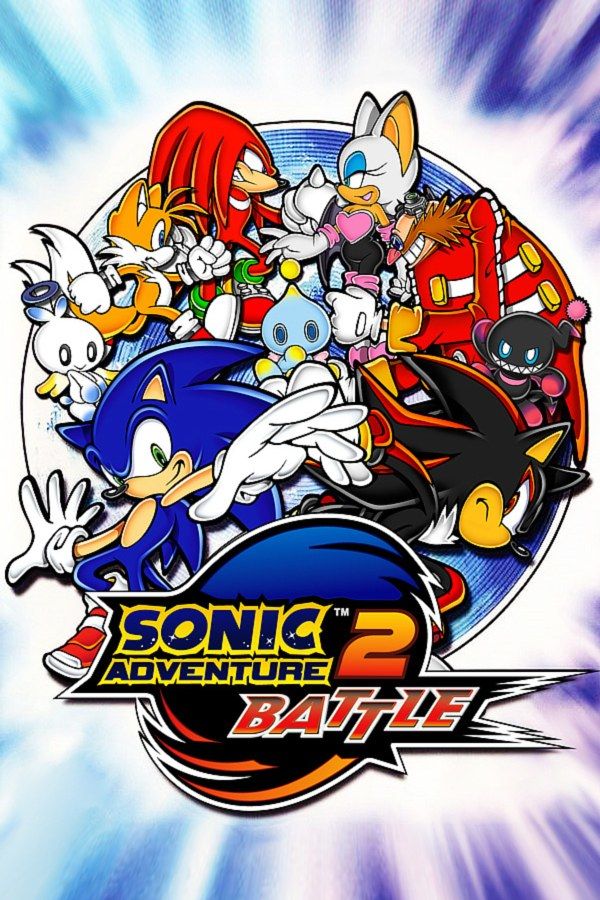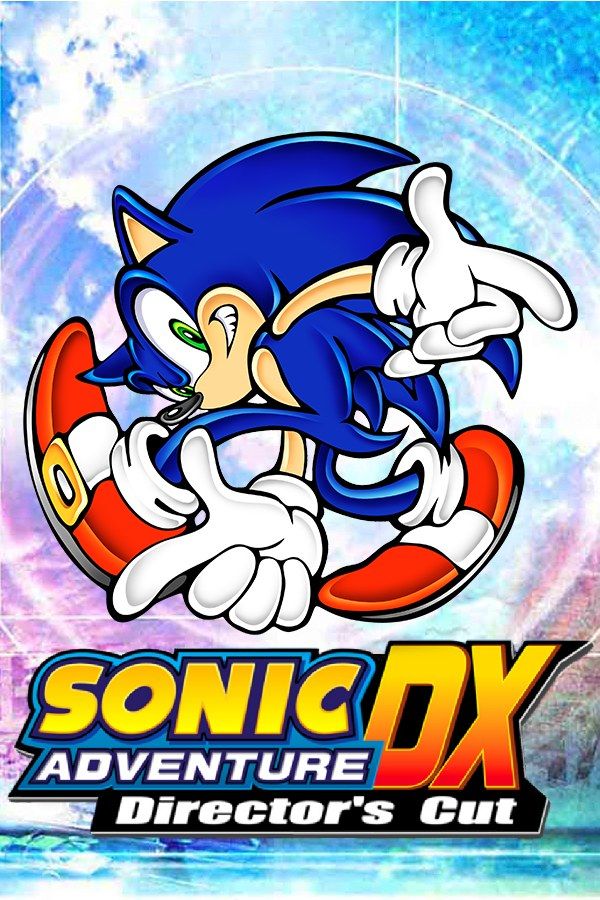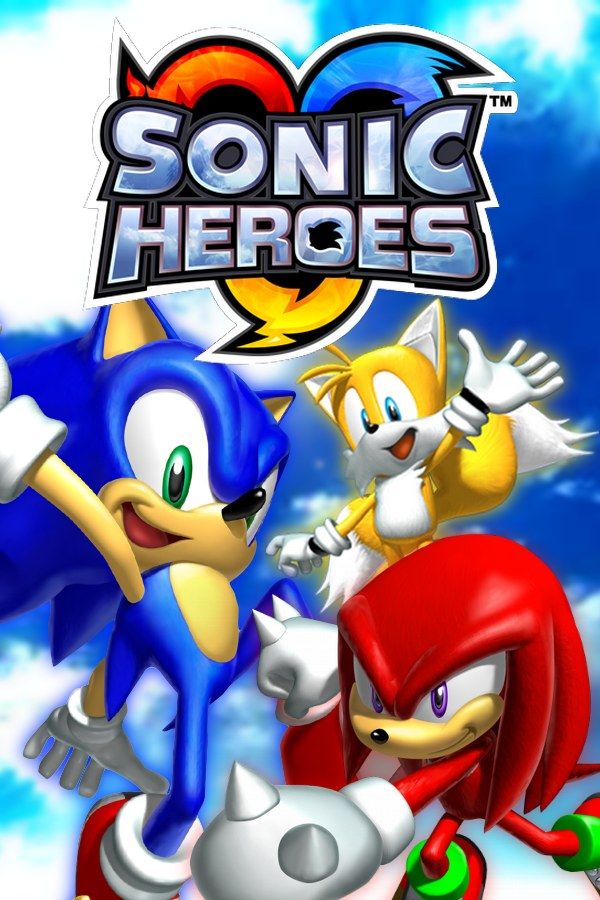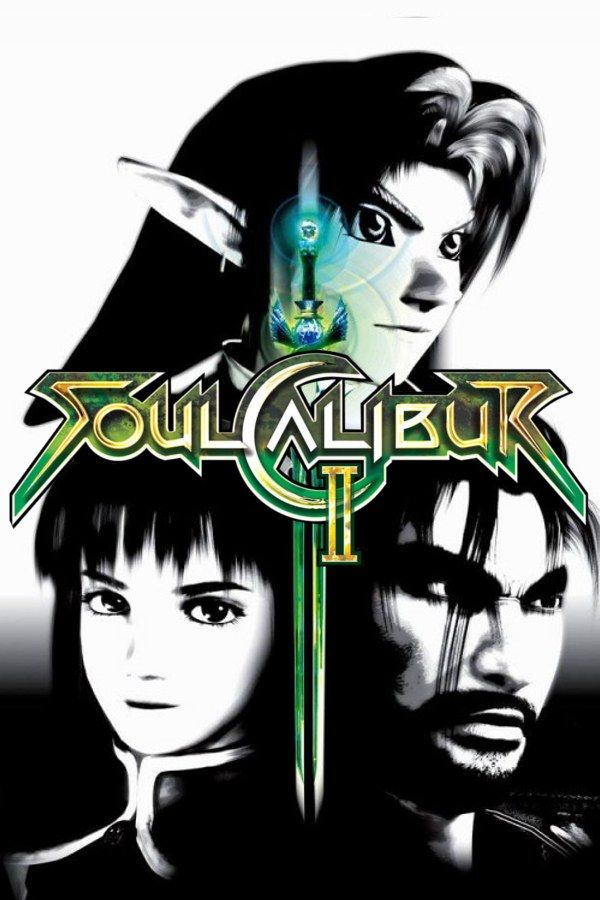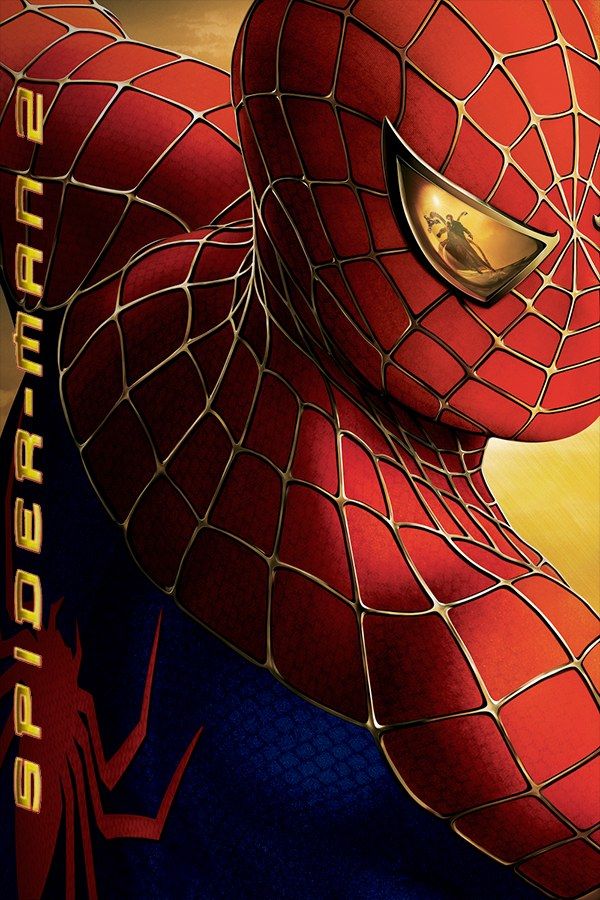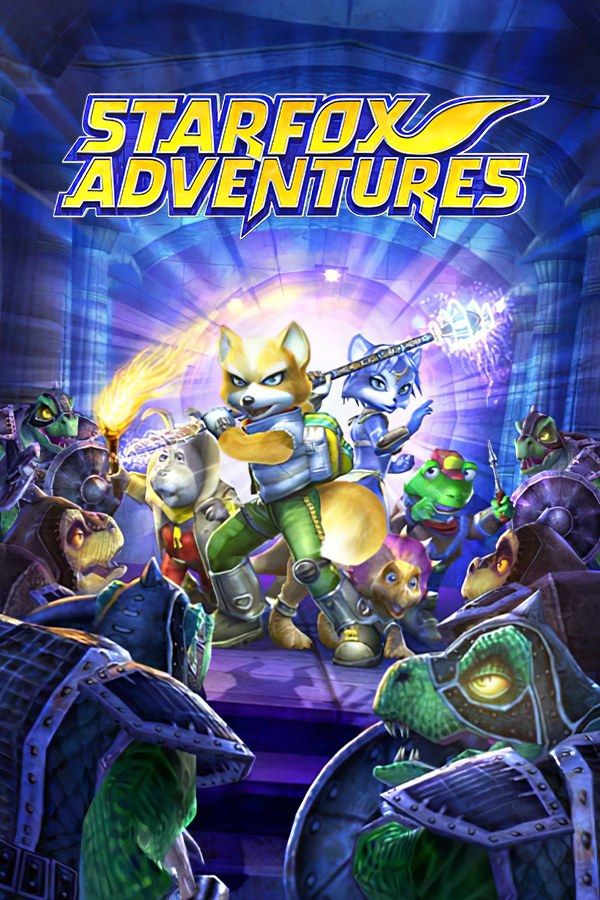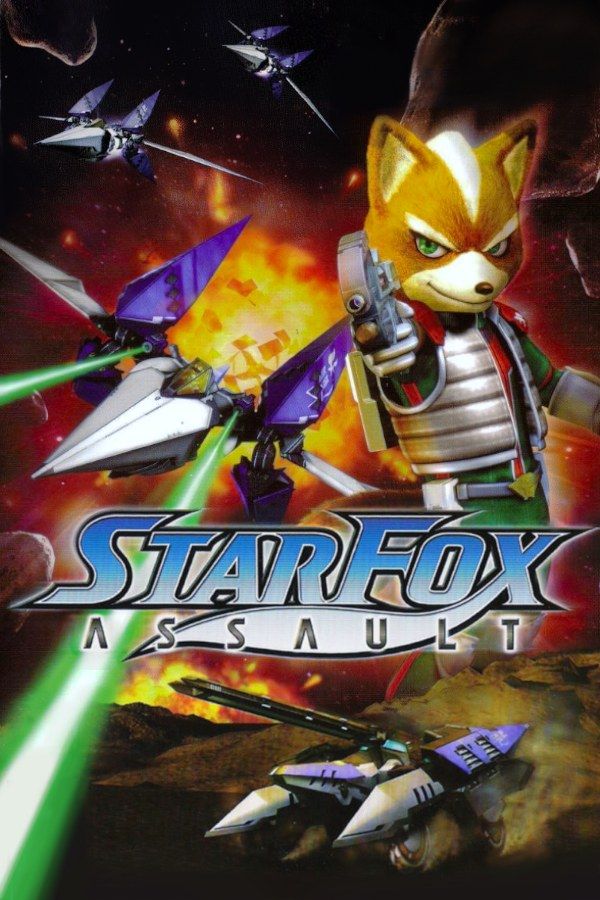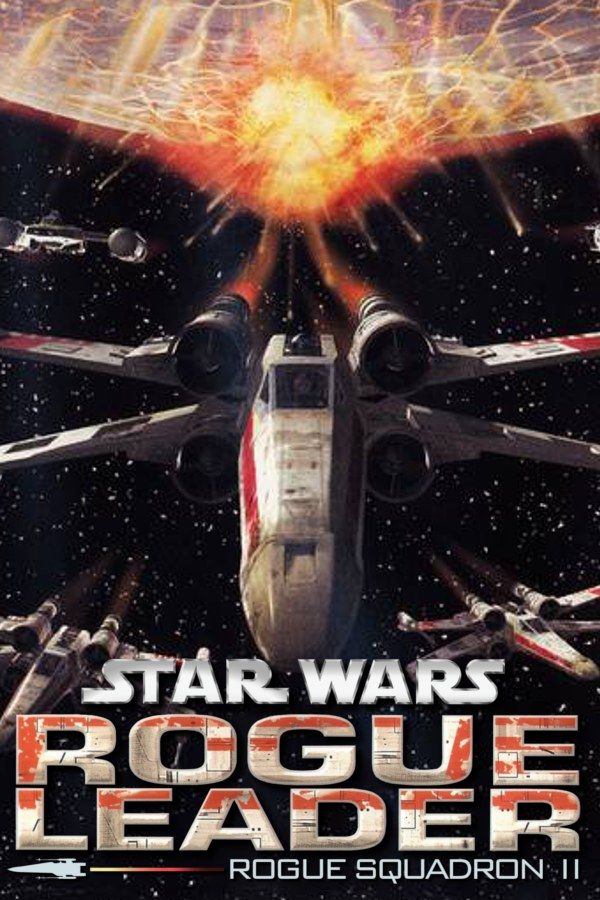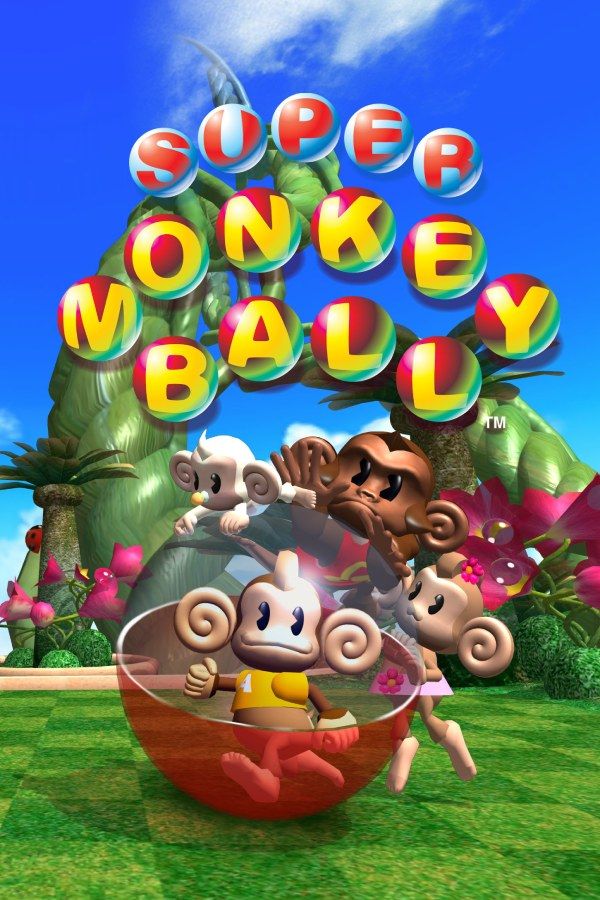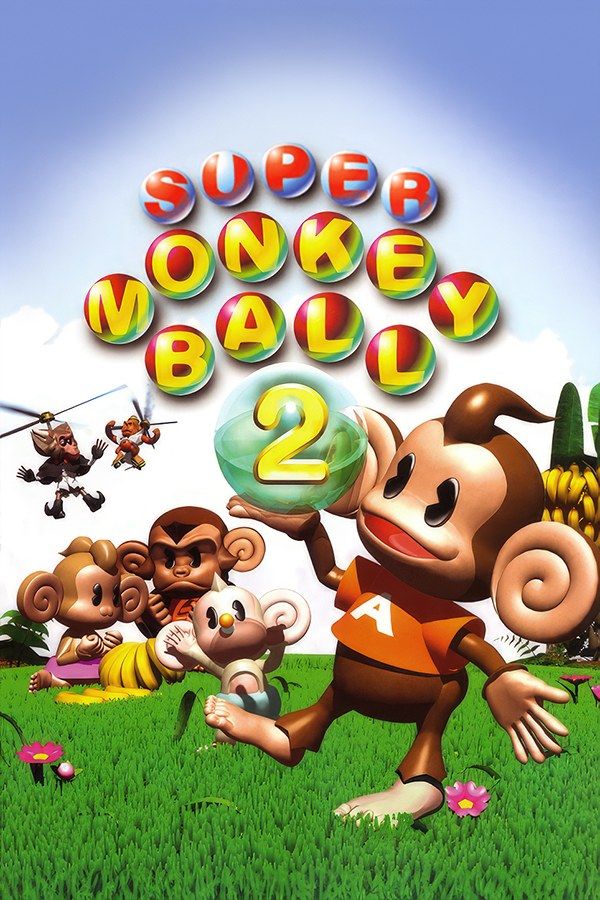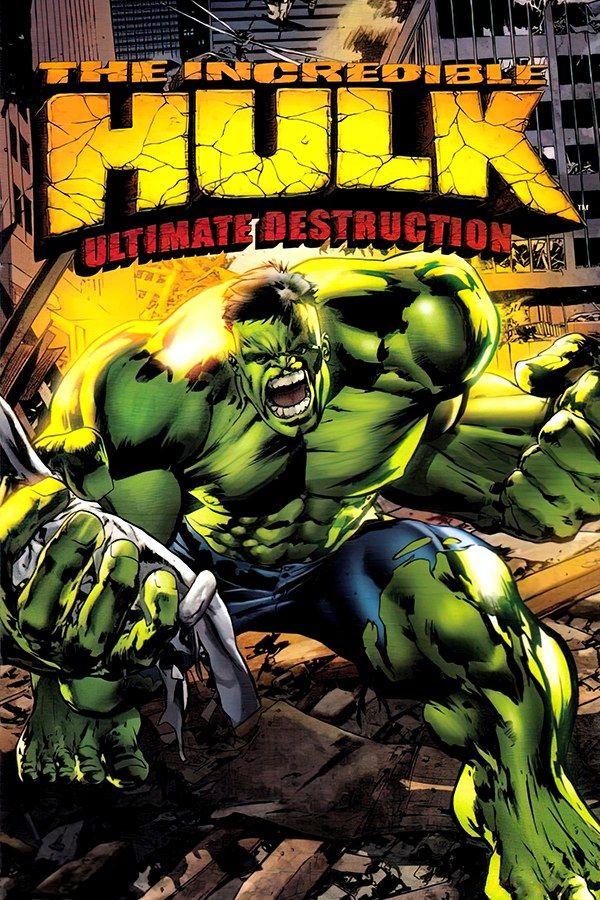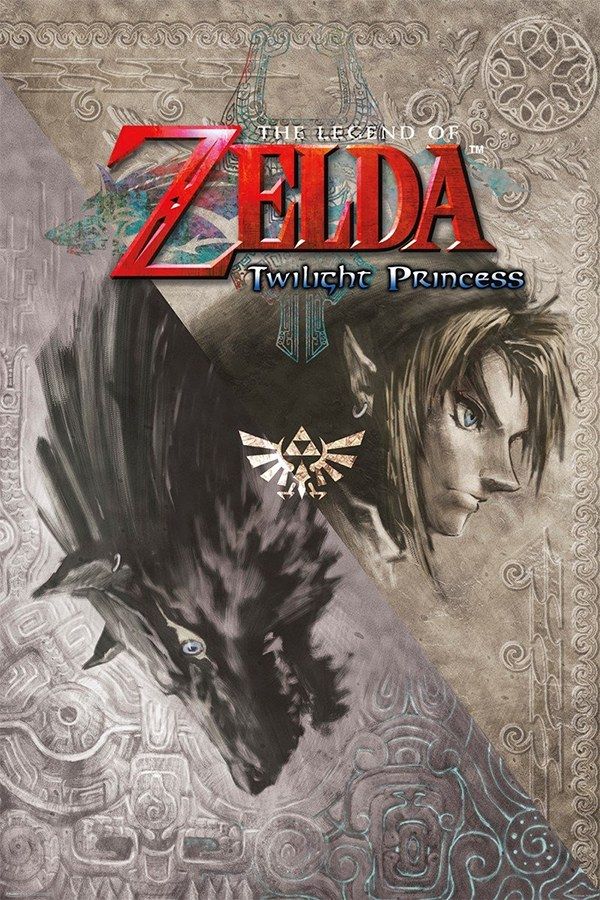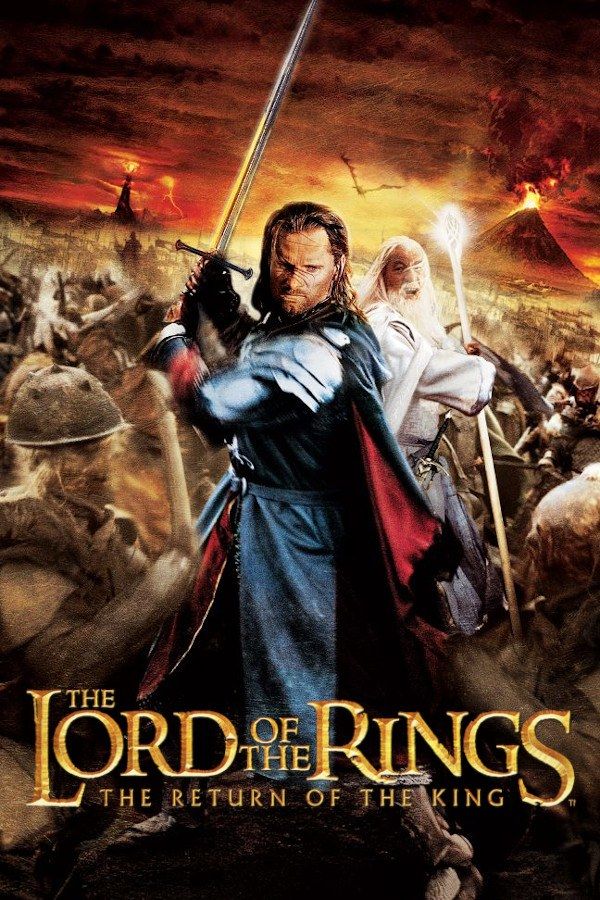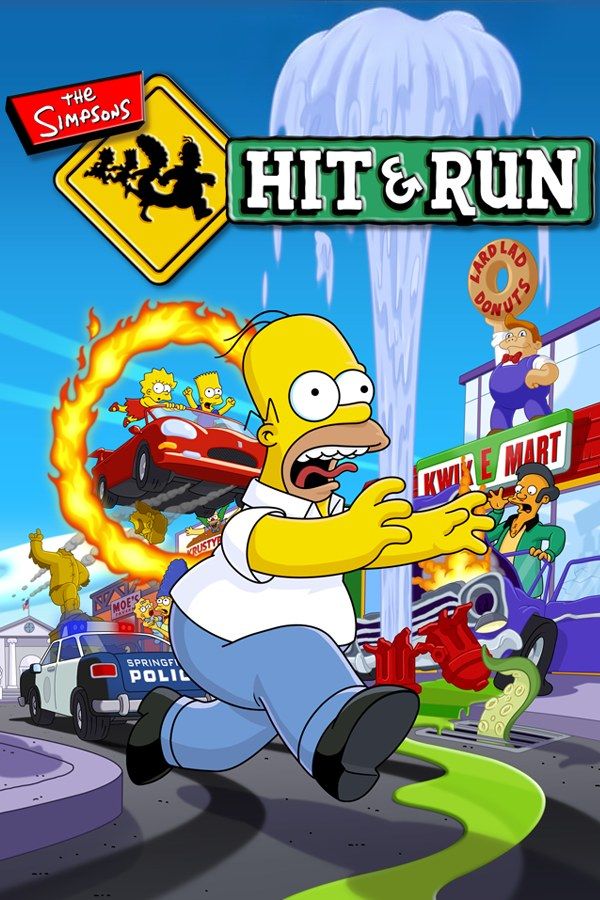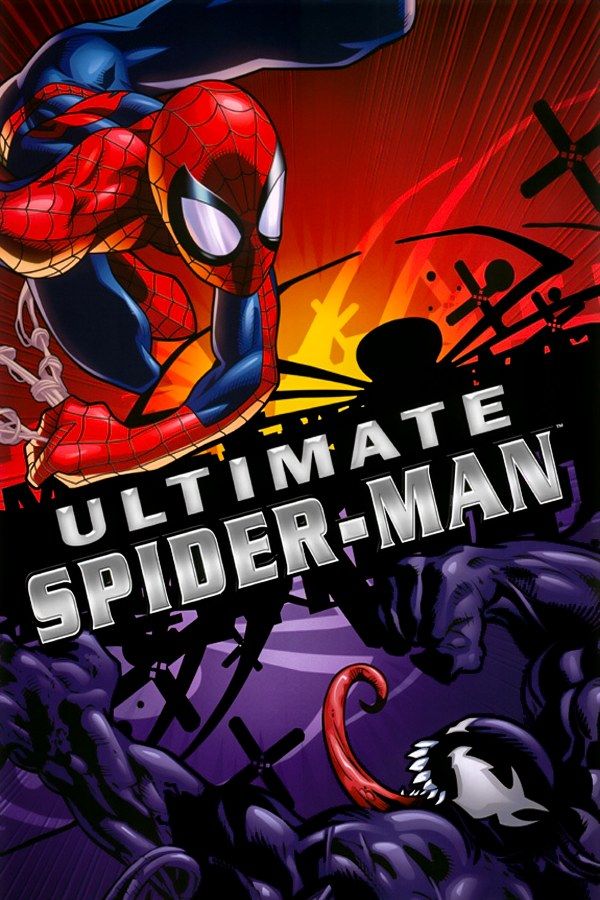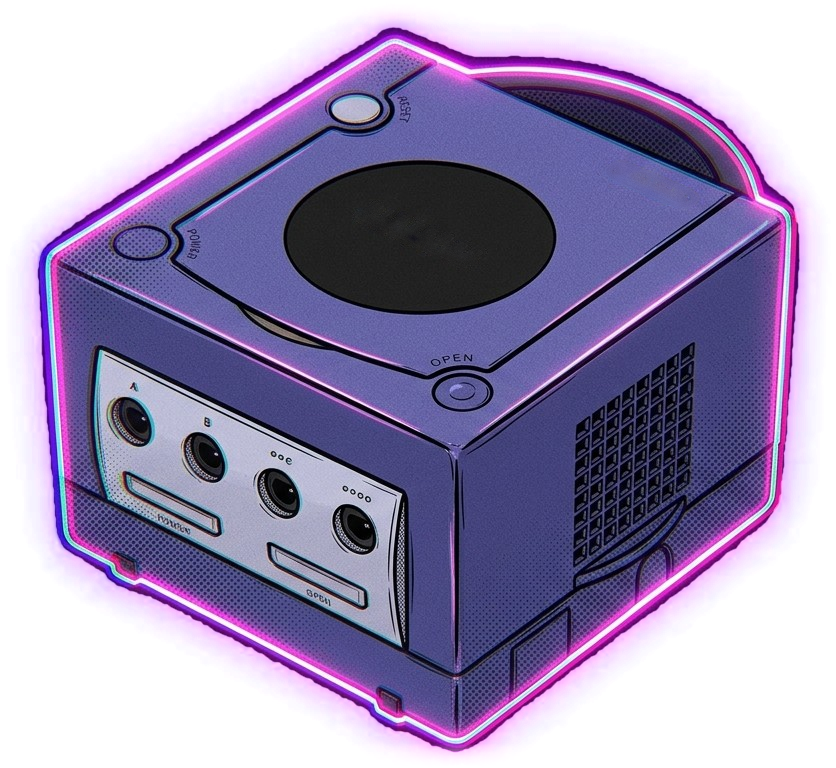
Nagori brings GameCube games to iPhone and iPad as an ordinary App Store app. You add disc images of the games you own, and they line up on a shelf of game cases with their box art. There is no BIOS to find: pick a game, choose how you want to control it, and press Play.
What you need
- An iPhone 12 or newer, or an iPad with an A14 chip or newer, running iOS 17.6 or later. GameCube games are the most demanding games Nagori plays, so newer devices run them best.
- Nagori from the App Store. Your first game is free.
- Your game as a disc image, in one of the formats below. Nagori doesn’t include games.
How to play GameCube games on iPhone
- Install Nagori from the App Store.
- Copy your disc image to the Files app, in iCloud Drive or On My iPhone.
- Open Nagori and tap +, or the empty Add Games case at the end of the GameCube shelf, and select the file.
- Choose how to play. Connect a controller, or pause the game, open Settings → Touch Layout and pick a layout with a stick, such as D-Pad + Stick or Twin Sticks. The Standard layout has no stick, and almost every GameCube game needs one.
- Press Play. Quit whenever you like: next time, Continue takes you back to where you left off.
Supported formats
| Format | What it is |
|---|---|
.rvz |
A compressed disc image. Takes the least space. |
.iso, .gcm |
A full, uncompressed copy of the disc. |
.ciso, .gcz |
Older compressed formats. |
.zip, .rar |
Archives with any of the above. Nagori unpacks them for you. |
Nagori reads the disc header, so a GameCube .iso is never mistaken for a PS1 one. Wii discs aren’t supported, and Nagori doesn’t switch discs for the few GameCube games that span two.
Quality and battery
Pause a game and open Settings → Quality to balance smoothness against heat:
- Medium (the default) balances smoothness and heat.
- High runs games at full speed and frame rate, for the newest iPhones and iPads.
- Low keeps the device coolest on long sessions.
GameCube games render at their original resolution. Fast Forward (2×) and Slow Motion (½×) work here too.
Controls
On a controller, the buttons sit where they did on the GameCube pad: A at the bottom, B on the left, X on the right and Y on top. The left stick is the control stick, the right stick is the C-stick, and Z is on the right shoulder. L and R register as full presses, without the GameCube’s analog half-press. Nagori works with Bluetooth controllers that iOS supports, including DualSense, DualShock 4 and Xbox controllers.
On screen, use a layout with a stick, then fine-tune it with Edit Layout: move, resize and hide every button, and set how see-through they are.
GameCube games are played by one player in Nagori, and they don’t rumble.
Saves
- Continue where you left off. Nagori saves automatically whenever you leave a game.
- Four save states per game, each with a screenshot, plus the autosave.
- Memory card saves made in the game itself are kept inside Nagori, as they were on the console.
iCloud saves and cheats aren’t available for GameCube games yet.
Price
Your first game is free, and it can be a GameCube game. A subscription lets you add as many games as you like. Everything else is free for everyone.