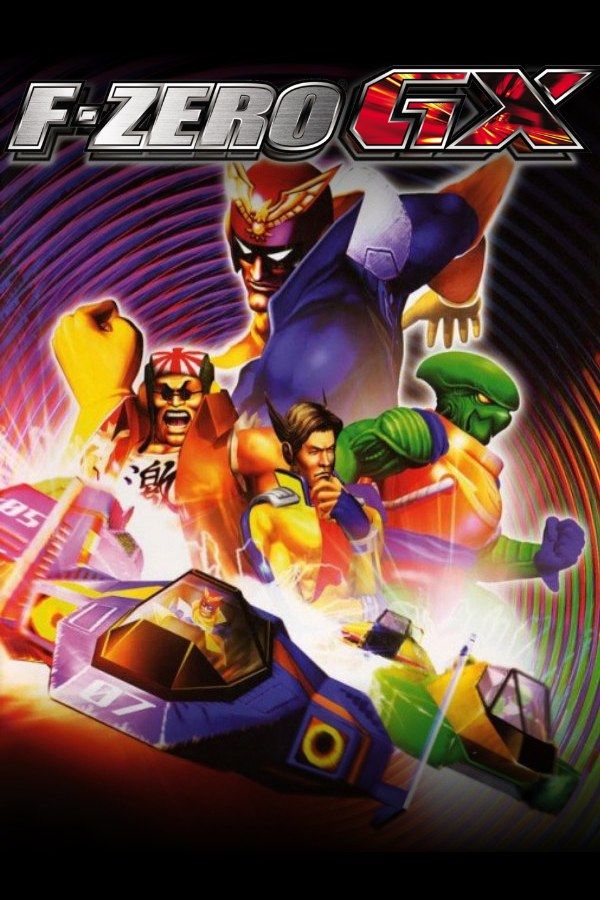
F-Zero GX is a 2003 anti-gravity racer, developed by Sega’s Amusement Vision and published by Nintendo. Thirty machines race at once on tracks that twist, loop and run through tubes, and your energy meter is both your shield and the fuel for your boost. If you own the game, Nagori lets you play it on iPhone and iPad.
What you need
- An iPhone 12 or newer, or an iPad with an A14 chip or newer, with iOS 17.6 or later.
- Nagori from the App Store. Your first game is free.
- A disc image of your copy of F-Zero GX:
.iso,.gcm,.rvz,.cisoor.gcz, or a.zipor.rarcontaining it. The game fits on a single disc.
No BIOS file is needed.
How to play F-Zero GX on iPhone
- Install Nagori from the App Store.
- Copy your F-Zero GX disc image to the Files app, in iCloud Drive or On My iPhone.
- Open Nagori, tap + and select the file. Add GameCube games from inside Nagori: the Files app’s Open in menu doesn’t hand formats like
.rvzand.gcmto Nagori. - Find F-Zero GX on the GameCube shelf and press Play.
- Switch to a touch layout with a stick. The default Standard layout has no stick, and you steer with one. Pause, open Settings → Touch Layout and choose Stick Focus for the largest stick. With a controller connected, you can skip this step.
Controls
Steer with the control stick and use L and R to lean into corners. From the second lap you can boost, but every boost spends energy, the same meter that keeps you in the race when you hit walls and rivals. Drive through the pit area to fill it back up.
On touch, your left thumb stays on the stick, so it can’t reach L. Open Edit Layout in the pause menu and move L and R over to the right side, near the face buttons, where your right thumb can press them. Make the stick larger while you’re there.
A controller makes the biggest difference in this game, because a real stick steers more finely than a thumb on glass. Bluetooth controllers that iOS supports work, including DualSense, DualShock 4 and Xbox controllers. L and R are the triggers, and in Nagori they always register as full presses. Press the left stick to open Nagori’s pause menu.
Saves: memory card and save states
F-Zero GX keeps your unlocks, tickets, custom machines and Time Attack ghosts on the memory card. That card works in Nagori as it did on the console. It stays inside the app, though: it isn’t in the Files app, isn’t part of Export Saves and doesn’t sync to iCloud.
Nagori adds two things on top:
- Quit any time. Leave the app mid-race and Continue puts you back exactly where you were.
- Save states. Nagori keeps your last four saves per game. Treat the memory card as your main save, though: a save state may not load after some Nagori updates.
Story Mode, Master and save states
GX is known for being hard. Story Mode follows Captain Falcon through a series of chapters, each with its own goal and three difficulties: Normal, Hard and Very Hard. Grand Prix cups are five races each, on difficulties from Novice up to Master, and one crash late in a cup can cost you the win. Pause and choose Save on the starting line of each race, then Load if it goes wrong instead of starting the cup over.
Best settings
At GX’s speeds, smooth motion matters more than in most games. Open the pause menu and go to Settings → Quality:
- Low keeps the device coolest, at a lower frame rate.
- Medium is the default.
- High gives the smoothest motion and is meant for the newest iPhones and iPads.
On a recent device, start on High. If the iPhone or iPad gets warm, step down to Medium, and to Low if it still runs hot. Nagori shows GameCube games at their original resolution, and Full Screen stretches the picture to fill the display.
One player only
Versus lets up to four players race on a split screen. Nagori plays GameCube games with one player, so Versus isn’t available. Grand Prix, Story Mode, Time Attack, Practice and building your own machines are all single-player, and the controller doesn’t rumble in GameCube games.







