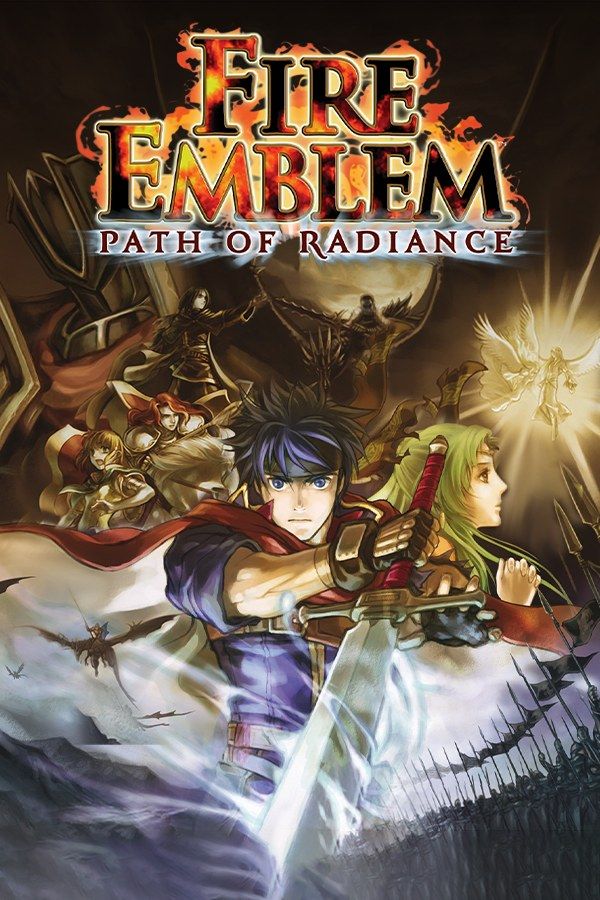
Path of Radiance is Intelligent Systems’ 2005 Fire Emblem for the GameCube, and the first in the series with 3D graphics. Ike fights in the Greil Mercenaries, the company his father leads. When the kingdom of Daein invades Crimea, he ends up protecting Crimea’s princess, Elincia. Fire Emblem’s permadeath applies: most units who fall in battle are gone for good, and if Ike falls, the game is over. If you own the game, Nagori lets you play it on iPhone and iPad.
What you need
- An iPhone 12 or newer, or an iPad with an A14 chip or newer, with iOS 17.6 or later.
- Nagori from the App Store. Your first game is free.
- A disc image of your copy of Path of Radiance:
.iso,.gcm,.rvz,.cisoor.gcz, or a.zipor.rarcontaining it. The game fits on a single disc.
No BIOS file is needed.
How to play Fire Emblem: Path of Radiance on iPhone
- Install Nagori from the App Store.
- Copy your Path of Radiance disc image to the Files app, in iCloud Drive or On My iPhone.
- Open Nagori, tap + and select the file. Add GameCube games from inside Nagori: the Files app’s Open in menu doesn’t hand formats like
.rvzand.gcmto Nagori. - Find Path of Radiance on the GameCube shelf and press Play.
- Switch to a touch layout with a stick. The default Standard layout has none. Pause, open Settings → Touch Layout and choose D-Pad + Stick. With a controller connected, you can skip this step.
Controls
Nothing in Path of Radiance runs on a timer, so touch controls are comfortable for whole chapters. Move the cursor across the map with the control stick, select or confirm with A, and cancel with B. A chapter means hundreds of presses on those two: open Edit Layout in the pause menu, make them bigger and drag them under your right thumb.
Enemy phases on big maps take a while. Turning battle animations off in the game’s own options shortens them.
With a controller, A is the bottom face button, B the left one, X the right one and Y the top one. Z is on the right shoulder button, and L and R are the triggers. Press the left stick to open Nagori’s pause menu.
Saves: memory card and save states
Path of Radiance saves to the memory card between chapters. That card works in Nagori as it did on the console. It stays inside the app, though: it isn’t in the Files app, isn’t part of Export Saves and doesn’t sync to iCloud.
Nagori adds two things on top:
- Quit mid-chapter. Leave the app on any turn and Continue brings you back to the same turn.
- Save states. Pause and choose Save at any point, then Load to return. Nagori keeps your last four per game.
Permadeath and save states
On the GameCube, losing a unit you’d trained for ten chapters left two choices: accept it, or reset and replay the chapter from the start. Save states give you a third.
- Save at the start of every player phase. Pause, choose Save, then make your moves.
- Load when someone falls. Pick the save from the start of that turn, or an older one if the mistake came earlier.
- Change something on the retry. Loading puts the game back exactly as it was, so the same moves in the same order can end the same way. Move a different unit first, or attack from another tile.
- Don’t count on Continue. It resumes the moment you left the app, which is after the loss.
Use save states inside a chapter, and keep saving to the memory card between chapters: a save state may not load after some Nagori updates.
Best settings
Open the pause menu and go to Settings → Quality. GameCube games work an iPhone hard, and this setting trades frame rate for heat:
- Low keeps the device coolest, at a lower frame rate.
- Medium, the default, is the place to start.
- High gives the smoothest motion and is meant for the newest iPhones and iPads.
A turn-based game doesn’t need the smoothest motion, so Medium or Low suits Path of Radiance on most devices. Nagori shows GameCube games at their original resolution, and Full Screen stretches the picture to fill the display.







