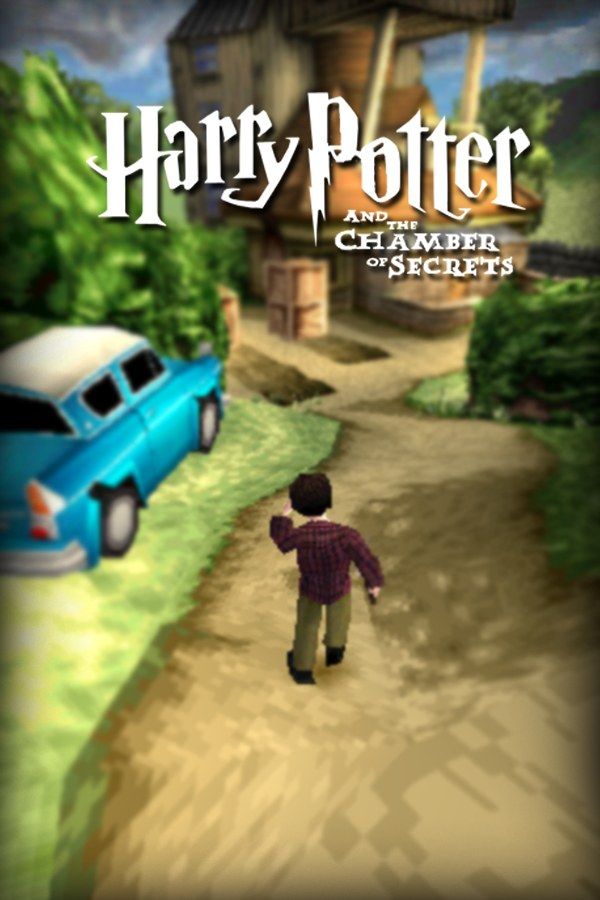
Eurocom’s 2002 GameCube game follows Harry through his second year at Hogwarts, the year students start turning to stone. You explore the castle and its grounds, attend classes to learn new spells, use them on enemies, puzzles and bosses, and take to the air on a broom, including Quidditch matches as Gryffindor’s Seeker. If you own the GameCube version, Nagori lets you play it on iPhone and iPad.
What you need
- An iPhone 12 or newer, or an iPad with an A14 chip or newer, with iOS 17.6 or later.
- Nagori from the App Store. Your first game is free.
- A disc image of your copy of the GameCube version:
.iso,.gcm,.rvz,.cisoor.gcz, or a.zipor.rarcontaining it. The game fits on a single disc.
No BIOS file is needed.
How to play Harry Potter and the Chamber of Secrets on iPhone
- Install Nagori from the App Store.
- Copy your Chamber of Secrets disc image to the Files app, in iCloud Drive or On My iPhone.
- Open Nagori, tap + and select the file. Add GameCube games from inside Nagori: the Files app’s Open in menu doesn’t hand formats like
.rvzand.gcmto Nagori. - Find Chamber of Secrets on the GameCube shelf and press Play.
- Switch to a touch layout with a stick. The default Standard layout has no stick, and Harry walks and flies with one. Pause, open Settings → Touch Layout and choose D-Pad + Stick or Stick Focus. With a controller connected, you can skip this step.
Controls
Everything Harry does starts with the control stick: walking the corridors, sneaking past enemies and steering the broom. Twin Sticks and DualShock add a second stick on the right, which Nagori uses as the GameCube’s C-stick.
Broom flights mean holding the stick for minutes at a time, and a thumb on glass tends to drift off it. Open Edit Layout in the pause menu and pinch the stick bigger, then move the face buttons closer to where your right thumb rests.
Bluetooth controllers that iOS supports work, including DualSense, DualShock 4 and Xbox controllers, and the touch controls hide when one connects. A is the bottom face button, B the left one, X the right one and Y the top one; Z is on the right shoulder button, and L and R are the triggers. Press the left stick to open Nagori’s pause menu.
Broom flights and Quidditch
The broom is a big part of this version: you can take off and fly freely over the Hogwarts grounds. Quidditch puts you in Harry’s role as Seeker, chasing the Golden Snitch.
Steering matters most here, so play these parts with a controller if you have one; on touch, Stick Focus gives you the largest stick. Before a match, pause and choose Save. If it goes badly, Load and fly it again. Nagori keeps your last four saves per game.
Saves: memory card and save states
On the GameCube, Chamber of Secrets saves your progress to the memory card. That card works in Nagori as it did on the console. It stays inside the app, though: it isn’t in the Files app, isn’t part of Export Saves and doesn’t sync to iCloud.
Nagori adds two things on top:
- Quit any time. Leave the app halfway through a corridor and Continue puts you back exactly where you were.
- Save states. Pause and choose Save before a boss, a duel or a timed challenge, then Load to try again.
Keep saving in the game too: a save state may not load after some Nagori updates, while the memory card save stays.
Best settings
Open the pause menu and go to Settings → Quality:
- Low keeps the device coolest, at a lower frame rate.
- Medium, the default, is the place to start for exploring the castle.
- High gives the smoothest motion and is meant for the newest iPhones and iPads.
If your iPhone gets hot during a long session, step down to Low. Nagori shows GameCube games at their original resolution, and Full Screen stretches the picture to fill the display.







