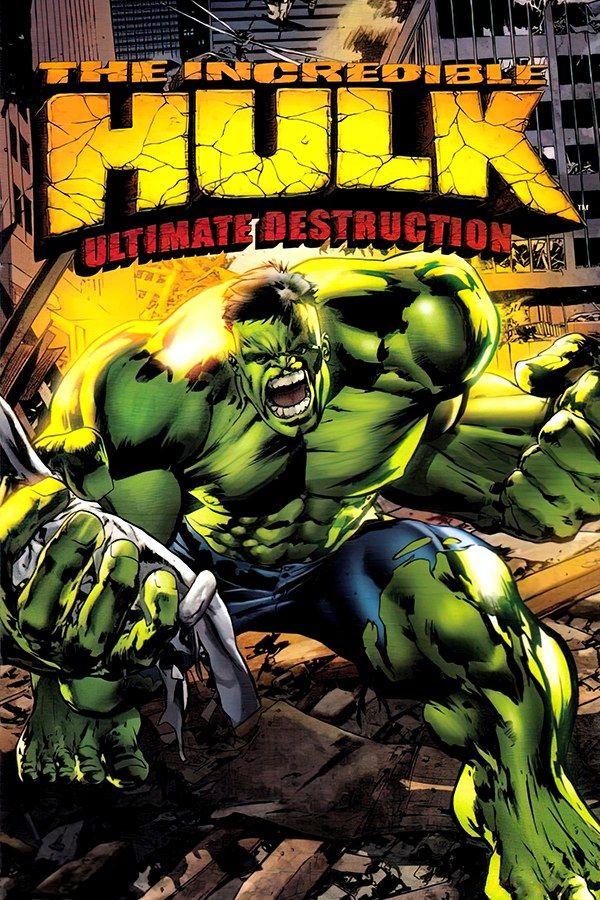
Radical Entertainment, the studio behind The Simpsons: Hit & Run, made this 2005 open-world Hulk game. Bruce Banner is searching for a cure, and while he does, the Hulk has a city and the desert Badlands around it to roam: he runs up the sides of buildings, leaps across whole blocks and turns cars into weapons. If you own the GameCube version, Nagori lets you play it on iPhone and iPad.
What you need
- An iPhone 12 or newer, or an iPad with an A14 chip or newer, with iOS 17.6 or later.
- Nagori from the App Store. Your first game is free.
- A disc image of your copy of the GameCube version:
.iso,.gcm,.rvz,.cisoor.gcz, or a.zipor.rarcontaining it. The game fits on a single disc.
No BIOS file is needed.
How to play Hulk: Ultimate Destruction on iPhone
- Install Nagori from the App Store.
- Copy your disc image to the Files app, in iCloud Drive or On My iPhone.
- Open Nagori, tap + and select the file. GameCube games have to be added from inside Nagori: the Files app’s Open in menu doesn’t hand formats like
.rvzand.gcmto it. - Find Ultimate Destruction on the GameCube shelf and press Play.
- Pick a layout with a camera stick. Pause, open Settings → Touch Layout and choose Twin Sticks or DualShock. The default Standard layout has no stick at all, and this game needs two. With a controller connected, you can skip this step.
Controls
The Hulk moves with the control stick, and the camera turns with the C-stick, which is the right stick in Nagori. In a city full of tall buildings, tanks and helicopters, you’ll turn the camera constantly, so give both thumbs a stick.
Fights throw a lot at you at once. If you miss buttons in the middle of one, open Edit Layout in the pause menu, make the face buttons larger and space them out, then pinch the sticks to a size your thumbs can find without looking. L and R register as full presses in Nagori.
A controller suits the game best. Bluetooth controllers that iOS supports, including DualSense, DualShock 4 and Xbox controllers, work with Nagori. On a controller, A is the bottom face button, B the left one, X the right one and Y the top one; Z is the right shoulder button, and L and R are the triggers. Pressing the left stick opens Nagori’s pause menu.
Boss fights: save before you go in
The story builds to fights with enemies the Hulk’s size, Abomination among them, and these fights can turn against you quickly. Before a boss or a story mission that keeps beating you, pause and choose Save. If the fight goes badly, Load puts you back at that moment, instead of making you replay the run-up. Nagori keeps your last four saves per game, so you can keep one from before the mission and one from partway through.
Saves
Ultimate Destruction writes your progress to the memory card. That card works in Nagori as on the console, but it stays inside the app: it isn’t in the Files app, isn’t part of Export Saves and doesn’t sync to iCloud. Leave the app at any point and Continue returns you to the exact second you left. Treat the memory card as your main save, since a save state may not load after some Nagori updates.
Best settings
Destruction is the whole point of this game, with cars, debris and explosions on screen at once. Go to Settings → Quality in the pause menu:
- Medium, the default, is the place to start.
- Low keeps the device coolest, at a lower frame rate. Switch to it if your iPhone gets warm during long sessions.
- High gives the smoothest motion and is meant for the newest iPhones and iPads.
Nagori shows GameCube games at their original resolution, and Full Screen stretches the picture to fill the display.







