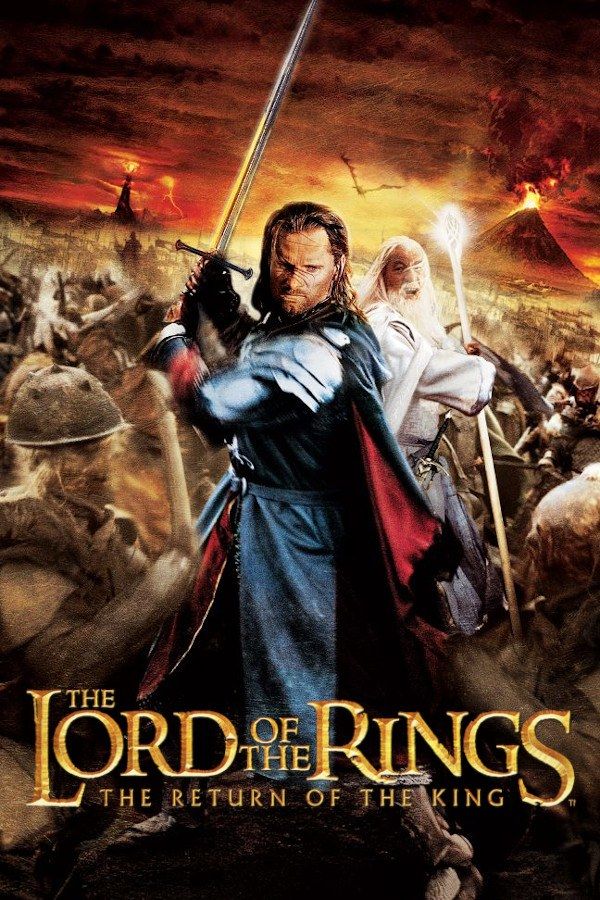
EA Redwood Shores’ 2003 game follows the last film of Peter Jackson’s trilogy and cuts from footage of the movie straight into the fighting. The story splits into three paths: the Path of the Wizard with Gandalf, the Path of the King with Aragorn, Legolas and Gimli, and the Path of the Hobbits toward Mount Doom. If you own the GameCube version, Nagori lets you play it on iPhone and iPad.
What you need
- An iPhone 12 or newer, or an iPad with an A14 chip or newer, with iOS 17.6 or later.
- Nagori from the App Store. Your first game is free.
- A disc image of your copy of the GameCube version:
.iso,.gcm,.rvz,.cisoor.gcz, or a.zipor.rarcontaining it. The game fits on a single disc.
No BIOS file is needed.
How to play The Lord of the Rings: The Return of the King on iPhone
- Install Nagori from the App Store.
- Copy your disc image to the Files app, in iCloud Drive or On My iPhone.
- Open Nagori, tap + and select the file. Add GameCube games from inside Nagori: the Files app’s Open in menu doesn’t hand formats like
.rvzand.gcmto Nagori. - Find The Return of the King on the GameCube shelf and press Play.
- Switch to a touch layout with a stick. The default Standard layout has no stick, and you move your hero with one. Pause, open Settings → Touch Layout and choose D-Pad + Stick or Stick Focus. With a controller connected, you can skip this step.
Controls
You move with the stick and fight with the face buttons: quick attacks, heavier fierce attacks, a physical attack that knocks enemies back, a parry and a ranged attack. The combos you buy between levels chain those attacks together.
On touch, pause and open Edit Layout. Make the face buttons larger and pull them closer together, so you can roll from a quick attack into a fierce one without looking down.
A controller makes the big fights easier. Bluetooth controllers that iOS supports, including DualSense, DualShock 4 and Xbox controllers, work with Nagori. A is the bottom face button, B the left one, X the right one and Y the top one. Z is on the right shoulder button, and L and R are the triggers. Press the left stick to open the pause menu. GameCube games don’t vibrate in Nagori.
Earning experience
Every enemy you defeat earns experience, and fighting well earns more: the game rates your combat as you go, from Fair up to Perfect. Between levels you spend experience on new combos and upgrades. If a level feels too hard, replay one you’ve already finished to earn more experience.
Saves
On the GameCube, The Return of the King saves your progress to the memory card between levels. The in-game memory card works in Nagori as it did on the console. It stays inside the app, though: it isn’t in the Files app, isn’t part of Export Saves and doesn’t sync to iCloud.
Nagori adds two things on top:
- Quit any time. Leave mid-battle and Continue puts you back where you were.
- Save states. Pause and choose Save partway through a long level or before a boss. If the fight goes wrong, Load and try again. Nagori keeps your last four saves per game.
Finish levels so the game writes its own save. A save state may not load after some Nagori updates, so the memory card is your main save.
One player, no co-op
On the console, a second player could join in for co-op. Nagori plays GameCube games with one player, so co-op isn’t available, but the whole story plays solo.
Best settings
Open the pause menu and go to Settings → Quality:
- Medium, the default, is where to start.
- Low keeps the device coolest, at a lower frame rate. Use it if big battles warm up your iPhone.
- High gives the smoothest motion and is meant for the newest iPhones and iPads.
Nagori shows GameCube games at their original resolution, and Full Screen stretches the picture to fill the display.







