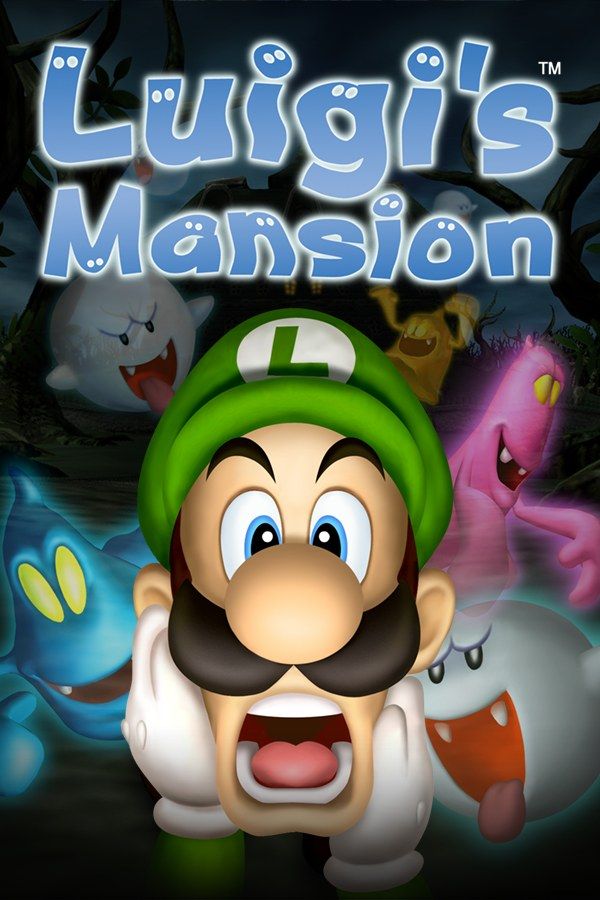
Luigi’s Mansion was one of the GameCube’s launch games in 2001. Luigi wins a mansion in a contest he never entered, Mario goes in first and disappears, and Luigi follows with a flashlight and the Poltergust 3000, a ghost-catching vacuum built by Professor E. Gadd. If you own the game, Nagori lets you play it on iPhone and iPad.
What you need
- An iPhone 12 or newer, or an iPad with an A14 chip or newer, with iOS 17.6 or later.
- Nagori from the App Store. Your first game is free.
- A disc image of your copy of Luigi’s Mansion:
.iso,.gcm,.rvz,.cisoor.gcz, or a.zipor.rarcontaining it. The game is on one disc.
No BIOS file is needed.
How to play Luigi’s Mansion on iPhone
- Install Nagori from the App Store.
- Copy your Luigi’s Mansion disc image to the Files app, in iCloud Drive or On My iPhone.
- Open Nagori, tap + and select the file. The Files app’s Open in menu doesn’t pass
.rvzand.gcmfiles to Nagori, so add the game from inside the app. - Find Luigi’s Mansion on the GameCube shelf and press Play.
- Switch to a layout with two sticks. The default Standard layout has no stick, and this game needs two: one to walk and one to aim. Pause, open Settings → Touch Layout and pick Twin Sticks or DualShock. With a controller connected, you can skip this step.
Aiming the Poltergust
Luigi walks with the control stick and points the flashlight and the vacuum with the C-stick, which Nagori puts on the right stick. Catching a ghost takes three steps: shine the light on it to stun it and show its heart, hold R to start vacuuming, then pull the control stick away from the ghost while it drags Luigi around the room. L blows air out instead of pulling it in.
On the GameCube, that took two thumbs and a finger; on touch, you have two thumbs. Aim with the right stick, and once the vacuum has hold of the ghost, slide your right thumb to R and hold it while your left thumb pulls. The nozzle stays on the ghost, so you don’t need to keep aiming. To keep that slide short, open Edit Layout in the pause menu, drag R right next to the right stick and make it bigger.
A controller removes the problem: thumbs on both sticks, a finger on R. Bluetooth controllers that iOS supports work, including DualSense, DualShock 4 and Xbox controllers. A is the bottom face button, B the left one, X the right one and Y the top one; Z is on the right shoulder, and L and R are the triggers, which register as full presses. Press the left stick to open Nagori’s pause menu.
Saves: memory card and save states
Luigi’s Mansion saves to the memory card only at set points in the adventure, not wherever you like. The memory card works in Nagori as on the console, but stays inside the app: it isn’t in the Files app, isn’t part of Export Saves and doesn’t sync to iCloud.
Nagori fills the gaps:
- Quit any time. Close the app in the middle of a room and Continue puts you back in it, ghosts and all.
- Save states. Pause and choose Save before a tough Portrait Ghost or a boss like Chauncey, the giant baby at the end of the first area, and Load if it goes badly. Nagori keeps your last four per game.
Don’t skip the game’s own saves: a save state may not load after some Nagori updates.
Money and the ending
The coins, bills, gold bars and gems Luigi vacuums up decide how big a house he gets at the end. Much of it is hidden, so vacuum curtains and tablecloths and search the furniture as you go.
Best settings
In the pause menu, go to Settings → Quality. Start on Medium, the default; High gives smoother motion on the newest iPhones and iPads, and Low keeps the device coolest. Much of the mansion is dark, so turn your screen brightness up. GameCube games show at their original resolution, Full Screen stretches the picture, and the controller doesn’t rumble.







