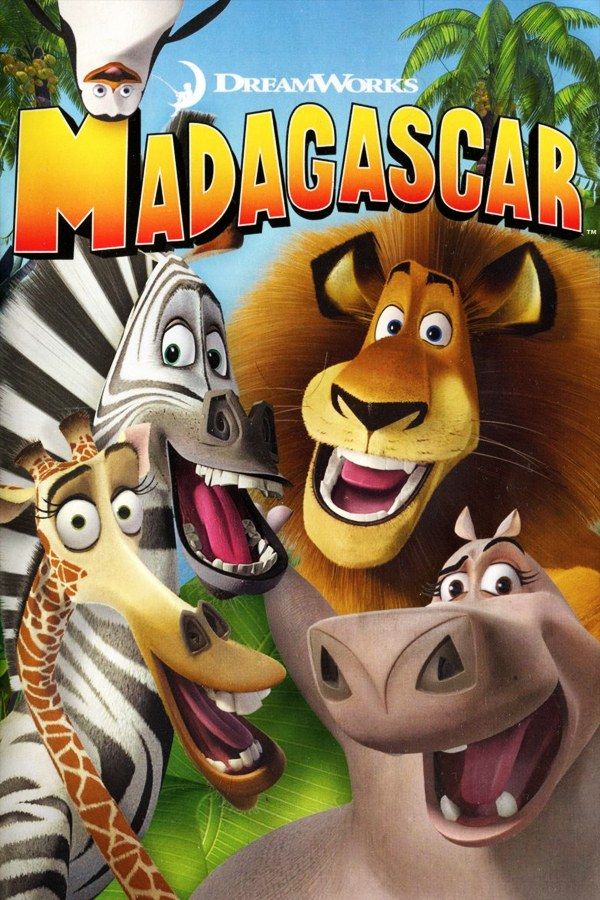
Toys for Bob’s 2005 game follows the DreamWorks film: four friends from New York’s Central Park Zoo end up on a ship and wash ashore on Madagascar. It’s a 3D platformer that switches animals from level to level, so you play as Marty the zebra, Alex the lion, Gloria the hippo and Melman the giraffe, with puzzles, sneaking and mini-games between the jumps. If you own the GameCube version, Nagori lets you play it on iPhone and iPad.
What you need
- An iPhone 12 or newer, or an iPad with an A14 chip or newer, with iOS 17.6 or later.
- Nagori from the App Store. Your first game is free.
- A disc image of your copy of the GameCube version:
.iso,.gcm,.rvz,.cisoor.gcz, or a.zipor.rarcontaining it. The game fits on a single disc.
No BIOS file is needed.
How to play Madagascar on iPhone
- Install Nagori from the App Store.
- Copy your Madagascar disc image to the Files app, in iCloud Drive or On My iPhone.
- Open Nagori, tap + and select the file. Add GameCube games from inside Nagori: the Files app’s Open in menu doesn’t hand formats like
.rvzand.gcmto Nagori. - Find Madagascar on the GameCube shelf and press Play.
- Switch to a touch layout with a stick. The default Standard layout has no stick, and you run and jump through 3D levels with one. Pause, open Settings → Touch Layout and choose D-Pad + Stick, or Stick Focus for a large stick. With a controller connected, you can skip this step.
Controls
You move each animal with the control stick, so use a stick layout or a controller. If the face buttons sit too far from your thumb for quick jumps, open Edit Layout in the pause menu and drag them closer.
With a controller, A is the bottom face button, B the left one, X the right one and Y the top one; Z is on the right shoulder button, and L and R are the triggers. Press the left stick to open Nagori’s pause menu. Nagori reads L and R as full presses, with no half press, and GameCube games don’t vibrate.
Setting it up for a younger player
Madagascar is a game of a family film, so it often ends up in a child’s hands. A few minutes of setup makes it easier on small ones:
- Bigger controls. In Edit Layout, pinch the stick and buttons up to twice their size, and hide anything that only gets pressed by accident. Check that Haptic Feedback is on in Settings, so every press of a touch button is felt.
- A controller. Bluetooth controllers that iOS supports, including DualSense, DualShock 4 and Xbox controllers, take the guesswork out of where the buttons are. If one disconnects or runs out of battery, Nagori pauses the game.
- Stopping is safe. Leaving the app saves the moment automatically. Continue in the game menu, or the Continue Playing widget on the Home Screen, opens the game right where it stopped.
- A cooler iPad. On a lap or in a car, set Settings → Quality to Low: it keeps the device cooler.
Saves: memory card and save states
On the GameCube, Madagascar saves your progress to the memory card. That card works in Nagori as it did on the console. It stays inside the app, though: it isn’t in the Files app, isn’t part of Export Saves and doesn’t sync to iCloud.
On top of that, pause and choose Save before a level or mini-game that keeps tripping you up, then Load to try again. Nagori keeps your last four saves per game. Keep saving in the game too: a save state may not load after some Nagori updates, while the memory card save stays.
Best settings
Open Settings → Quality in the pause menu. Medium, the default, is the place to start; Low keeps the device coolest, and High gives the smoothest motion on the newest iPhones and iPads. Nagori shows GameCube games at their original resolution, and Full Screen stretches the picture to fill the display.







