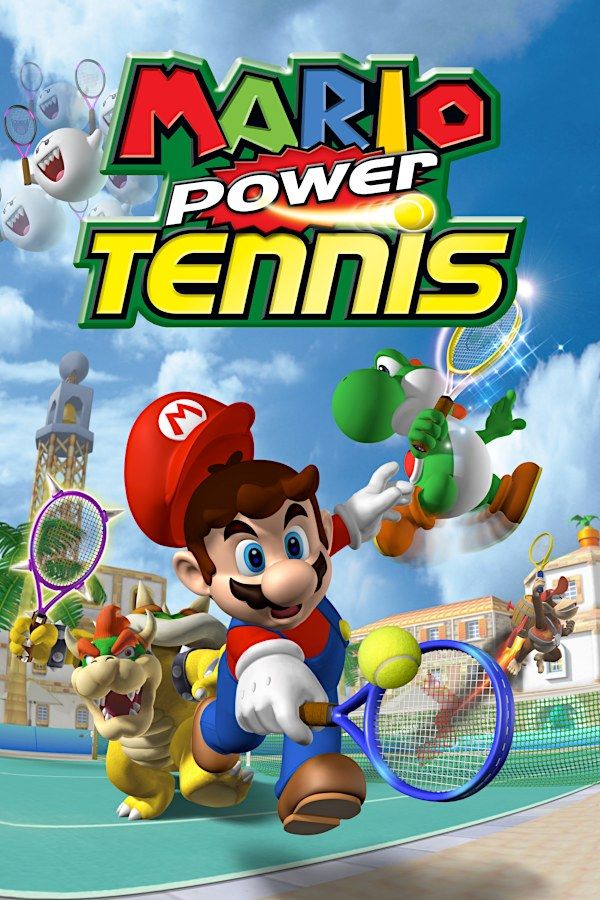
Camelot’s 2004 tennis game puts Mario, Bowser and the rest of the Mushroom Kingdom cast on court, in singles or doubles. On top of regular shots, every character has two Power Shots: an offensive one that’s hard to return, and a defensive one that reaches a ball you would otherwise miss. If you own the game, Nagori lets you play it on iPhone and iPad.
What you need
- An iPhone 12 or newer, or an iPad with an A14 chip or newer, with iOS 17.6 or later.
- Nagori from the App Store. Your first game is free.
- A disc image of your GameCube copy of Mario Power Tennis:
.iso,.gcm,.rvz,.cisoor.gcz, or a.zipor.rarcontaining it. The game fits on a single disc.
No BIOS file is needed. The 2009 Wii release won’t work, because Nagori doesn’t play Wii games.
How to play Mario Power Tennis on iPhone
- Install Nagori from the App Store.
- Copy your Mario Power Tennis disc image to the Files app, in iCloud Drive or On My iPhone.
- Open Nagori, tap + and select the file. Add GameCube games from inside Nagori: the Files app’s Open in menu doesn’t hand formats like
.rvzand.gcmto Nagori. - Find Mario Power Tennis on the GameCube shelf and press Play.
- Pick a touch layout with a stick. The default Standard layout has none, and you run around the court with the stick. Pause, open Settings → Touch Layout and choose Stick Focus or D-Pad + Stick. With a controller connected, you can skip this step.
Controls
You move with the stick and hit with two buttons: A for topspin and B for slice. Pressing them one after the other gives you lobs and drop shots, so your thumb needs to get from one to the other fast. Open Edit Layout in the pause menu, put A and B right next to each other and make them a little bigger.
A controller makes long rallies easier. Bluetooth controllers that iOS supports work, including DualSense, DualShock 4 and Xbox controllers. A is the bottom face button and B the left one, the left stick moves your player, and pressing the left stick opens Nagori’s pause menu. L and R register as full presses in Nagori, and GameCube games don’t vibrate.
Playing against the computer
Mario Power Tennis was built for up to four players, two on each side of the net. Nagori plays GameCube games with one player, so doubles with friends and any match against another person aren’t available. Everything against the computer works:
- Exhibition matches, singles or doubles. In doubles, a computer player is your partner.
- Tournaments, where you win cups against computer opponents and unlock more of the game.
- The mini-games, which play on tennis rules with a twist.
Saves: memory card and save states
Mario Power Tennis keeps its progress on the memory card, including the cups you’ve won and what they unlocked. The card works in Nagori as it did on the console. It stays inside the app, though: it isn’t in the Files app, isn’t part of Export Saves and doesn’t sync to iCloud.
Nagori adds two things on top:
- Quit any time. Leave the app mid-set and Continue puts you back at the same point in the match.
- Save states. Pause and choose Save before a tournament final, or at the start of a tight set, then Load if it slips away. Nagori keeps your last four saves per game.
Treat the memory card as your main save: a save state may not load after some Nagori updates.
Best settings
Open the pause menu and go to Settings → Quality:
- Low keeps the device coolest, at a lower frame rate.
- Medium, the default, is the place to start.
- High gives the smoothest motion and is meant for the newest iPhones and iPads.
Timing a return is easier when the ball moves smoothly, so try High on a recent device and step down if it gets warm. Nagori shows GameCube games at their original resolution, and Full Screen stretches the picture to fill the display.







