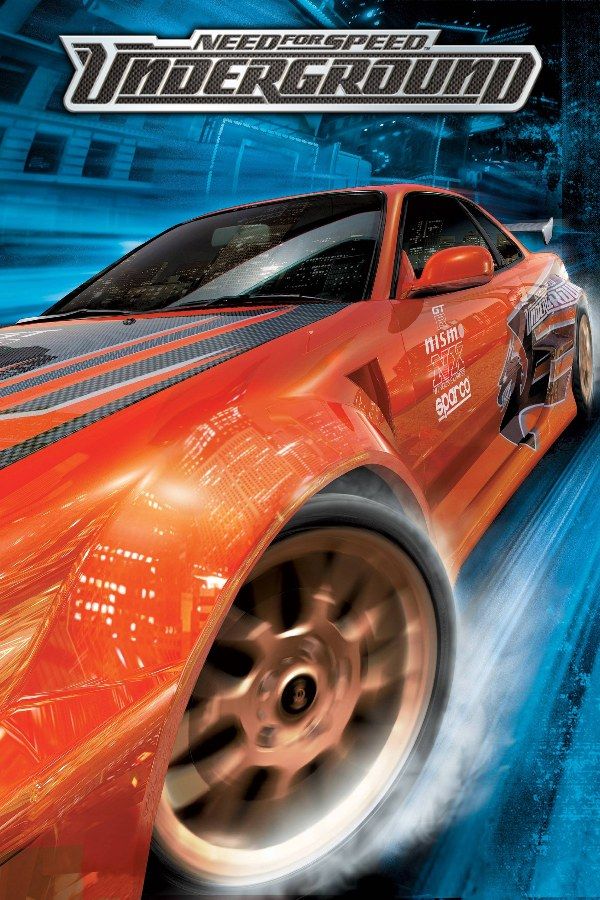
EA Black Box’s 2003 racer turned Need for Speed toward street racing and tuning: night races in Olympic City in cars you build up with body kits, spoilers, rims, vinyls and performance parts. The Underground career strings together circuit, sprint, drag, drift and knockout events, with Samantha showing you the ropes and Eddie’s crew waiting at the top. If you own the GameCube version, Nagori lets you play it on iPhone and iPad.
What you need
- An iPhone 12 or newer, or an iPad with an A14 chip or newer, with iOS 17.6 or later.
- Nagori from the App Store. Your first game is free.
- A disc image of your copy of the GameCube version:
.iso,.gcm,.rvz,.cisoor.gcz, or a.zipor.rarcontaining it. The game fits on a single disc.
No BIOS file is needed.
How to play Need for Speed: Underground on iPhone
- Install Nagori from the App Store.
- Copy your Underground disc image to the Files app, in iCloud Drive or On My iPhone.
- Open Nagori, tap + and select the file. Add GameCube games from inside Nagori: the Files app’s Open in menu doesn’t hand formats like
.rvzand.gcmto Nagori. - Find Underground on the GameCube shelf and press Play.
- Switch to a touch layout with a stick, or connect a controller. The default Standard layout has no stick. Pause, open Settings → Touch Layout and choose Stick Focus for the largest stick, or D-Pad + Stick.
Controls
Circuit, sprint and knockout races are about steering, and an analog stick gives you finer control through tight corners than a thumb on glass. Bluetooth controllers that iOS supports work, including DualSense, DualShock 4 and Xbox controllers. With one connected, the touch controls hide, the right stick works as the C-stick, and pressing the left stick opens Nagori’s pause menu.
Nagori reads the GameCube’s analog L and R triggers as on/off presses. Anything you do with a trigger is always a full pull, so if gas or brakes sit on one, feather it with short taps instead of a half squeeze.
Drag and drift: the events worth retrying
These two event types play nothing like a normal race.
- Drag. The game keeps the car pointed down the strip, and you change lanes, shift gears by watching the tachometer and time your nitrous. Hold the redline too long and the engine blows; hit traffic head-on and the race is over. On touch, open Edit Layout in the pause menu and put the buttons you shift with right under your thumb, so you aren’t reaching for them at the shift point.
- Drift. You score points on a closed track, with bonuses for drifting near the outer edge and chaining one drift into the next. Long, steady slides need smooth stick work, which is where a controller helps most.
Pause on the start line and choose Save. A missed shift or a spin then costs you one Load instead of a restart.
Saves: memory card and save states
Underground saves your career to the memory card, and that card works in Nagori as it did on the GameCube. It stays inside the app, though: it isn’t in the Files app, isn’t part of Export Saves and doesn’t sync to iCloud. Nagori adds Continue, which puts you back mid-race after you leave the app, and four save states per game. Treat the memory card as the main save: a save state may not load after some Nagori updates.
Underground or Underground 2?
The first Underground has no free roam: you pick each event from the career menu, and every race takes place in Olympic City at night. Underground 2 moved to a new city you drive around between races. If your disc is Underground 2, see that game’s own page.
Best settings
Open Settings → Quality in the pause menu. Medium, the default, is the place to start; Low keeps the device coolest, and High is for the newest iPhones and iPads. Nagori plays GameCube games at their original resolution and for one player, so modes that need a second controller aren’t available, and there’s no rumble.







