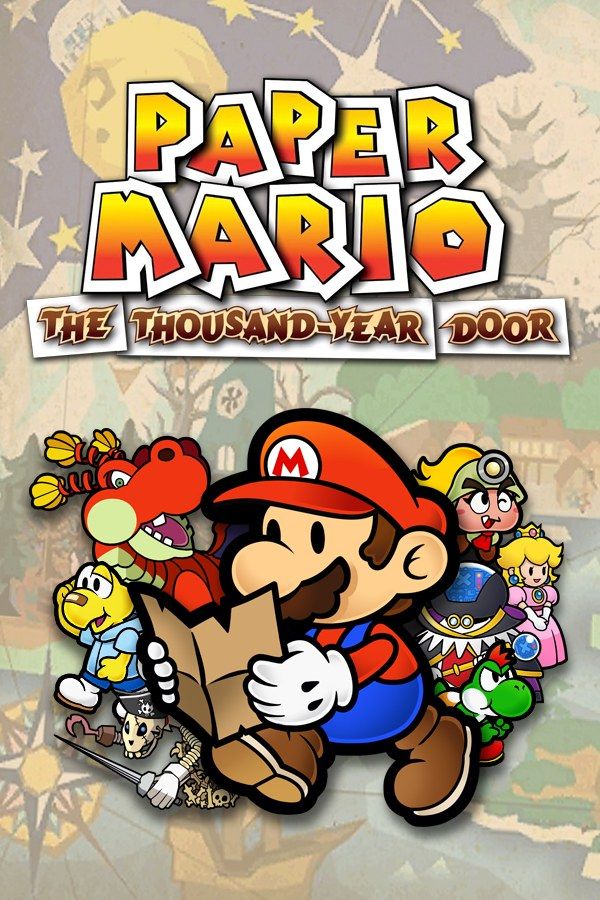
Intelligent Systems’ 2004 sequel to Paper Mario sends Mario to Rogueport, a rough harbor town, to find the seven Crystal Stars that open the Thousand-Year Door. Its turn-based battles are staged like a play in front of an audience, and a well-timed button press makes each attack hit harder and each block hurt less. If you own the game, Nagori lets you play it on iPhone and iPad.
What you need
- An iPhone 12 or newer, or an iPad with an A14 chip or newer, with iOS 17.6 or later.
- Nagori from the App Store. Your first game is free.
- A disc image of your copy of the GameCube original (not the 2024 Switch remake):
.iso,.gcm,.rvz,.cisoor.gcz, or a.zipor.rarcontaining it. The game fits on one disc.
No BIOS file is needed.
How to play Paper Mario: The Thousand-Year Door on iPhone
- Install Nagori from the App Store.
- Put the disc image in the Files app, in iCloud Drive or On My iPhone.
- Open Nagori, tap + and select the file. Add it from inside the app: the Files app’s Open in menu doesn’t hand
.rvzand.gcmfiles to Nagori. - Find the game on the GameCube shelf and press Play.
- Switch to a layout with a stick. Mario walks with the control stick, and the default Standard layout doesn’t have one. Pause, open Settings → Touch Layout and choose Stick Focus for a large stick. A connected controller makes this step unnecessary.
Controls and Action Commands
Outside battle, A makes Mario jump and B swings his hammer. In battle, the skill is in the Action Commands, timed inputs during an attack: for a jump, press A just before Mario lands on the enemy. Other moves have their own commands, such as holding the stick and letting go at the right moment.
Defending works the same way. Press A just before an enemy’s attack lands to Guard and take less damage, or press B, with tighter timing, to Superguard and take none at all.
On touch, the timing comes from your eyes alone. In Edit Layout, make A and B bigger and put them under your right thumb, and turn on Haptic Feedback for a small tap on each press.
A controller makes timing easier. Bluetooth controllers that iOS supports work, including DualSense, DualShock 4 and Xbox controllers. A is the bottom face button and B the left one, so Guard and Superguard sit side by side; X is the right one, Y the top one and Z the right shoulder button. Press the left stick to open Nagori’s pause menu.
Saves: Save Blocks and save states
The game saves to the memory card when you hit a Save Block, one of the floating blocks marked with an S. If Mario falls in battle, it’s game over, and you go back to your last save. The memory card works in Nagori as on the GameCube, but stays inside the app: it isn’t in the Files app, isn’t part of Export Saves and doesn’t sync to iCloud.
Nagori adds two things:
- Quit any time. Leave mid-battle and Continue picks up at the same turn.
- Save states. Pause and choose Save anywhere. Nagori keeps your last four per game.
Keep hitting Save Blocks too: a save state may not load after some Nagori updates.
Bosses and the Pit of 100 Trials
The Thousand-Year Door is a long adventure, told in a prologue and eight chapters, and most chapters end in a boss fight, starting with the dragon Hooktail in chapter 1. Make a save state before each one. If the fight goes wrong, Load puts you back at the door in seconds, and the retries teach you when to Superguard.
Under Rogueport sits the Pit of 100 Trials, an optional hundred floors of battles. A save state every ten floors means one bad fight costs minutes, not the whole run.
Best settings
In the pause menu, go to Settings → Quality. Medium, the default, suits most devices. Since battles depend on timing, try High for the smoothest motion on the newest iPhones and iPads, and Low if the device runs warm. GameCube games show at their original resolution, Full Screen stretches the picture, and the controller doesn’t rumble.







