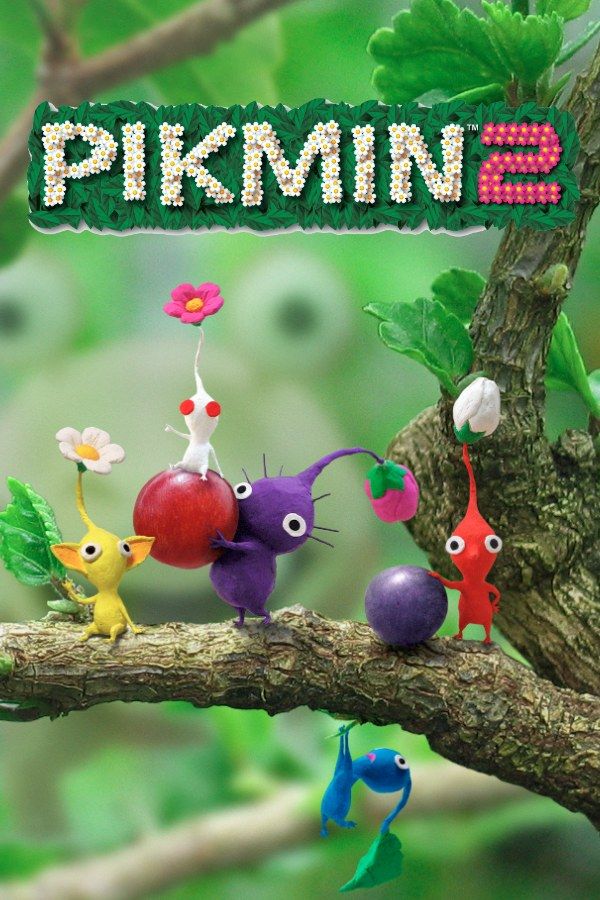
Nintendo’s 2004 sequel sends Captain Olimar back to the Pikmin’s planet with his coworker Louie, this time to collect treasure: their company, Hocotate Freight, owes 10,100 Pokos. The first game’s 30-day limit is gone. In its place come two captains, Purple and White Pikmin, and caves that go deep underground. If you own the game, Nagori lets you play it on iPhone and iPad.
What you need
- An iPhone 12 or newer, or an iPad with an A14 chip or newer, with iOS 17.6 or later.
- Nagori from the App Store. Your first game is free.
- A disc image of your copy of Pikmin 2:
.iso,.gcm,.rvz,.cisoor.gcz, or a.zipor.rarcontaining it. The game fits on a single disc.
No BIOS file is needed.
How to play Pikmin 2 on iPhone
- Install Nagori from the App Store.
- Copy your Pikmin 2 disc image to the Files app, in iCloud Drive or On My iPhone.
- Open Nagori, tap + and select the file. Add GameCube games from inside Nagori: the Files app’s Open in menu doesn’t hand formats like
.rvzand.gcmto Nagori. - Find Pikmin 2 on the GameCube shelf and press Play.
- Switch to a touch layout with two sticks. The default Standard layout has no stick, and Pikmin 2 needs two. Pause, open Settings → Touch Layout and choose Twin Sticks or DualShock. With a controller connected, you can skip this step.
Controls
The control stick moves the captain you’re playing. A plucks and throws Pikmin, B whistles them back, and Y switches between Olimar and Louie, so each can lead a squad on a different job.
As in the first game, the C-stick moves the squad, not the camera: push it to send the whole group at an enemy. Purple Pikmin hit hardest and carry as much as ten others; White Pikmin are the fastest and poison whatever eats them. Nagori puts the C-stick on the right stick, on a controller and in the Twin Sticks and DualShock touch layouts.
On touch, you’ll switch captains all the time, so open Edit Layout in the pause menu and drag Y next to A and B.
With a controller, A is the bottom face button, B the left one, X the right one and Y the top one. Pressing the left stick opens Nagori’s pause menu.
Saves: memory card and save states
Pikmin 2 saves to the memory card at the end of each day. That card works in Nagori as it did on the console. It stays inside the app, though: it isn’t in the Files app, isn’t part of Export Saves and doesn’t sync to iCloud.
On top of that, you can leave the app at any moment, even several floors down a cave, and Continue puts you back where you were. Nagori also keeps your last four save states per game: pause and choose Save, then Load to go back. Treat the memory card as your main save, though: a save state may not load after some Nagori updates.
Caves and save states
Caves are where Pikmin 2 gets hard. Most go down several floors, time stands still underground, and you can’t fetch more Pikmin from the Onions until you’re back on the surface. Lose Pikmin on one floor and you start the next one short.
Save states help:
- At the start of each floor. If the floor goes badly, Load and play it again with the squad you came down with.
- Before a big creature. Several caves end with one on the last floor. Save before you take it on.
Two-player modes
Pikmin 2 added modes for two people on one console: a split-screen battle where Olimar and Louie compete, and a two-player Challenge Mode. Nagori plays GameCube games with one player, so neither is available. The story and Challenge Mode on your own are.
Best settings
Open the pause menu and go to Settings → Quality. GameCube games work an iPhone hard, and this setting trades frame rate for heat:
- Low keeps the device coolest, at a lower frame rate.
- Medium, the default, is the place to start.
- High gives the smoothest motion and is meant for the newest iPhones and iPads.
Start on Medium, and drop to Low if your iPhone or iPad warms up during a long cave. Nagori shows GameCube games at their original resolution, and Full Screen stretches the picture to fill the display.







