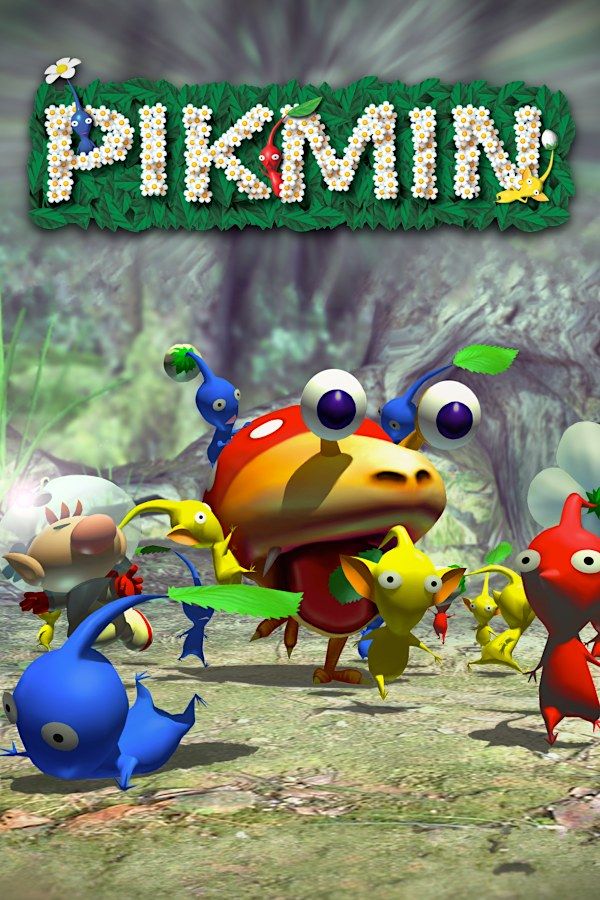
In Nintendo’s 2001 strategy game, Captain Olimar crash-lands on an unknown planet whose air is poisonous to him. His life support lasts 30 days, and his ship is missing 30 parts. His only help is the Pikmin, small plant creatures that follow him, fight for him and carry things home. If you own Pikmin, Nagori lets you play it on iPhone and iPad.
What you need
- An iPhone 12 or newer, or an iPad with an A14 chip or newer, with iOS 17.6 or later.
- Nagori from the App Store. Your first game is free.
- A disc image of your copy of Pikmin:
.iso,.gcm,.rvz,.cisoor.gcz, or a.zipor.rarcontaining it. The game fits on a single disc.
No BIOS file is needed.
How to play Pikmin on iPhone
- Install Nagori from the App Store.
- Copy your Pikmin disc image to the Files app, in iCloud Drive or On My iPhone.
- Open Nagori, tap + and select the file. Add GameCube games from inside Nagori: the Files app’s Open in menu doesn’t hand formats like
.rvzand.gcmto Nagori. - Find Pikmin on the GameCube shelf and press Play.
- Switch to a touch layout with two sticks. The default Standard layout has no stick, and Pikmin needs two. Pause, open Settings → Touch Layout and choose Twin Sticks or DualShock. With a controller connected, you can skip this step.
Controls
Olimar walks with the control stick. A plucks Pikmin from the ground and throws them, B blows the whistle to call them back, and X dismisses the squad, which then sorts itself by color.
The C-stick doesn’t turn the camera here: it moves your whole squad at once. Push it to rush the group at an enemy or steer it clear of a pond. Nagori puts the C-stick on the right stick, on a controller and in the Twin Sticks and DualShock touch layouts.
On touch, one thumb throws, whistles and swarms, so open Edit Layout in the pause menu and drag the right stick close to A and B. Make B bigger too: you’ll whistle stray Pikmin back all day.
With a controller, A is the bottom face button, B the left one, X the right one and Y the top one. Pressing the left stick opens Nagori’s pause menu.
Saves: memory card and save states
Pikmin saves to the memory card at the end of each day. The card works in Nagori as it did on the console. It stays inside the app, though: it isn’t in the Files app, isn’t part of Export Saves and doesn’t sync to iCloud.
Nagori adds two things on top:
- Quit any time. Leave the app mid-day and Continue puts you back at the same moment.
- Save states. Pause and choose Save, then Load to go back to it. Nagori keeps your last four saves per game.
Treat the memory card as your main save: a save state may not load after some Nagori updates.
Making 30 days count
The day limit shapes everything in Pikmin. Each day ends at sunset, and Pikmin left out in the field don’t survive the night. After day 30 Olimar’s time is up, and the ending depends on how many parts you found. All 30 gets the best one.
Save states don’t add days, but they stop one mistake from spoiling a day:
- Before a fight with a big creature. If it eats half your squad, Load and try another plan.
- Before you lead Pikmin near water or fire. Only Blue Pikmin survive in water, and only Red Pikmin stand up to fire.
Pikmin is a one-player game, so Nagori’s one-player limit for GameCube games costs you nothing here.
Best settings
Open the pause menu and go to Settings → Quality. GameCube games work an iPhone hard, and this setting trades frame rate for heat:
- Low keeps the device coolest, at a lower frame rate.
- Medium, the default, is the place to start.
- High gives the smoothest motion and is meant for the newest iPhones and iPads.
Pikmin rewards planning more than fast reflexes, so Medium suits it, and Low helps if the device warms up over a long session. Nagori shows GameCube games at their original resolution, and Full Screen stretches the picture to fill the display.







