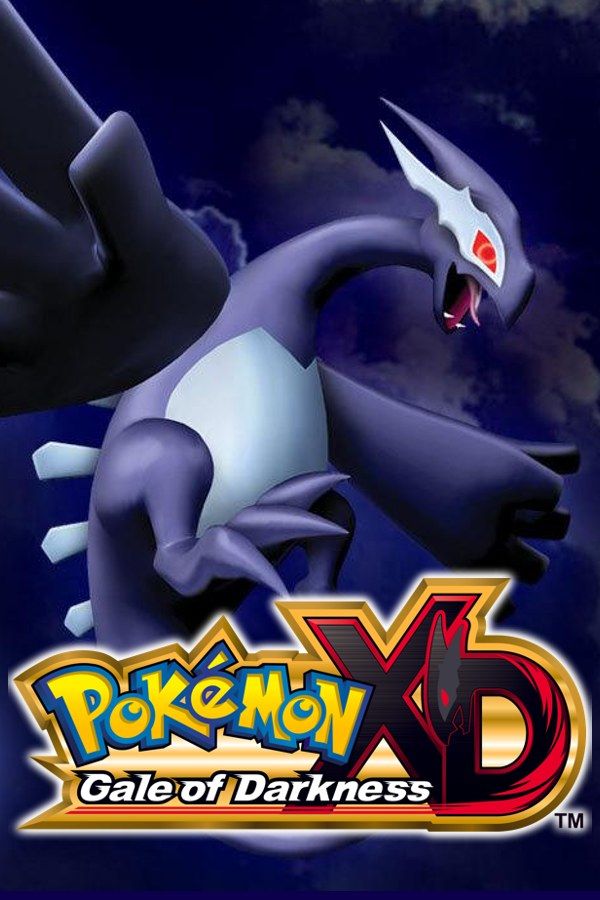
Pokémon XD: Gale of Darkness is Genius Sonority’s 2005 follow-up to Pokémon Colosseum, set in the same Orre region five years later. The Cipher organization is back with new Shadow Pokémon, Shadow Lugia among them. With an Eevee as your first partner, you snag them with a Snag Machine and purify them. Unlike Colosseum, XD also has wild Pokémon: you leave Poké Snacks at a Poké Spot and see what turns up. If you own the game, Nagori lets you play it on iPhone and iPad.
What you need
- An iPhone 12 or newer, or an iPad with an A14 chip or newer, with iOS 17.6 or later.
- Nagori from the App Store. Your first game is free.
- A disc image of your copy of Pokémon XD:
.iso,.gcm,.rvz,.cisoor.gcz, or a.zipor.rarcontaining it. The game fits on a single disc.
No BIOS file is needed.
How to play Pokémon XD: Gale of Darkness on iPhone
- Install Nagori from the App Store.
- Copy your Pokémon XD disc image to the Files app, in iCloud Drive or On My iPhone.
- Open Nagori, tap + and select the file. Add GameCube games from inside Nagori: the Files app’s Open in menu doesn’t hand formats like
.rvzand.gcmto Nagori. - Find Pokémon XD on the GameCube shelf and press Play.
- Choose a touch layout with a stick. The default Standard layout has none, and you walk with the control stick. Pause, open Settings → Touch Layout and choose Stick Focus for a large stick. With a controller connected, you can skip this step.
Controls
You walk with the control stick, talk and confirm with A, and cancel with B. Battles wait for you to choose each move, so there’s no rush on a touchscreen. If your thumb slides off the stick on a long walk, open Edit Layout in the pause menu and pinch the stick bigger, or drag it to where your left thumb rests.
With a controller, A is the bottom face button, B the left one, X the right one and Y the top one. Z is on the right shoulder button, and L and R are the triggers. Press the left stick to open Nagori’s pause menu.
Saves: memory card and save states
XD saves to the memory card when you save in the game, and that card works in Nagori as it did on the console. It stays inside the app: it isn’t in the Files app, isn’t part of Export Saves and doesn’t sync to iCloud.
On top of it:
- Short sessions. Leave the app whenever you like, even mid-battle, and Continue puts you back there.
- Save states. Pause and choose Save, then Load to return. Nagori keeps your last four per game.
Keep saving in the game too: a save state may not load after some Nagori updates.
Snags worth a save state
A Shadow Pokémon only comes to you if it’s still standing when your ball hits. Knock it out by accident and the chance in that battle is gone, so pause and choose Save before any battle with one you want. If it faints, Load and fight again.
For Shadow Lugia, the Pokémon on the cover, save twice: before the battle and again just before your first throw. A failed throw then doesn’t mean replaying the whole fight.
Purifying Shadow Pokémon takes playing time, which fits short sessions: play for ten minutes, leave the app, and Continue picks up where you stopped.
Trading and battles with friends
XD connects to Pokémon Ruby, Sapphire, FireRed, LeafGreen and Emerald through the GameCube–Game Boy Advance link cable, and it has battles for friends. Nagori plays GameCube games with one player and has no link support, so you can’t:
- trade Pokémon with the Game Boy Advance games,
- battle friends on the same iPhone or iPad.
The story, Shadow Lugia included, is single-player and needs neither.
Best settings
Open the pause menu and go to Settings → Quality. GameCube games work an iPhone hard, and this setting trades frame rate for heat:
- Low keeps the device coolest, at a lower frame rate.
- Medium, the default, is the place to start.
- High gives the smoothest motion and is meant for the newest iPhones and iPads.
For a turn-based game like XD, Medium is plenty. If your iPhone gets warm, Low keeps it cooler. Nagori shows GameCube games at their original resolution, and Full Screen stretches the picture to fill the display.







