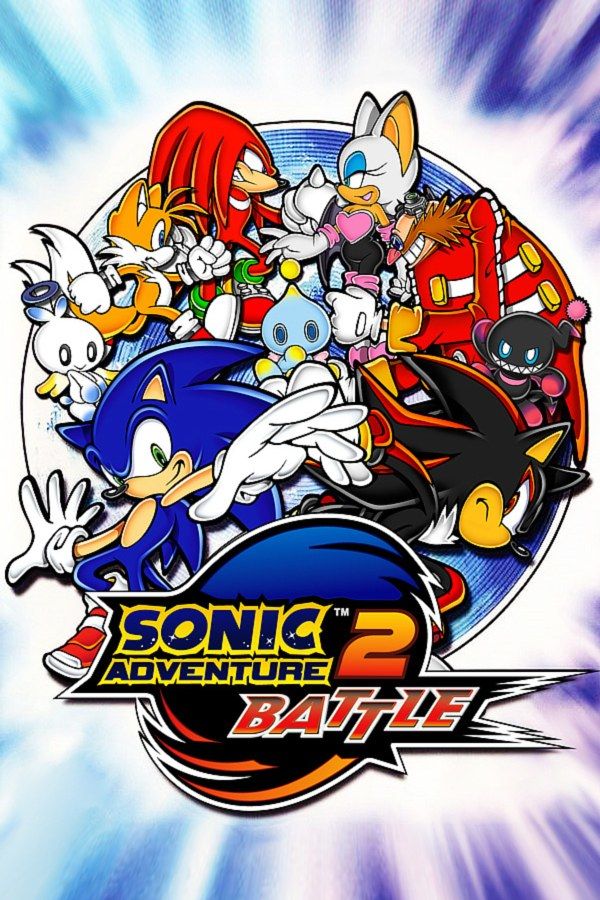
Sonic Adventure 2: Battle is Sonic Team USA’s 2001 GameCube version of Sonic Adventure 2, first released on the Dreamcast that same year. It tells one story from two sides: the Hero side follows Sonic, Tails and Knuckles, the Dark side follows Shadow, Dr. Eggman and Rouge. Both mix high-speed runs, shooting stages in walking mechs and treasure hunts. If you own the game, Nagori lets you play it on iPhone and iPad.
What you need
- An iPhone 12 or newer, or an iPad with an A14 chip or newer, with iOS 17.6 or later.
- Nagori from the App Store. Your first game is free.
- A disc image of your copy of Sonic Adventure 2: Battle:
.iso,.gcm,.rvz,.cisoor.gcz, or a.zipor.rarcontaining it. The game fits on a single disc.
No BIOS file is needed.
How to play Sonic Adventure 2: Battle on iPhone
- Install Nagori from the App Store.
- Copy your disc image to the Files app, in iCloud Drive or On My iPhone.
- Open Nagori, tap + and select the file. Add GameCube games from inside Nagori: the Files app’s Open in menu doesn’t hand formats like
.rvzand.gcmto Nagori. - Find Sonic Adventure 2: Battle on the GameCube shelf and press Play.
- Switch to a touch layout with a stick. The default Standard layout has no stick, and every character moves with one. Pause, open Settings → Touch Layout and choose Stick Focus for a large stick, or D-Pad + Stick. With a controller connected, you can skip this step.
Controls
Move with the control stick and jump with A. Press A again in mid-air near an enemy for a homing attack, or hold it as Knuckles or Rouge to glide. In the mech stages, hold the attack button to lock on to several targets, then let go to fire at all of them at once. L and R turn the camera.
You’ll press A more than anything else, so make it bigger in Edit Layout in the pause menu, or move it to where your right thumb rests.
Bluetooth controllers that iOS supports work, including DualSense, DualShock 4 and Xbox controllers. A is the bottom face button, B the left one, X the right one and Y the top one, and pressing the left stick opens Nagori’s pause menu.
Saves: memory card and save states
Sonic Adventure 2: Battle keeps your story progress, emblems, mission ranks and your Chao on the memory card. That card works in Nagori as it did on the console. It stays inside the app, though: it isn’t in the Files app, isn’t part of Export Saves and doesn’t sync to iCloud.
Nagori adds two things on top:
- Quit any time. Leave the app mid-stage and Continue puts you back exactly where you were.
- Save states. Most stages have five missions, and each run gets a rank from A to E. Pause and choose Save before a section that keeps beating you, such as Cannon’s Core in the Last story, then Load to try again. Nagori keeps your last four saves per game.
Treat the memory card as your main save, especially for Chao you’ve raised for hours: a save state may not load after some Nagori updates.
Chao Garden
Between stages you can raise Chao, small creatures that hatch from eggs in the Chao Garden. Give them the small animals and Chaos Drives you pick up in the stages and they change in looks and abilities, then enter them in races. Moving a Chao to the Tiny Chao Garden on a Game Boy Advance isn’t available: it needs a link cable between the two consoles, and Nagori can’t connect to one.
Best settings
In the pause menu, Settings → Quality trades frame rate for heat: Low keeps the device coolest, Medium is the default, and High is meant for the newest iPhones and iPads. Sonic and Shadow’s stages are about speed, so try High on a recent device and step down if it gets hot. GameCube games show at their original resolution, and Full Screen stretches the picture to fill the display.
One player only
In Battle mode, two players face off on a split screen. Nagori plays GameCube games with one player, so that mode isn’t available. The Hero, Dark and Last stories, the missions and the Chao Garden are all single-player. The controller doesn’t rumble in GameCube games.







