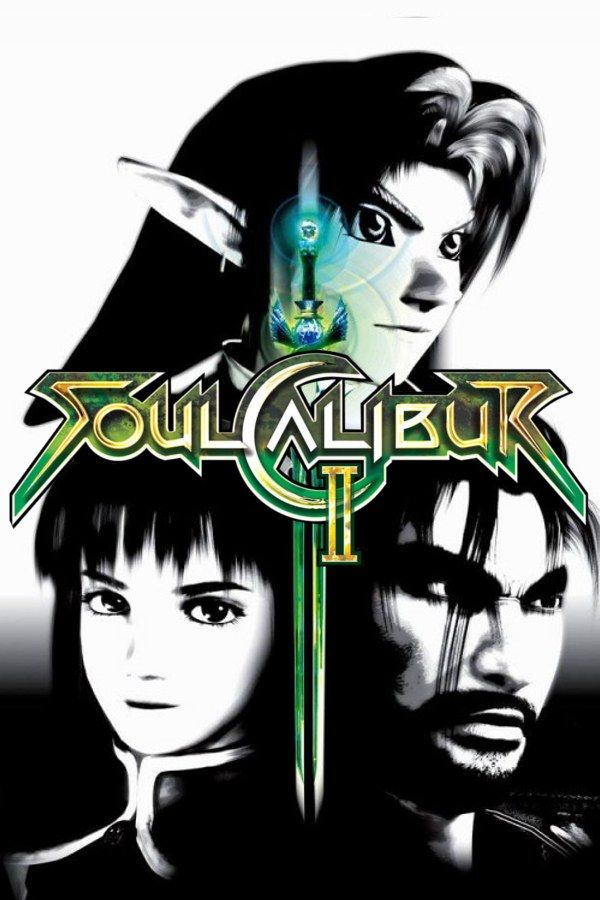
Namco’s weapon-based fighting game reached home consoles in 2003, after its 2002 arcade release. Fighters such as Mitsurugi, Ivy and Nightmare clash with swords, axes and staves, and each console version added a guest: on the GameCube, it’s Link from The Legend of Zelda. If you own the GameCube version, Nagori lets you play it on iPhone and iPad.
What you need
- An iPhone 12 or newer, or an iPad with an A14 chip or newer, with iOS 17.6 or later.
- Nagori from the App Store. Your first game is free.
- A disc image of your copy of the GameCube version:
.iso,.gcm,.rvz,.cisoor.gcz, or a.zipor.rarcontaining it. The game fits on a single disc.
No BIOS file is needed.
How to play Soulcalibur II on iPhone
- Install Nagori from the App Store.
- Copy your Soulcalibur II disc image to the Files app, in iCloud Drive or On My iPhone.
- Open Nagori, tap + and select the file. Add GameCube games from inside Nagori: the Files app’s Open in menu doesn’t hand formats like
.rvzand.gcmto Nagori. - Find Soulcalibur II on the GameCube shelf and press Play.
- Switch to a touch layout with a stick, or connect a controller. The default Standard layout has no stick. Pause, open Settings → Touch Layout and choose D-Pad + Stick or Stick Focus.
Controls
Soulcalibur II is built on four actions: horizontal attack, vertical attack, kick and guard. Horizontal attacks catch an opponent who steps to the side, while vertical attacks can be sidestepped. Throws and many moves need two of those buttons at the same moment. With the stick, you run around your opponent in any of eight directions, and a well-timed Guard Impact knocks an attack aside and opens the opponent up.
On touch, pause and open Edit Layout. Make the face buttons bigger and set them close enough that one thumb covers two at once, so throws and two-button moves come out when you need them.
A controller suits a fighting game better: a Guard Impact depends on timing, not on where your thumb lands on the glass. Bluetooth controllers that iOS supports, including DualSense, DualShock 4 and Xbox controllers, work with Nagori. A is the bottom face button, B the left one, X the right one and Y the top one. Z is on the right shoulder button, L and R are the triggers, and the right stick acts as the C-stick. Press the left stick to open the pause menu. GameCube games don’t vibrate in Nagori.
Link and Weapon Master mode
Link fights with the Master Sword and the Hylian Shield, and he brings bombs, a bow and a boomerang along. He’s only in the GameCube version.
Weapon Master is the game’s single-player campaign. You travel a map from fight to fight, many of them with special conditions, and earn experience and gold. Gold buys new weapons, costumes and other extras. Pause and choose Save before a fight you keep losing, then Load and try again. Nagori keeps your last four saves per game.
Nagori plays GameCube games with one player, so versus matches against a friend aren’t available. Arcade, Weapon Master, Time Attack, Survival and Practice all work.
Saves
Soulcalibur II keeps your Weapon Master progress, your gold and everything you’ve unlocked on its memory card, which works in Nagori as it did on the console. It stays inside the app, though: it isn’t in the Files app, isn’t part of Export Saves and doesn’t sync to iCloud.
You can also quit any time: leave mid-round and Continue puts you back in the same fight. A save state may not load after some Nagori updates, so the memory card is your main save.
Best settings
Open the pause menu and go to Settings → Quality. Soulcalibur II is a fast game, and smooth motion helps you react:
- High gives the smoothest motion. Try it on the newest iPhones and iPads.
- Medium, the default, is the setting to fall back on if the device gets hot.
- Low keeps the device coolest, at a lower frame rate.
Nagori shows GameCube games at their original resolution, and Full Screen stretches the picture to fill the display.







