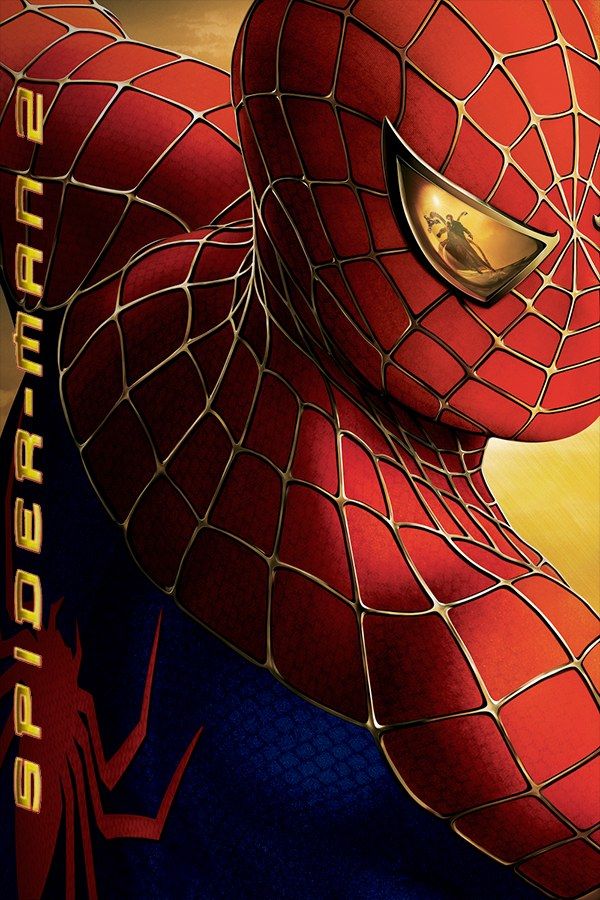
Treyarch’s 2004 game of the Spider-Man 2 film lets you swing anywhere in Manhattan, and every web line attaches to a real building, so you have to swing from something. Tobey Maguire and Alfred Molina voice Spider-Man and Doctor Octopus, as in the film, and Bruce Campbell narrates the tutorials. If you own the GameCube version, Nagori lets you play it on iPhone and iPad.
What you need
- An iPhone 12 or newer, or an iPad with an A14 chip or newer, with iOS 17.6 or later.
- Nagori from the App Store. Your first game is free.
- A disc image of your copy of the GameCube version:
.iso,.gcm,.rvz,.cisoor.gcz, or a.zipor.rarcontaining it. The game fits on a single disc.
No BIOS file is needed.
How to play Spider-Man 2 on iPhone
- Install Nagori from the App Store.
- Copy your Spider-Man 2 disc image to the Files app, in iCloud Drive or On My iPhone.
- Open Nagori, tap + and select the file. The Files app’s Open in menu doesn’t hand GameCube formats like
.rvzand.gcmto Nagori, so add the game from inside the app. - Find Spider-Man 2 on the GameCube shelf and press Play.
- Give yourself two sticks. The default Standard layout has none. Pause, open Settings → Touch Layout and choose Twin Sticks or DualShock, which put the camera on a right stick. With a controller connected, skip this step.
Controls: web-swinging on touch
You swing by holding a button: Spider-Man fires a web at a building and swings as long as you hold it, and letting go sends him flying off the end of the arc. The control stick steers each swing, and the C-stick, the right stick in Nagori, turns the camera so you can see the street you’re heading into.
That means your right thumb holds the swing button for long stretches. Once you know which button the game uses for swinging, open Edit Layout in the pause menu, move that button to where your right thumb rests and make it larger. Place the right stick within reach of it, so you can let go of one and grab the other quickly.
A controller works well here too. Bluetooth controllers that iOS supports, including DualSense, DualShock 4 and Xbox controllers, work with Nagori: A is the bottom face button, B the left one, X the right one and Y the top one, Z is on the right shoulder, and L and R are the triggers. L and R register as full presses. Press the left stick to open Nagori’s pause menu.
Hero Points, pizzas and save states
Between story chapters, the city keeps you busy. Stopping crimes earns Hero Points, which the game uses to open up story chapters and to pay for new moves. Pizza deliveries for Peter’s day job run against the clock, and the story brings boss fights with villains such as Rhino and Mysterio.
Save states make the hard parts less repetitive. Pause and choose Save before a pizza delivery, a timed challenge or a boss, then Load to try again from the same moment. Nagori keeps your last four saves per game. For Treyarch’s next Spider-Man game, see how to play Ultimate Spider-Man.
Saves
Spider-Man 2 stores your progress on the memory card, which works in Nagori as it did on the console. The card stays inside the app: it isn’t in the Files app, isn’t part of Export Saves and doesn’t sync to iCloud. Close Nagori mid-swing and Continue brings you back to that moment. Keep the game’s own saves going too, since a save state may not load after some Nagori updates.
Best settings
In the pause menu, open Settings → Quality. Medium, the default, is where to start. Low keeps the device coolest, at a lower frame rate, and High gives the smoothest swinging on the newest iPhones and iPads. If your device warms up during a long session of crime-fighting, step down a level. Nagori shows GameCube games at their original resolution, and Full Screen stretches the picture to fill the display. The controller doesn’t rumble in GameCube games.







