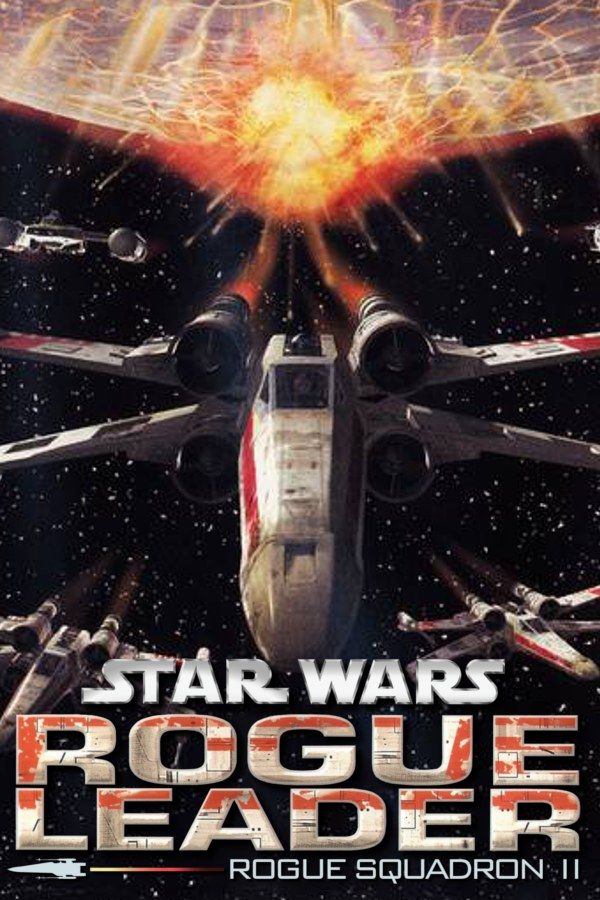
Factor 5’s Rogue Leader came out alongside the GameCube in North America in 2001. It puts you in the cockpit of Rogue Squadron’s starfighters, from the attack on the first Death Star to the Battle of Endor, flying X-wings, Y-wings, A-wings and the snowspeeders that trip AT-ATs on Hoth with a tow cable. If you own the game, Nagori lets you play it on iPhone and iPad. It’s a single-player game, so Nagori’s one-player GameCube support leaves nothing out.
What you need
- An iPhone 12 or newer, or an iPad with an A14 chip or newer, with iOS 17.6 or later.
- Nagori from the App Store. Your first game is free.
- A disc image of your copy of Rogue Leader:
.iso,.gcm,.rvz,.cisoor.gcz, or a.zipor.rarcontaining it. The game fits on a single disc. - A controller, if you have one. Flying is easier with a real analog stick.
No BIOS file is needed.
How to play Star Wars Rogue Squadron II: Rogue Leader on iPhone
- Install Nagori from the App Store.
- Copy your Rogue Leader disc image to the Files app, in iCloud Drive or On My iPhone.
- Open Nagori, tap + and select the file. Add GameCube games from inside Nagori: the Files app’s Open in menu doesn’t hand formats like
.rvzand.gcmto Nagori. - Find Rogue Leader on the GameCube shelf and press Play.
- Switch to a touch layout with a stick, or connect a controller. The default Standard layout has no stick, and you steer your ship with one. Pause, open Settings → Touch Layout and choose Stick Focus.
Controls
You steer with the stick the whole time, so it matters more than any button. Stick Focus gives you the largest touch stick, which helps when you line up a shot on a TIE fighter. Then pause, open Edit Layout and make the fire button bigger, right where your thumb rests, because you’ll be shooting for most of every mission.
A controller is the better way to fly. Bluetooth controllers that iOS supports, including DualSense, DualShock 4 and Xbox controllers, work with Nagori. A is the bottom face button, B the left one, X the right one and Y the top one. Z is on the right shoulder button, L and R are the triggers, and the right stick acts as the C-stick. Press the left stick to open the pause menu. If the controller disconnects mid-mission, Nagori pauses the game. The GameCube’s L and R triggers were analog; in Nagori a press always counts as a full pull.
Medals and save states
Each mission ends with a rating, and flying well earns a bronze, silver or gold medal. The game judges things like how fast you finished, how accurately you shot, how many enemies you destroyed and how many lives you lost. Medals unlock bonus missions and extra craft.
Save states help you chase them. Pause and choose Save before the hardest stretch of a mission, such as the trench run at the end of the Death Star attack. If you get shot down, Load and fly that part again. Nagori keeps your last four saves per game.
Saves
On the GameCube, Rogue Leader keeps your progress, medals and unlocks on the memory card. The in-game memory card works in Nagori as it did on the console. It stays inside the app, though: it isn’t in the Files app, isn’t part of Export Saves and doesn’t sync to iCloud.
On top of that, you can quit any time: leave mid-dogfight and Continue puts you back in the cockpit. A save state may not load after some Nagori updates, so let the game save to its memory card as you go.
Best settings
Open the pause menu and go to Settings → Quality:
- Medium, the default, is where to start.
- Low keeps the device coolest, at a lower frame rate. Drop to it if big space battles warm up your iPhone.
- High gives the smoothest motion and is meant for the newest iPhones and iPads.
Nagori shows GameCube games at their original resolution, and Full Screen stretches the picture to fill the display.







