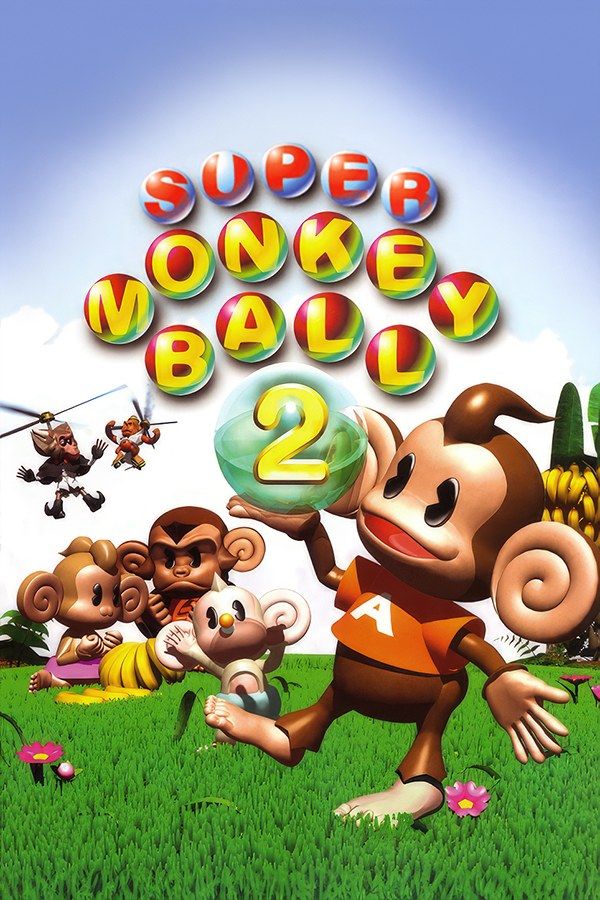
Super Monkey Ball 2 came from Amusement Vision and Sega in 2002. It keeps the first game’s idea, tilting a maze to roll a monkey in a ball to the goal, and builds a Story Mode around it: Dr. Bad-Boon has stolen the bananas, and AiAi and his friends chase him through 10 worlds of 10 stages each. If you own the game, Nagori lets you play it on iPhone and iPad.
What you need
- An iPhone 12 or newer, or an iPad with an A14 chip or newer, with iOS 17.6 or later.
- Nagori from the App Store. Your first game is free.
- A disc image of your copy of Super Monkey Ball 2:
.iso,.gcm,.rvz,.cisoor.gcz, or a.zipor.rarcontaining it. The game fits on a single disc.
No BIOS file is needed.
How to play Super Monkey Ball 2 on iPhone
- Install Nagori from the App Store.
- Copy your Super Monkey Ball 2 disc image to the Files app, in iCloud Drive or On My iPhone.
- Open Nagori, tap + and select the file. Add GameCube games from inside Nagori: the Files app’s Open in menu doesn’t hand formats like
.rvzand.gcmto Nagori. - Find Super Monkey Ball 2 on the GameCube shelf and press Play.
- Pick a touch layout with a stick. Every stage is played with the control stick, and the default Standard layout has none. Pause, open Settings → Touch Layout and choose Stick Focus. With a controller connected, you can skip this step.
Controls
As in the first game, a stage uses only the control stick, with no jump button. How far you push sets how far the stage tilts, so a light touch matters as much as a full push.
On touch, start with placement. On an iPhone, the GameCube picture leaves black bars at the sides, and Nagori lets you put controls there. Open Edit Layout in the pause menu and drag the stick into the left bar, so your thumb never covers the edge of the stage. Making the stick bigger helps too: the same tilt then spreads over a longer thumb movement.
With a controller, you get a stick you can feel, one that springs back to the center by itself. Bluetooth controllers that iOS supports work, including DualSense, DualShock 4 and Xbox controllers. The left stick tilts the stage; try not to click it in, because that opens Nagori’s pause menu.
Saves: memory card and save states
Super Monkey Ball 2 keeps your Story Mode progress and what you unlock on the memory card. That card works in Nagori as it did on the console, but it stays inside the app: it isn’t in the Files app, isn’t part of Export Saves and doesn’t sync to iCloud.
Challenge Mode is different. Like the first game’s Main Game, it’s an arcade-style run through Beginner, Advanced or Expert with limited lives, and nothing is saved halfway. Nagori helps with both modes:
- Quit any time. Leave the app halfway through a Story world or a Challenge run, and Continue puts you back on the same stage.
- Save states. In Challenge Mode, pause and choose Save at the start of a stage that keeps beating you, then Load to try again without losing a life. Nagori keeps your last four saves per game.
Treat the memory card as your main save: a save state may not load after some Nagori updates.
Twelve party games, one player
Super Monkey Ball 2 has 12 party games: the six from the first game (Monkey Race, Monkey Fight, Monkey Target, Monkey Billiards, Monkey Bowling and Monkey Golf) and six new ones, Monkey Boat, Monkey Shot, Monkey Dogfight, Monkey Soccer, Monkey Baseball and Monkey Tennis. Nagori plays GameCube games with one player, so you can’t play them with friends on one device; the ones you can play on your own are available.
Best settings
Open the pause menu and go to Settings → Quality. GameCube games work an iPhone hard, and this setting trades frame rate for heat:
- Low keeps the device coolest, at a lower frame rate.
- Medium, the default, is the place to start.
- High gives the smoothest motion and is meant for the newest iPhones and iPads.
The later Story worlds and Expert stages leave little room for error, so try High on a recent device and step down if it gets hot. Nagori shows GameCube games at their original resolution, and Full Screen stretches the picture to fill the display.







