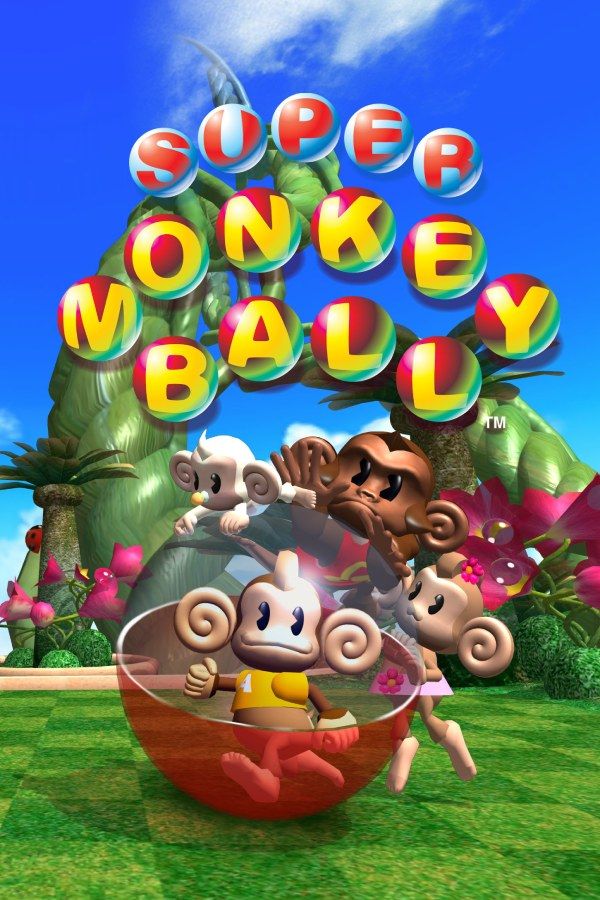
Super Monkey Ball, made by Amusement Vision and published by Sega, was one of the GameCube’s launch games in 2001. AiAi and his friends, each sealed inside a clear ball, roll through mazes floating in the sky. You don’t steer the monkey: you tilt the whole stage, collect bananas and reach the goal before the timer runs out. If you own the game, Nagori lets you play it on iPhone and iPad.
What you need
- An iPhone 12 or newer, or an iPad with an A14 chip or newer, with iOS 17.6 or later.
- Nagori from the App Store. Your first game is free.
- A disc image of your copy of Super Monkey Ball:
.iso,.gcm,.rvz,.cisoor.gcz, or a.zipor.rarcontaining it. The game fits on a single disc.
No BIOS file is needed.
How to play Super Monkey Ball on iPhone
- Install Nagori from the App Store.
- Copy your Super Monkey Ball disc image to the Files app, in iCloud Drive or On My iPhone.
- Open Nagori, tap + and select the file. Add GameCube games from inside Nagori: the Files app’s Open in menu doesn’t hand formats like
.rvzand.gcmto Nagori. - Find Super Monkey Ball on the GameCube shelf and press Play.
- Switch to a touch layout with a stick. The default Standard layout has none, and the whole game runs on one. Pause, open Settings → Touch Layout and choose Stick Focus for a large stick. With a controller connected, you can skip this step.
Controls: touch or controller
The Main Game uses only the control stick, with no jump button. The further you push, the steeper the stage tilts, so most of the game is small, careful movements: a nudge to line up with a narrow bridge, a pull back to brake before an edge.
On touch, the stick follows your thumb, but glass gives you no feel for how far you’ve pushed. Open Edit Layout in the pause menu and make the stick bigger, up to twice its size: a bigger stick spreads the same tilt over a longer thumb movement, so small corrections get easier.
With a controller, you get a stick you can feel, one that springs back to the center when you let go. Bluetooth controllers that iOS supports work, including DualSense, DualShock 4 and Xbox controllers. The left stick tilts the stage. Don’t press it in while you tilt: clicking it opens Nagori’s pause menu.
Saves: the memory card
Super Monkey Ball keeps what you unlock, such as the mini games you earn with play points, on the memory card. That card works in Nagori as it did on the console, but it stays inside the app: it isn’t in the Files app, isn’t part of Export Saves and doesn’t sync to iCloud.
Retrying hard floors
A Main Game run isn’t saved halfway. As in the arcade, you play Beginner, Advanced or Expert from the first floor, with a limited number of lives and continues. Nagori changes that:
- Quit mid-run. Leave the app on a late floor of Expert, and Continue puts you back on that floor with the lives you had.
- Save states. Pause and choose Save at the start of a floor that keeps beating you, then Load to try again without spending a life. Nagori keeps your last four saves per game.
Don’t count on a save state to hold a run for weeks, though: it may not load after some Nagori updates.
Party games and mini games
Super Monkey Ball’s Party Games (Monkey Race, Monkey Fight and Monkey Target) and Mini Games (Monkey Billiards, Monkey Bowling and Monkey Golf) were built for playing with friends. Nagori plays GameCube games with one player, so you can’t play them with others on one device; the ones you can play on your own are available.
Best settings
Open the pause menu and go to Settings → Quality. GameCube games work an iPhone hard, and this setting trades frame rate for heat:
- Low keeps the device coolest, at a lower frame rate.
- Medium, the default, is the place to start.
- High gives the smoothest motion and is meant for the newest iPhones and iPads.
Super Monkey Ball is a game of quick, small corrections, so try High on a recent device and step down if it gets hot. Nagori shows GameCube games at their original resolution. Full Screen stretches the picture to fill the display; leave it off to keep the stages in their original shape.







