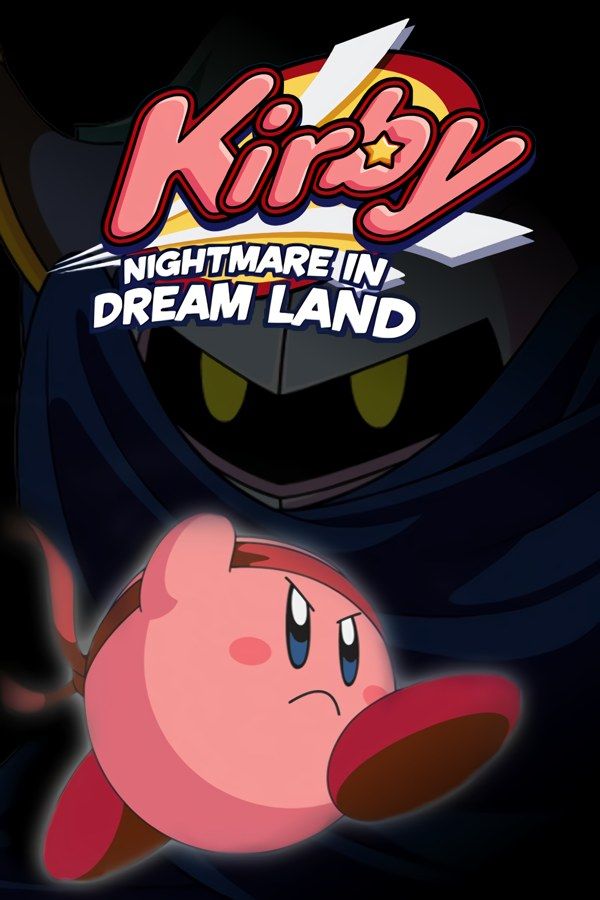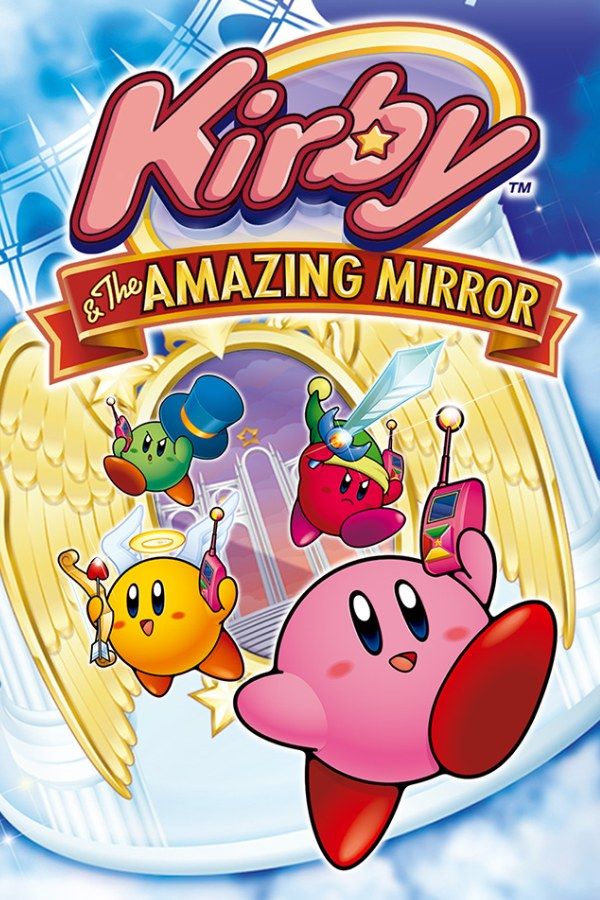
Kirby & the Amazing Mirror is a 2004 Game Boy Advance game from HAL Laboratory, Flagship and Dimps, published by Nintendo. Dark Meta Knight splits Kirby into four, and the Kirbys set out through the Mirror World to gather the shards of the broken Dimension Mirror. Instead of a row of levels, the Mirror World is one large connected maze that you explore freely. If you own the game, Nagori lets you play it on iPhone and iPad.
What you need
- An iPhone or iPad with iOS 17.6 or later.
- Nagori from the App Store. Your first game is free.
- The game file of your copy of Kirby & the Amazing Mirror in
.gbaformat, or a.zipor.rarcontaining it.
No BIOS file is needed.
How to play Kirby & the Amazing Mirror on iPhone
- Install Nagori from the App Store.
- Copy your Kirby & the Amazing Mirror
.gbafile to the Files app, in iCloud Drive or On My iPhone. - Open Nagori, tap + and select the file. If the game is in a
.zipor.rar, add the archive as it is and Nagori unpacks it. - Find Kirby on the GBA shelf with its box art and press Play.
Controls
The basics are classic Kirby: A jumps and floats, B inhales enemies or uses a copied ability, and down swallows what Kirby holds to copy its power. New here is R, which uses Kirby’s cell phone to call the other Kirbys.
The Standard touch layout puts L and R along the top, away from your thumbs. You’ll reach for R often, so open Edit Layout in the pause menu and drag R down next to A and B.
With a controller, the phone call is a quick press of the right shoulder button. Bluetooth controllers that iOS supports, including DualSense, DualShock 4 and Xbox controllers, work with Nagori. The left stick works as the D-pad too, and pressing it opens the pause menu.
Saves
Kirby & the Amazing Mirror keeps your progress on the cartridge. Nagori stores that save automatically, and adds more:
- Quit any time. Leave the app mid-room and Continue puts you back where you were.
- Save states. Pause and choose Save before a mirror-shard boss, and Load if the fight goes badly. Nagori keeps your last four saves per game.
- iCloud. Save to iCloud and Load from iCloud move your progress between your iPhone and iPad.
Four Kirbys, one player
With link cables, up to four friends could each play one Kirby on their own Game Boy Advance. Nagori doesn’t support the link cable, so that multiplayer isn’t available.
The single-player game is built around the four Kirbys too, and it works in full: you control the pink Kirby. The yellow, red and green Kirbys are controlled by the computer and roam the Mirror World on their own. When you need help, call them with the phone and they come to your side. Each call uses some of the phone’s battery, so save calls for bosses and tough rooms.
Exploring the Mirror World
Areas link to each other through doors and mirrors, switches open shortcuts, and the game’s map shows where you’ve been. Some paths only open to the right copy ability, and treasure chests hidden around the world count toward your completion. Before you swap a useful ability for a new one, make a save state so you can Load to get it back.
Fast Forward runs the game at twice the speed when you cross areas you’ve already cleared to reach a door you skipped. Bind it to a controller button in the pause menu, or add the ×2 button to My Layout.
Best settings
- Picture Smoothing softens the pixels. Turn it off for crisp, raw pixels like on the Game Boy Advance screen.
- Full Screen stretches the picture. Leave it off to keep the GBA’s 3:2 shape and park the controls in the black bars at the sides.
- Screen Effects → Bloom adds a soft glow that suits the bright colors of the Mirror World.