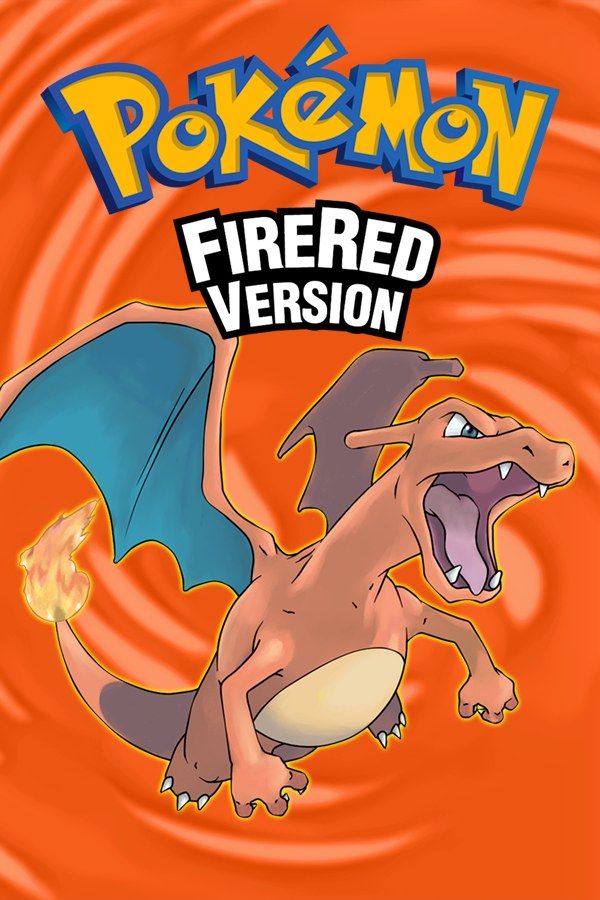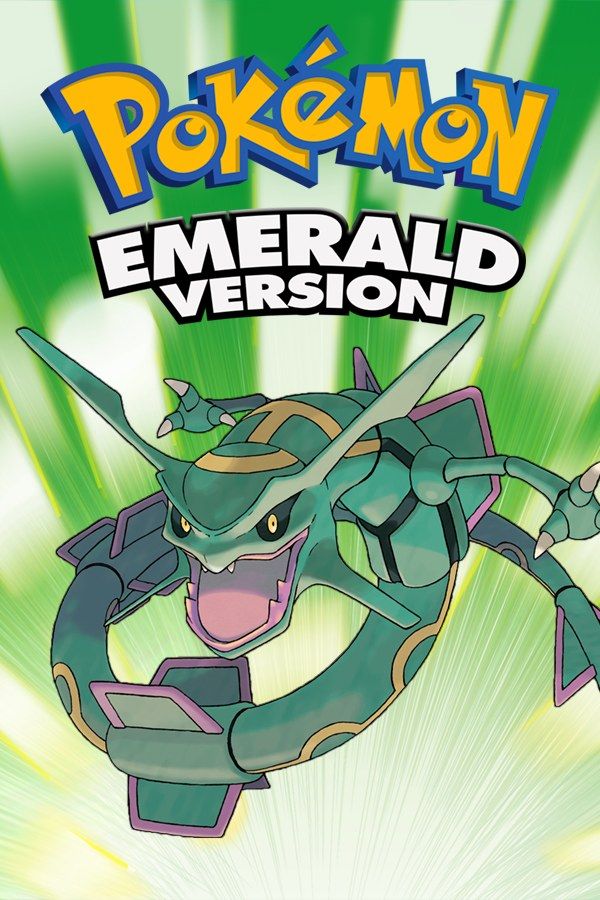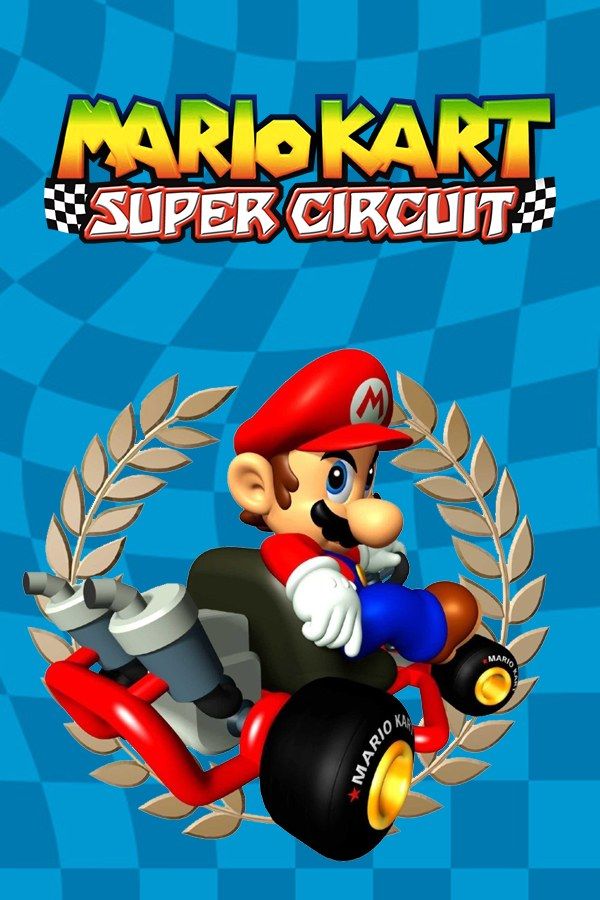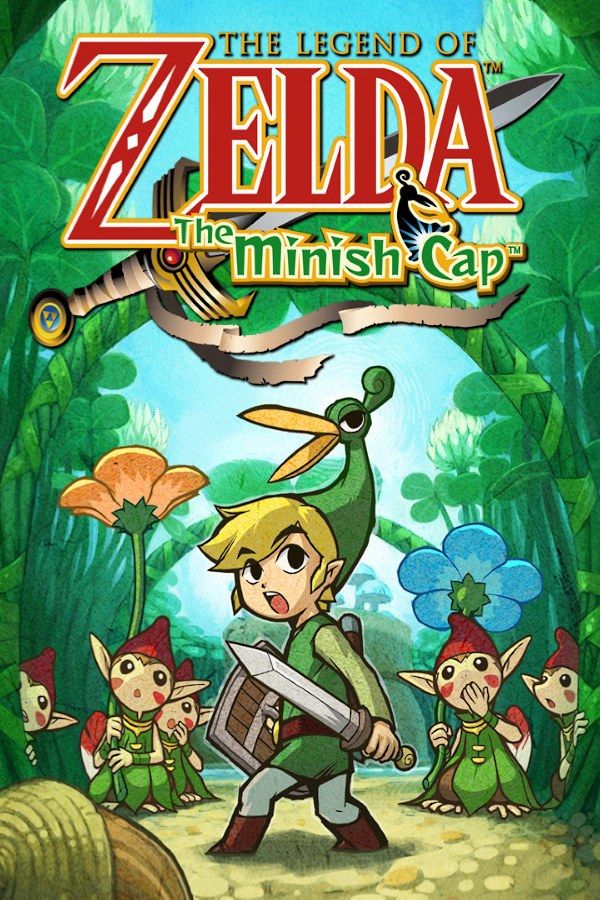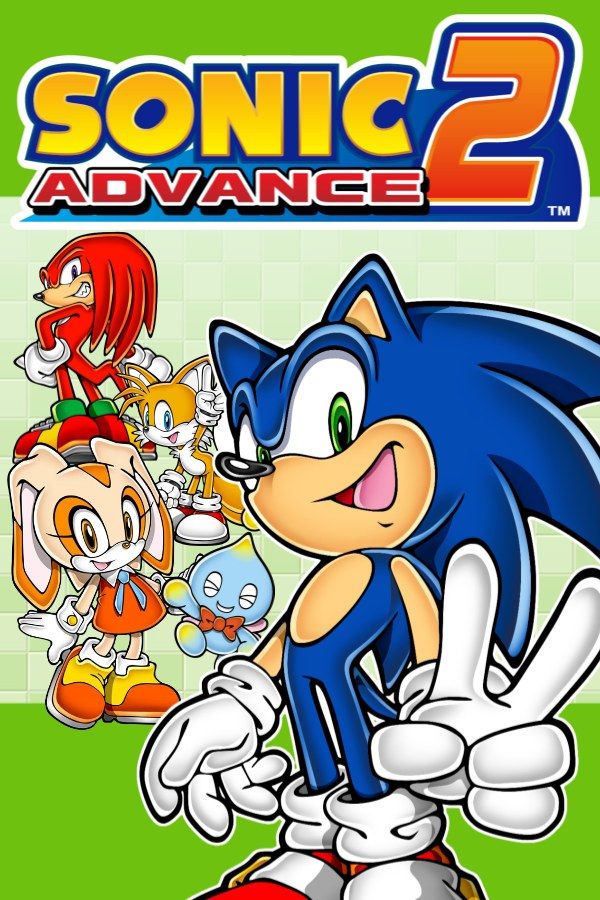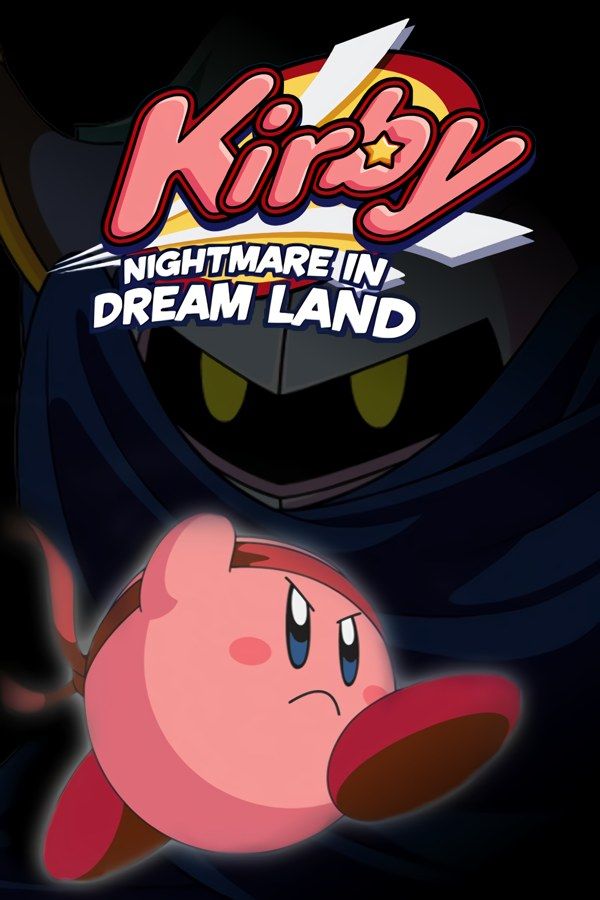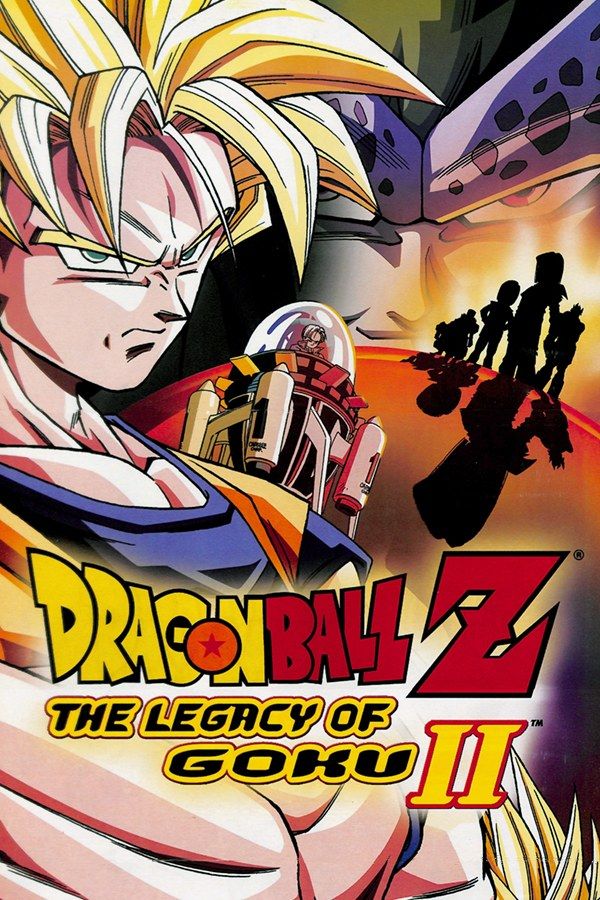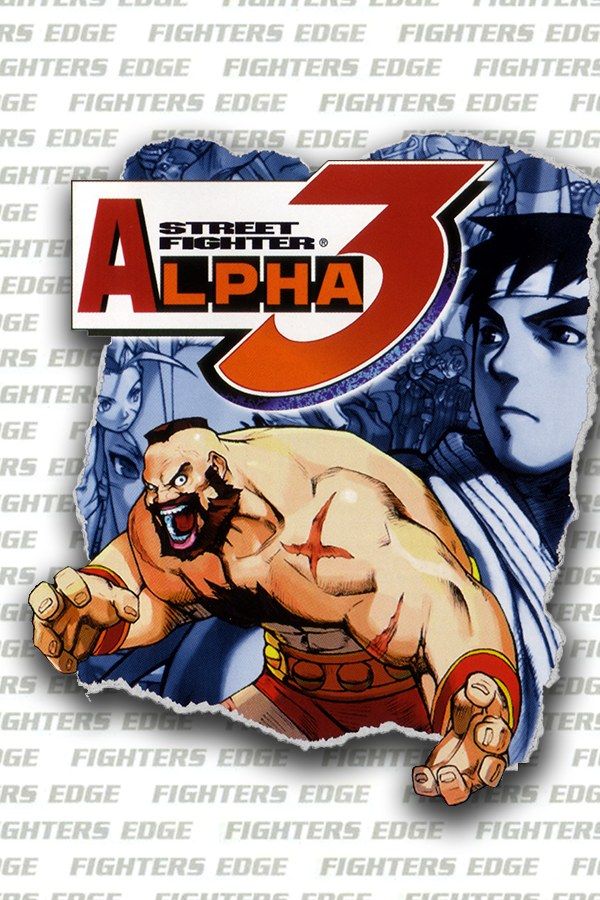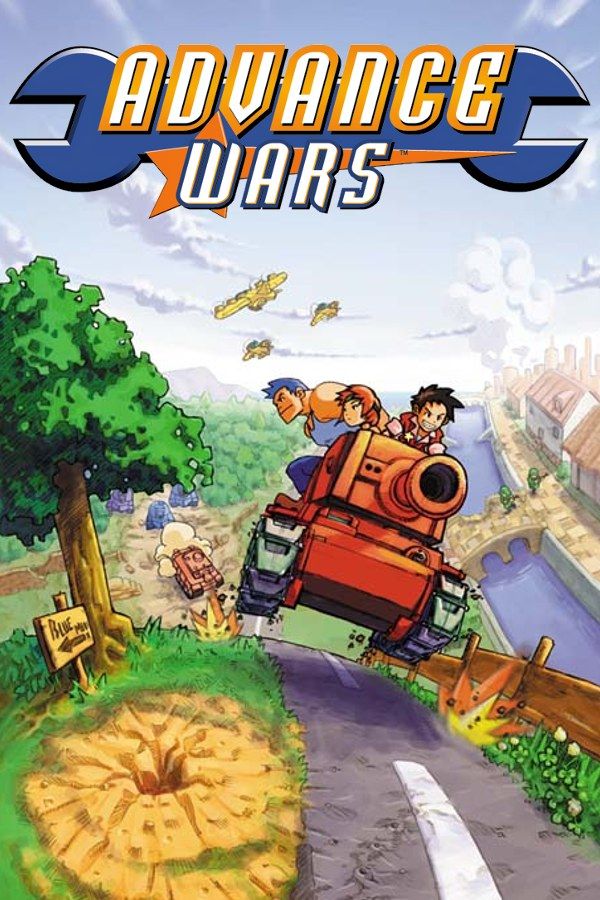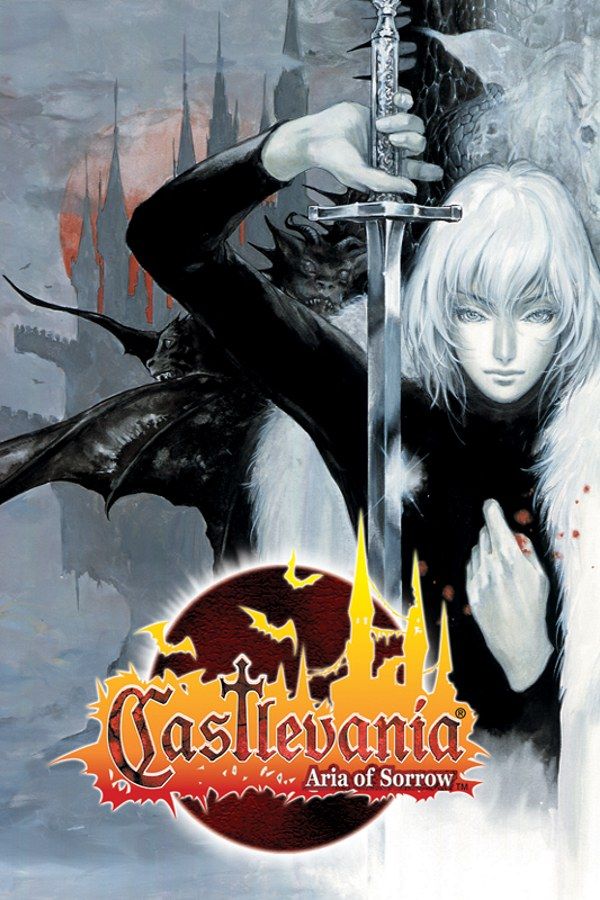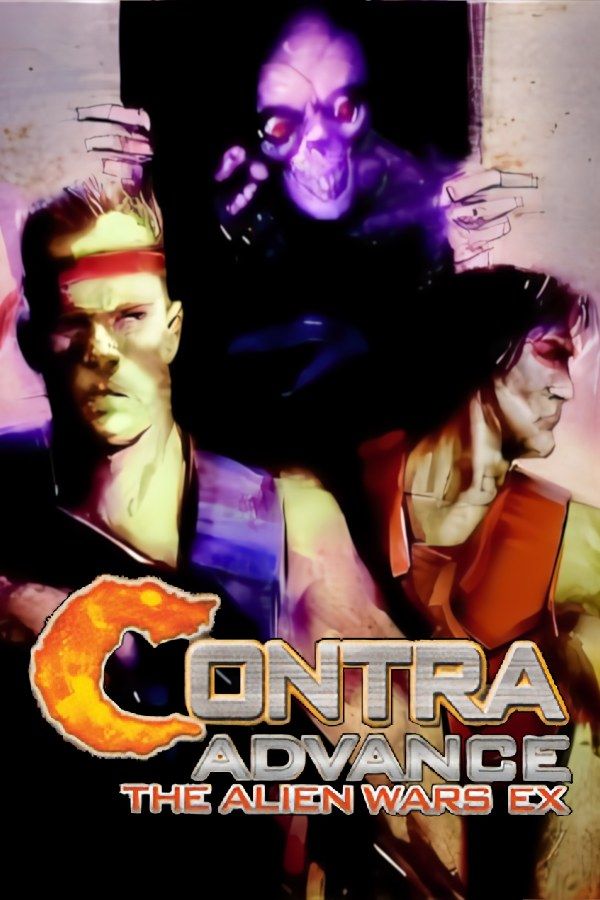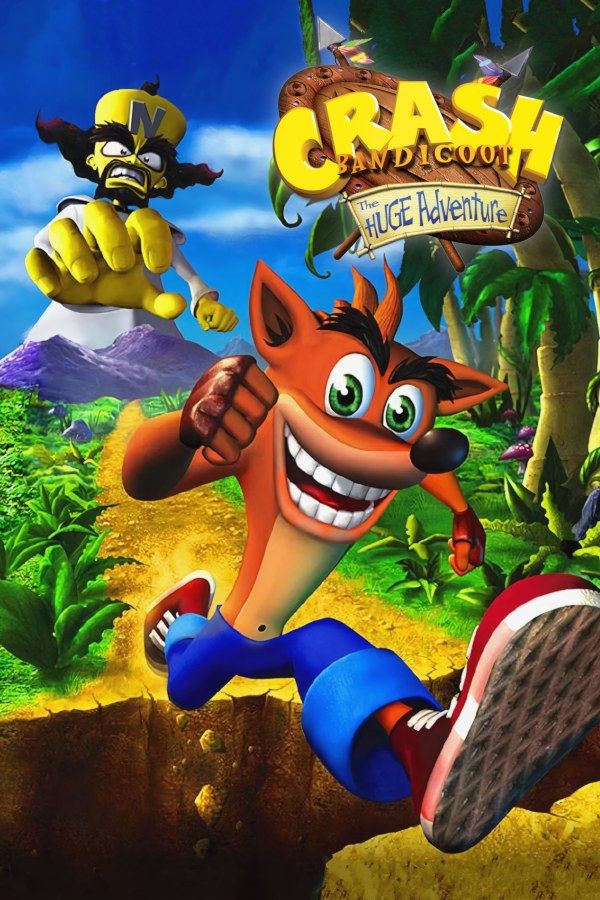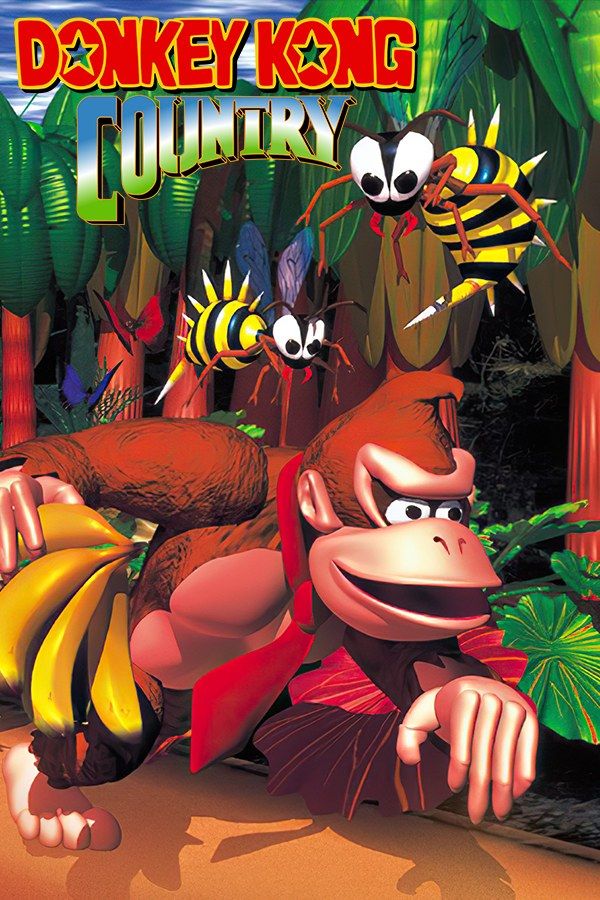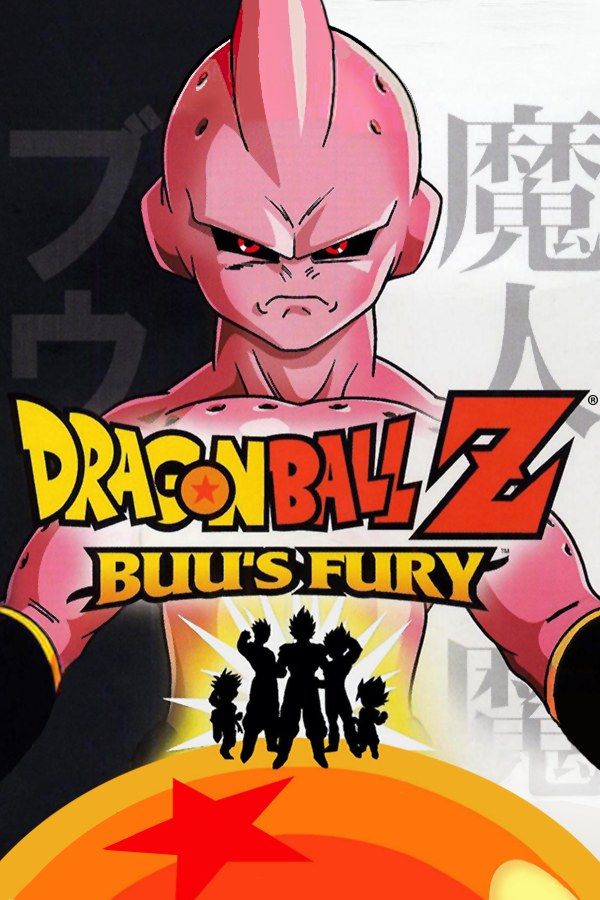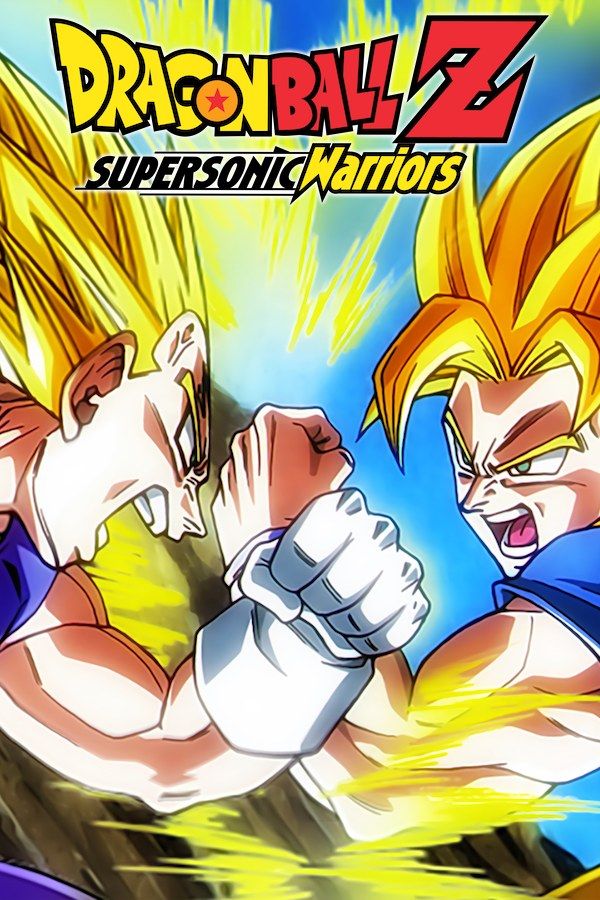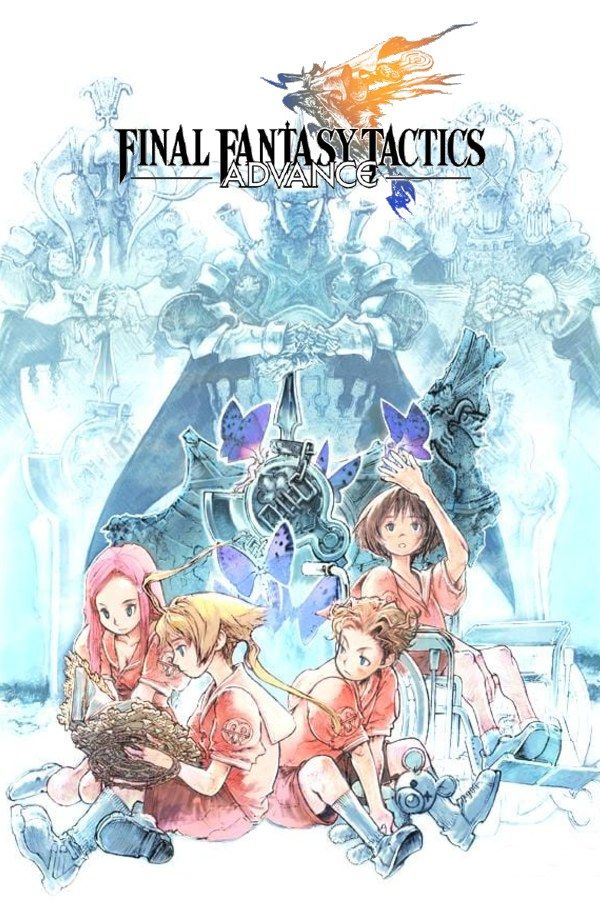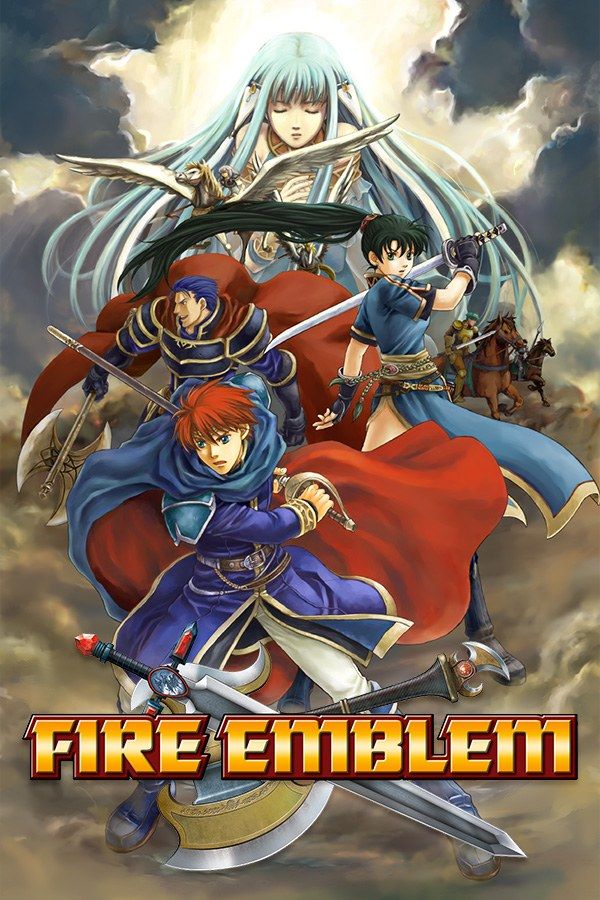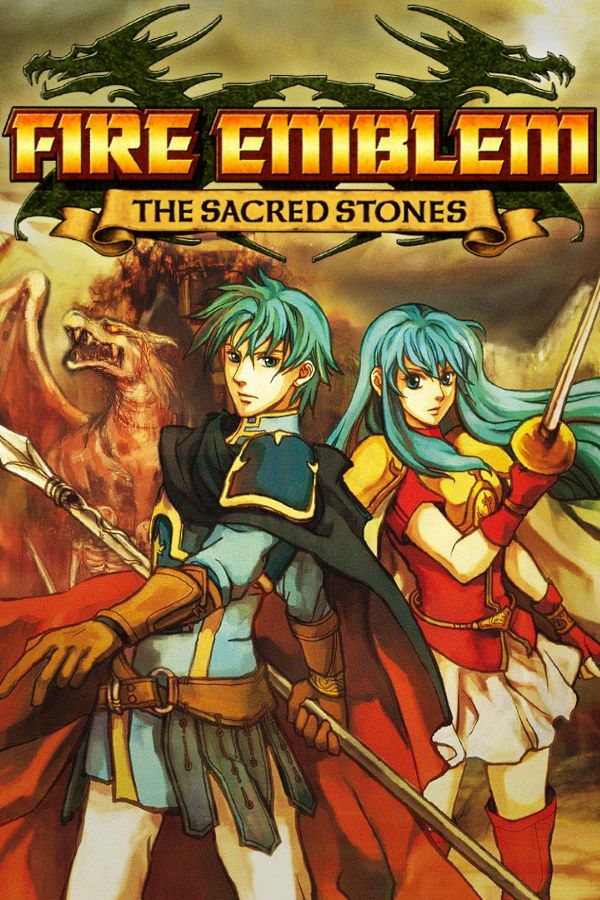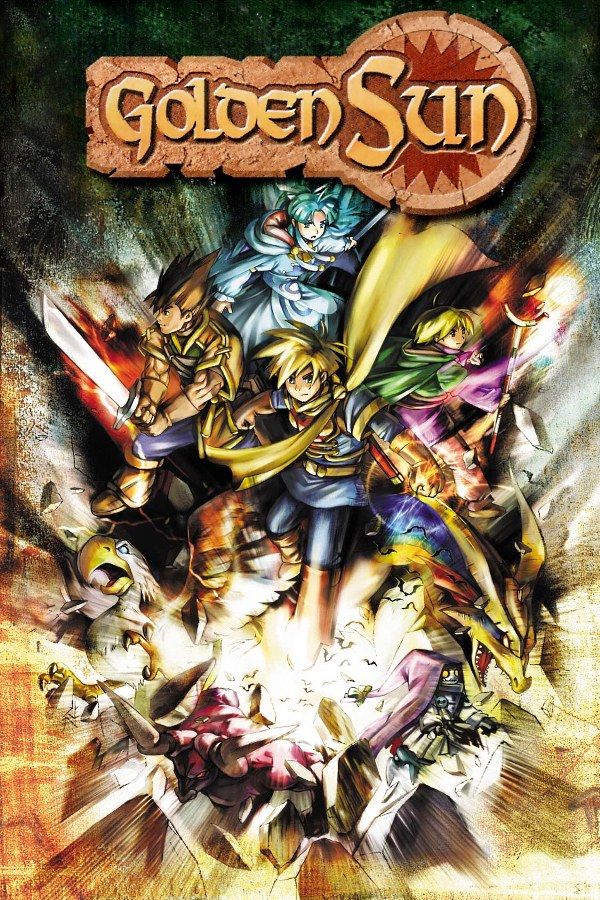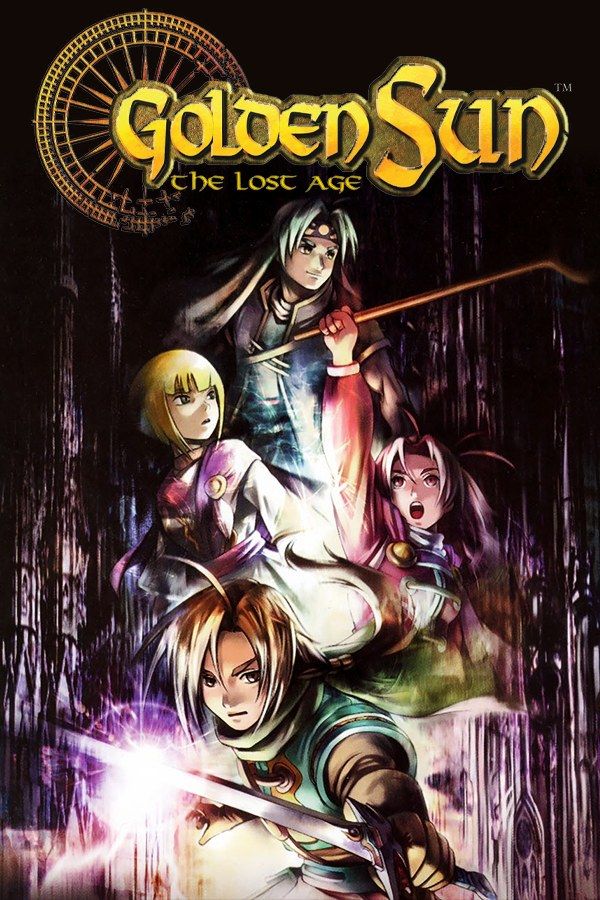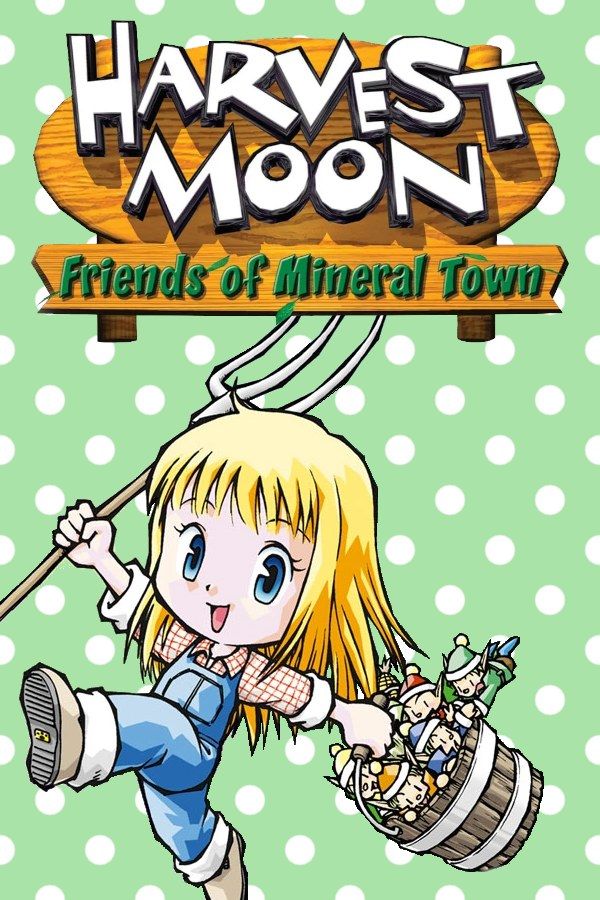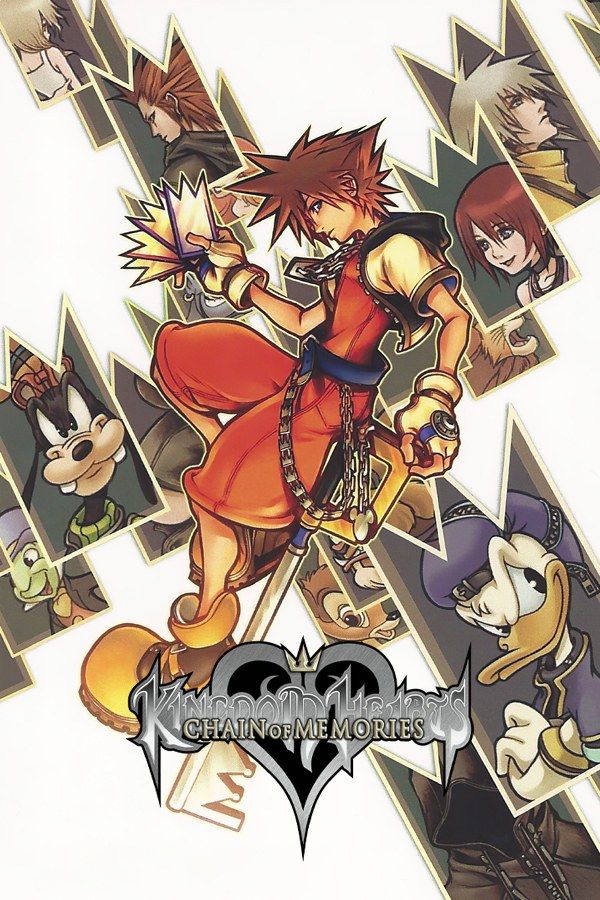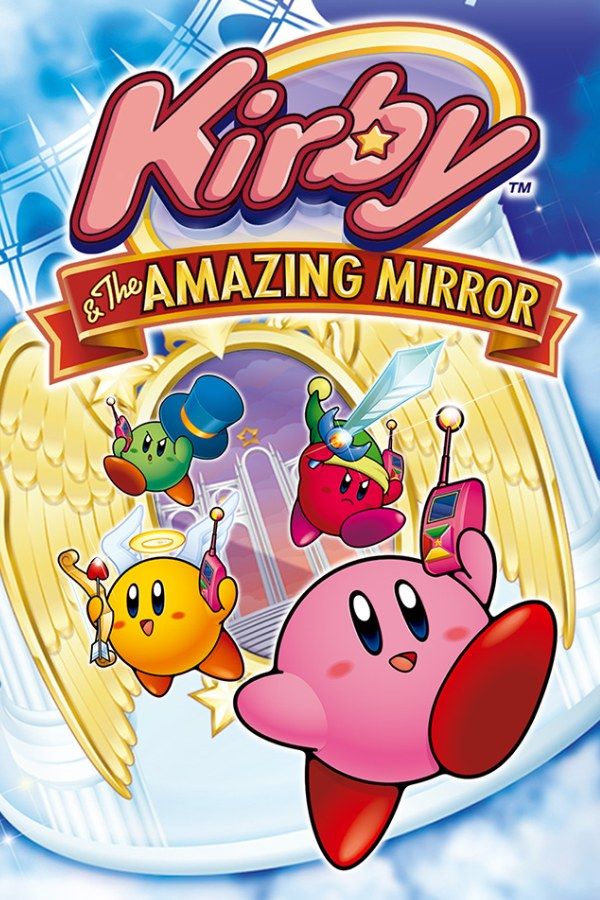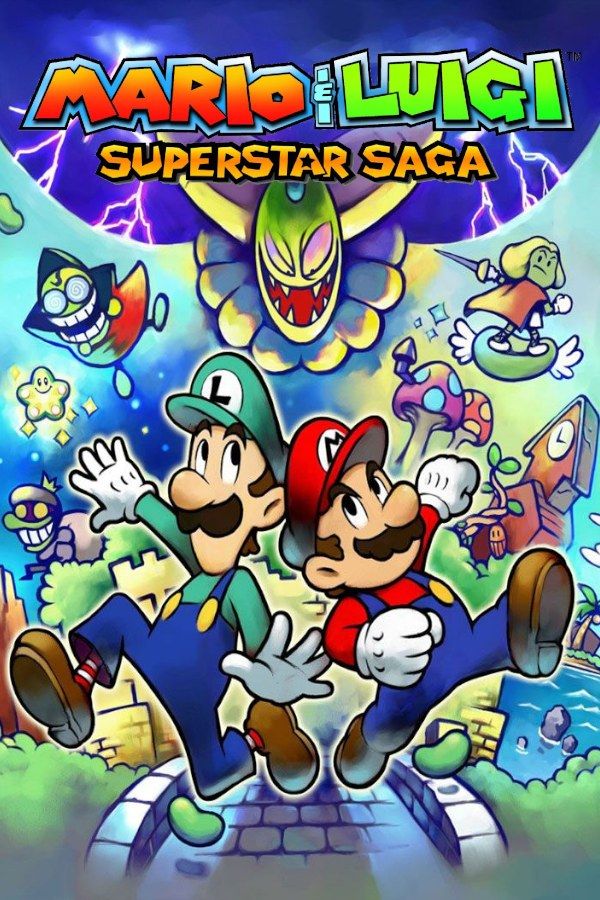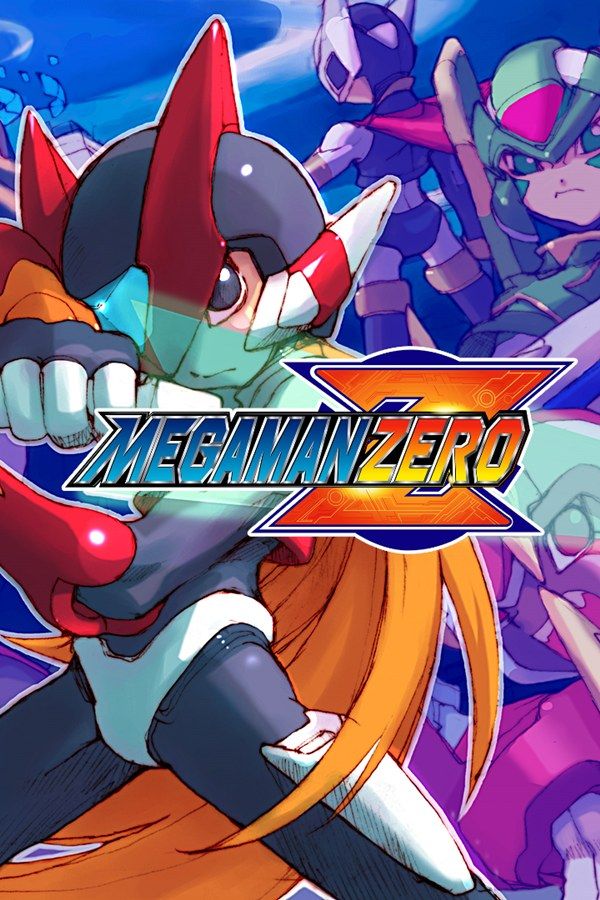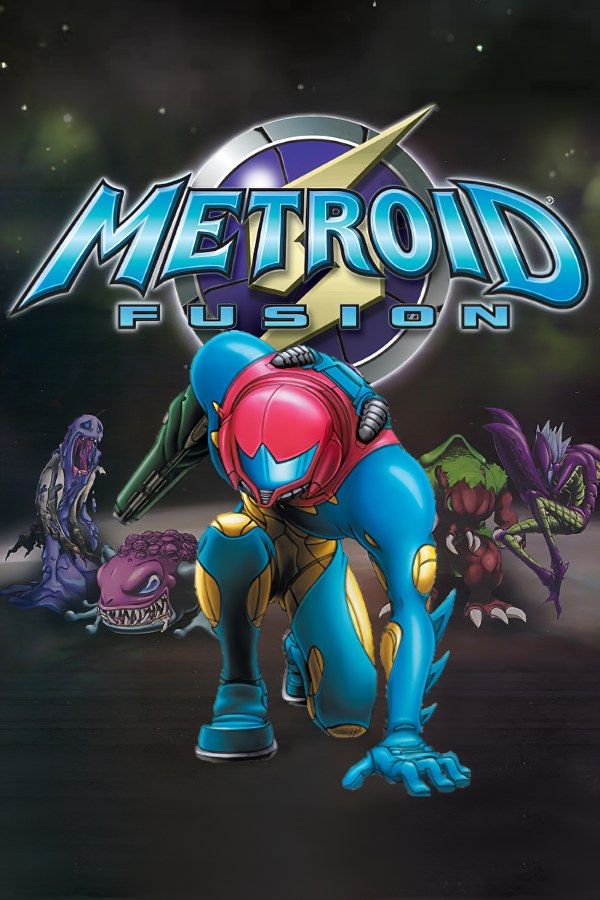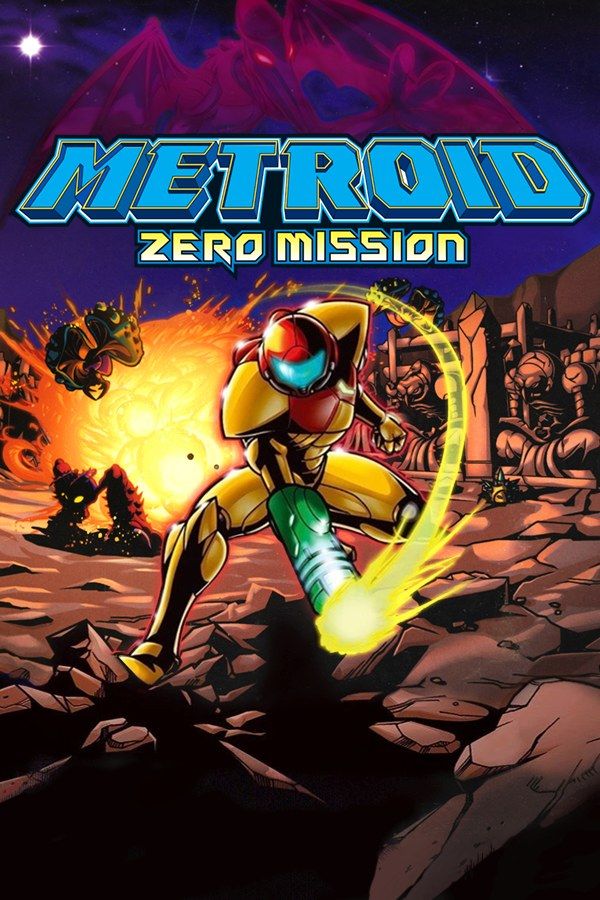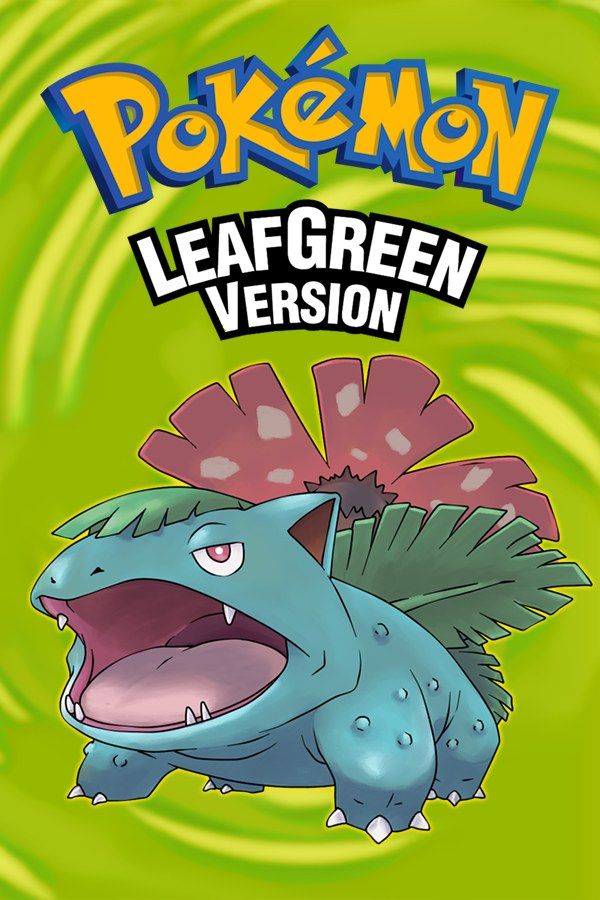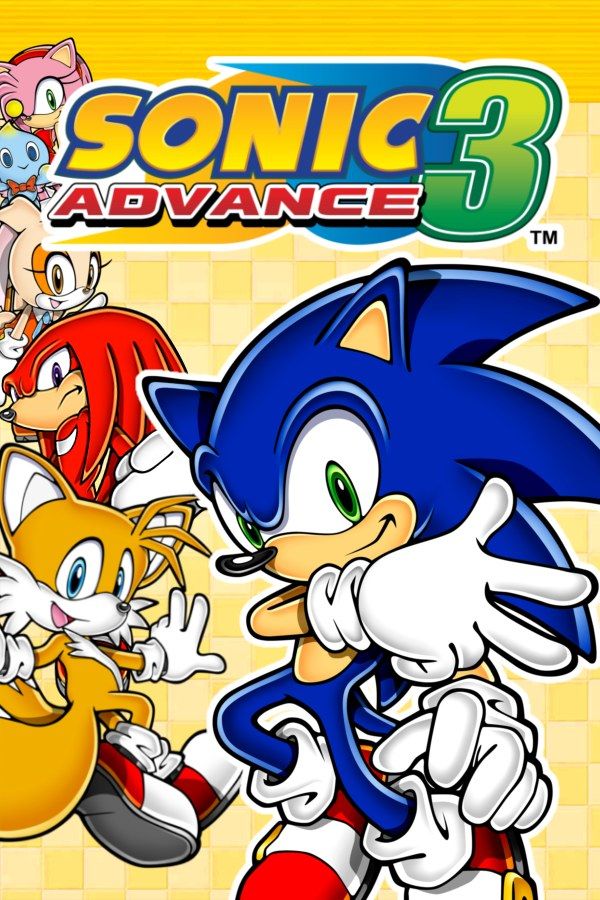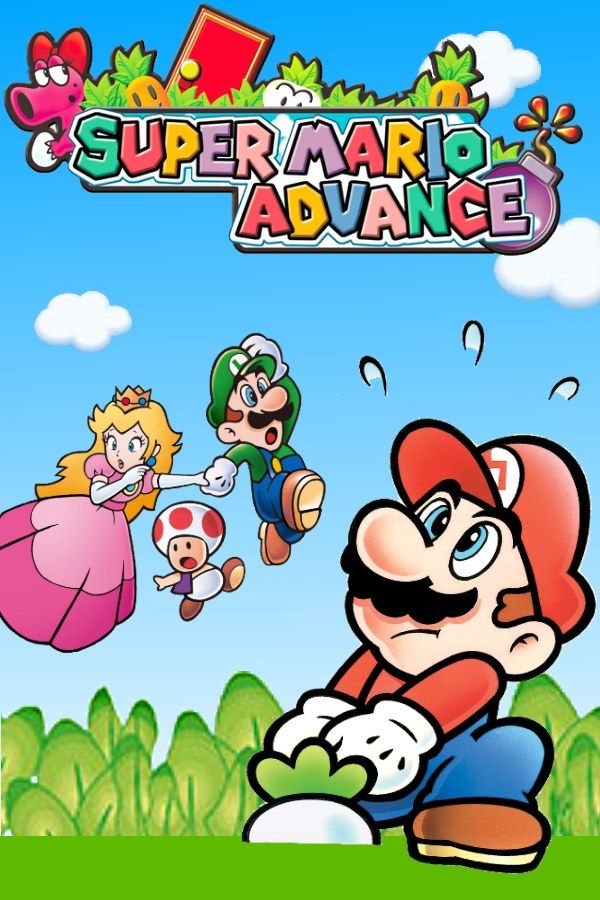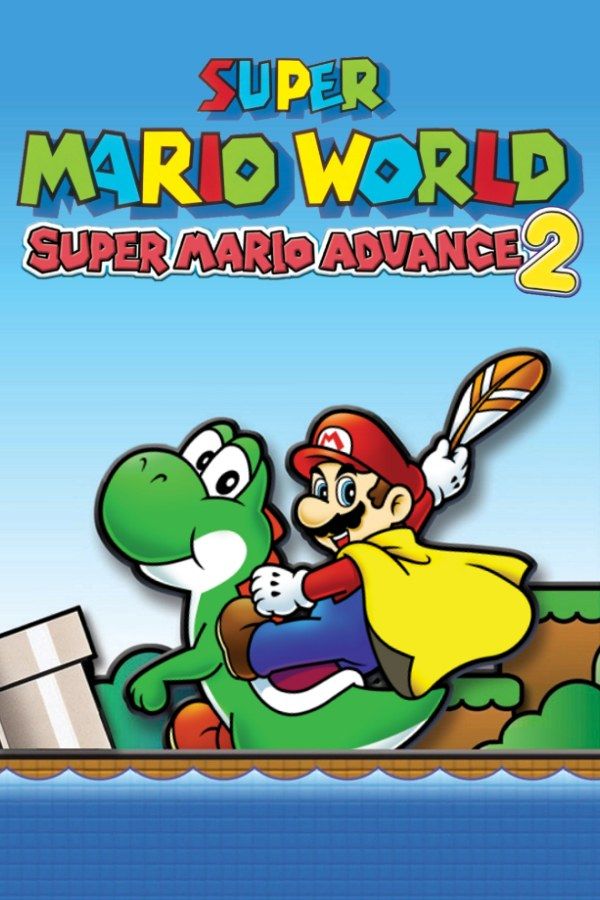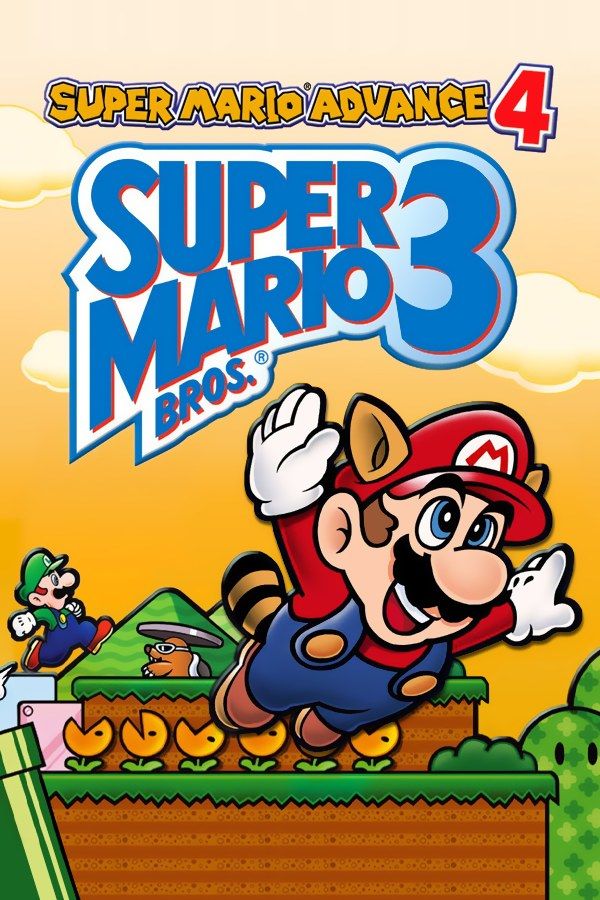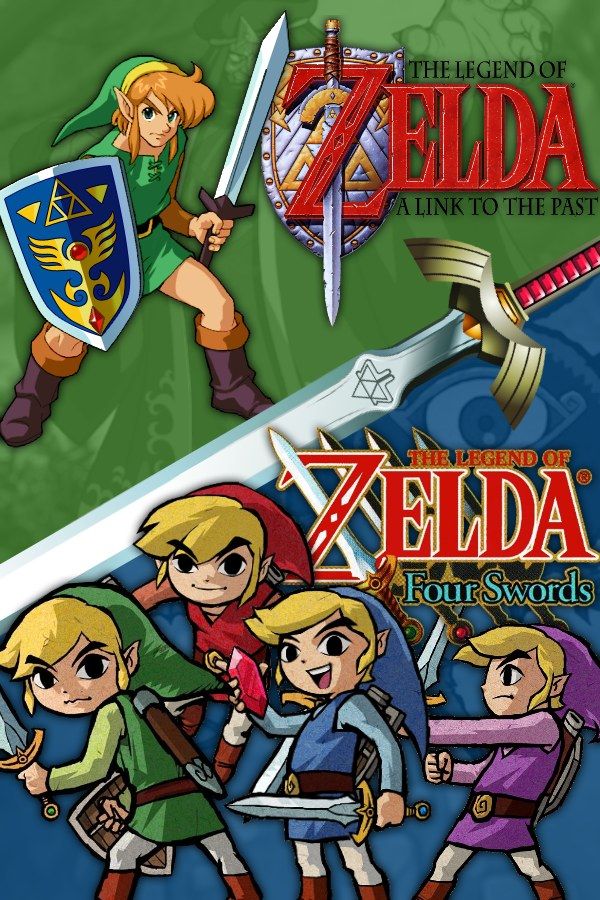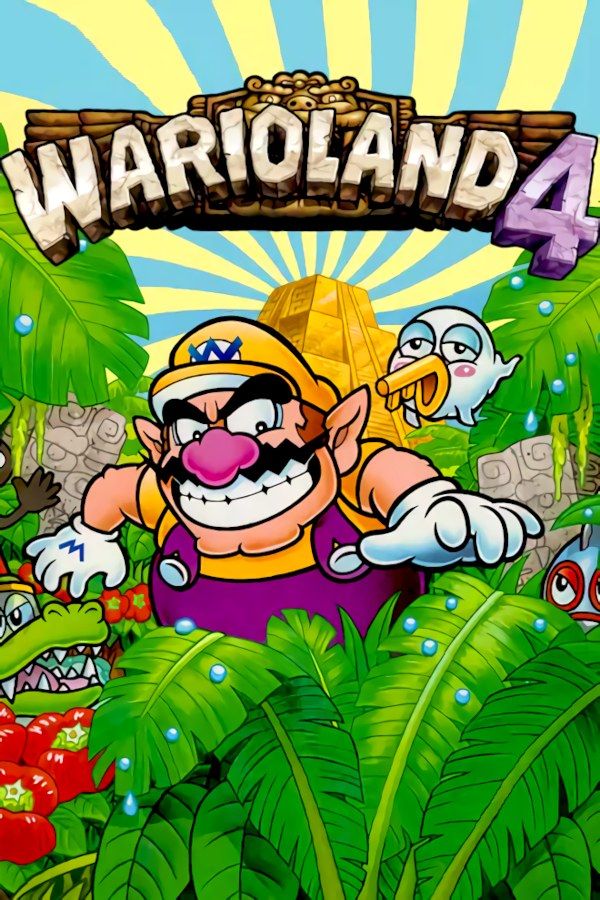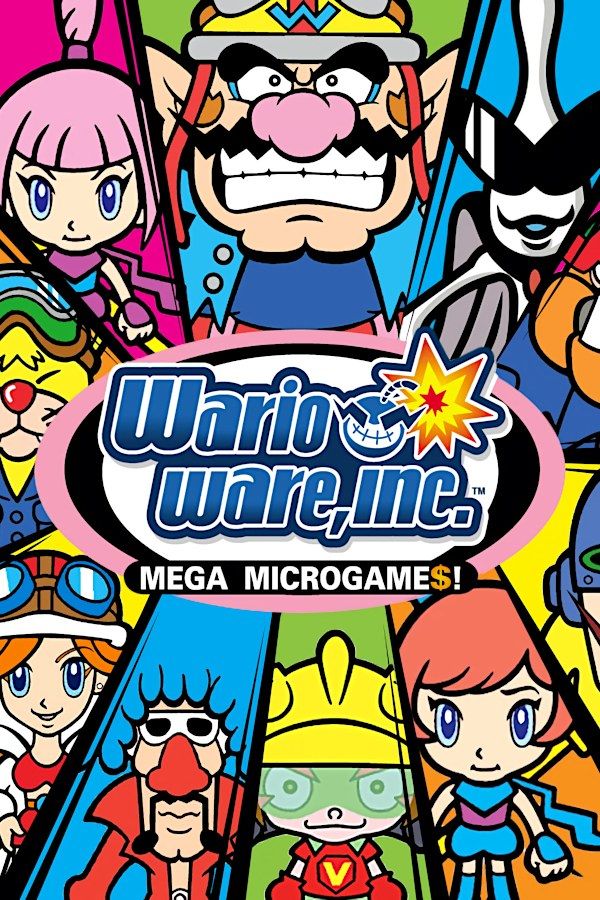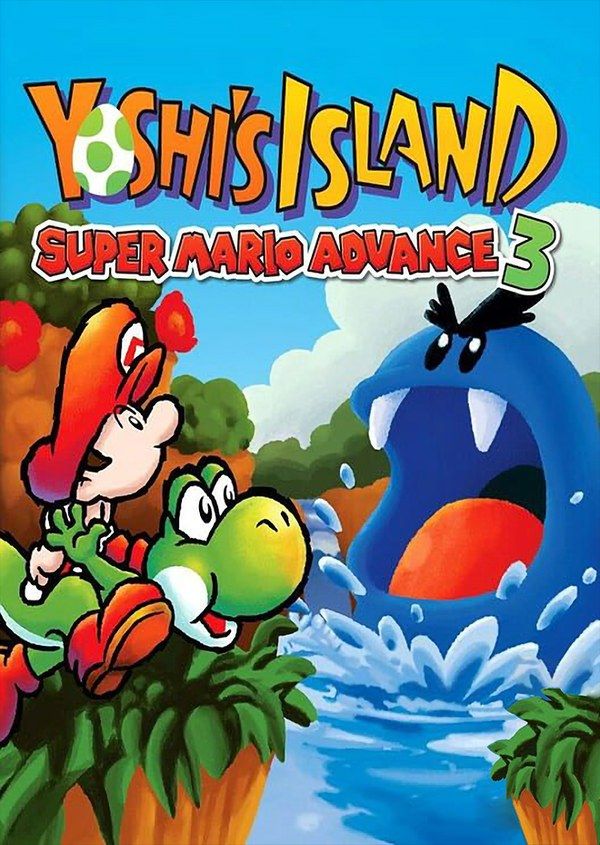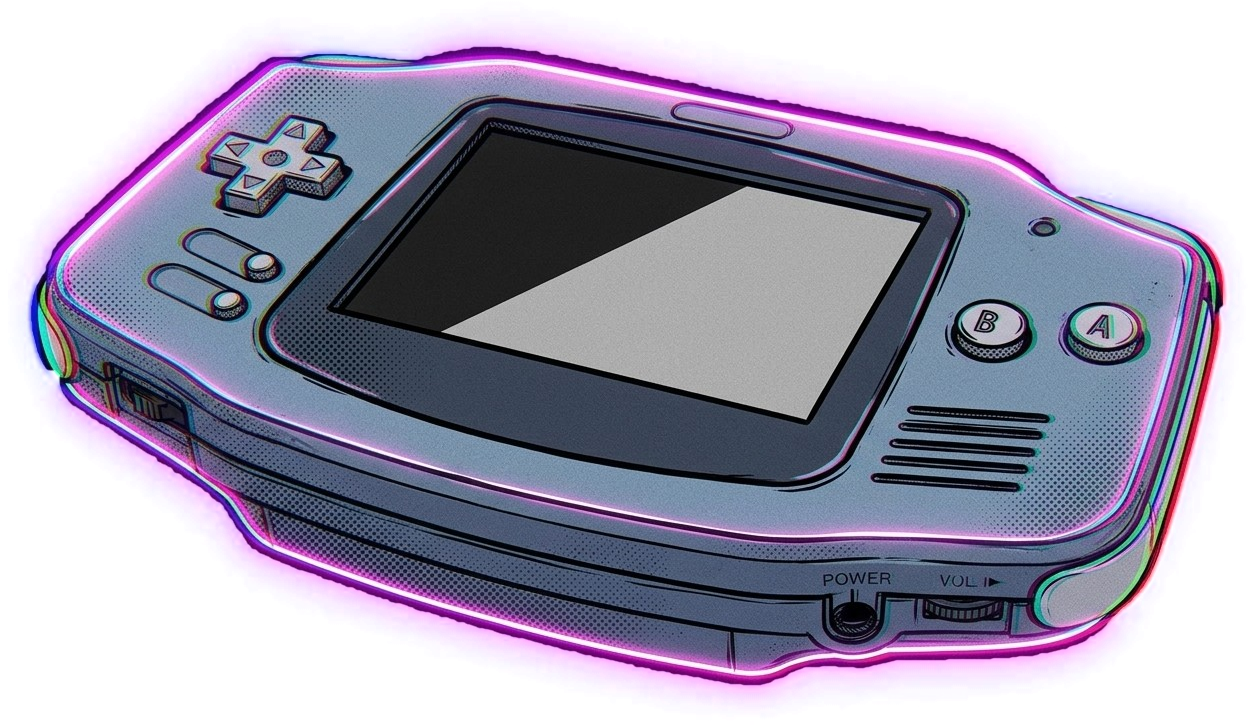
Nagori is a Game Boy Advance emulator from the App Store. You add the .gba files of games you own, and they line up on a shelf of game cases with their box art. Pick one and press Play: there is no BIOS to find and nothing to set up. When you leave, the game waits exactly where you stopped.
What you need
- An iPhone or iPad with iOS 17.6 or later. On iPhone, games play in landscape. On iPad, any orientation works; in portrait the picture sits on top and the controls below it.
- Nagori from the App Store. Your first game is free.
- Your game as a
.gbafile, or a.zipor.rararchive containing it. Nagori doesn’t include games.
How to play GBA games on iPhone
- Install Nagori from the App Store.
- Copy your
.gbafile to the Files app, in iCloud Drive or On My iPhone. - Open Nagori and tap +, or the empty Add Games case at the end of the GBA shelf, and select the file. Archives are unpacked for you.
- Choose the game on the shelf and press Play. Box art downloads by itself.
- Pause any time with the menu button on screen, or by pressing the left stick on a controller. Next time, Continue takes you back to where you left off.
You can also open a .gba file straight from the Files app or Safari and send it to Nagori, which appears as NGR in the share sheet.
Picture: crisp pixels or a smooth image
The Game Boy Advance screen is 240 by 160 pixels, a 3:2 shape. Nagori keeps that shape, or fills your whole screen if you turn on Full Screen.
- Picture Smoothing softens the scaled-up pixels. Turn it off for sharp, square pixels.
- Screen Effects: CRT Screen with scanlines, Screen Curve, Bloom and Chromatic Aberration, each Off, Medium or Strong.
Controls
The Standard touch layout puts the D-pad and A and B where your thumbs rest, L and R along the top, and Select and Start beside the menu button. Edit Layout lets you move, resize and hide every button and make them more or less see-through. The D-pad follows your thumb, and buttons forgive near misses.
With a controller, the touch controls hide as soon as it connects. Nagori works with Bluetooth controllers that iOS supports, including DualSense, DualShock 4 and Xbox controllers, and the left stick doubles as the D-pad.
- Fast Forward (2×) and Slow Motion (½×) can be assigned to a spare controller button, or added to your own touch layout. Fast forward is handy for long dialogue and grinding.
- Rumble cartridges, like the one in Drill Dozer, vibrate your controller or your iPhone.
Saves
- Your in-game saves are kept automatically, the same way the cartridge kept them.
- Continue where you left off. Nagori saves whenever you leave a game, even if you swipe the app away.
- Four save states per game, each with a screenshot, plus the autosave.
- iCloud: Save to iCloud and Load from iCloud move a game’s progress between your iPhone and iPad.
- Backups: export all your saves as one
.zipand import them again later. - Cheats: paste GameShark or Action Replay codes, each with its own on/off switch.
What isn’t supported
- The link cable. Trading, link battles and link multiplayer need a second Game Boy Advance, so they aren’t available.
- Motion and light sensors. Games with a tilt or solar sensor built into the cartridge, such as WarioWare: Twisted!, Kirby Tilt ‘n’ Tumble and Boktai, can’t read them.
- Game Boy and Game Boy Color games. Nagori plays Game Boy Advance games only.
Price
Your first game is free. A subscription lets you add as many games as you like. Everything else is free for everyone: picture settings, screen effects, saves, iCloud and controller support.