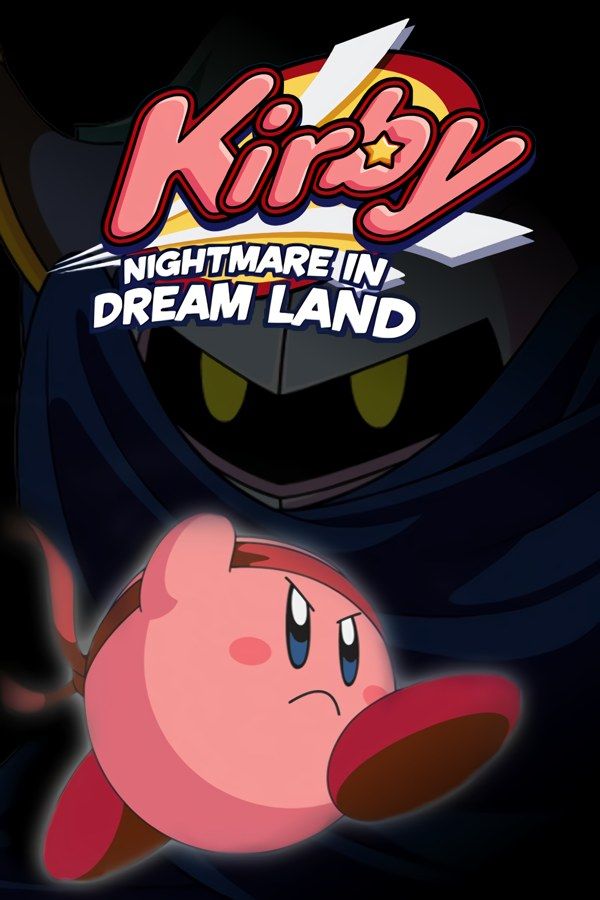
Kirby: Nightmare in Dream Land is HAL Laboratory’s 2002 Game Boy Advance remake of Kirby’s Adventure, the 1993 NES game. Kirby inhales enemies, swallows them to copy their powers, and travels across Dream Land to put the broken Star Rod back together. If you own the game, Nagori lets you play it on iPhone and iPad.
What you need
- An iPhone or iPad with iOS 17.6 or later.
- Nagori from the App Store. Your first game is free.
- Your copy of Kirby: Nightmare in Dream Land as a
.gbafile, or a.zipor.rarcontaining it.
No BIOS file is needed.
How to play Kirby: Nightmare in Dream Land on iPhone
- Install Nagori from the App Store.
- Copy your Kirby: Nightmare in Dream Land
.gbafile to the Files app, in iCloud Drive or On My iPhone. - Open Nagori, tap + and select the file. If the game is in a
.zipor.rar, add the archive as it is and Nagori unpacks it. - Find Kirby on the GBA shelf with its box art and press Play.
Controls
Kirby moves at an easy pace, so touch controls work well here. The Standard touch layout gives you the D-pad and the A and B buttons, with L and R along the top. A jumps, and pressing it again in the air puffs Kirby up to float. B inhales enemies, and once Kirby has an ability, uses it. Press down with an enemy in Kirby’s mouth to swallow it and copy its power. If the buttons feel small, open Edit Layout in the pause menu and resize them or drag them where your thumbs rest.
With a controller, A and B sit on the face buttons, L and R on the shoulder buttons, and the left stick works as the D-pad too. Bluetooth controllers that iOS supports, including DualSense, DualShock 4 and Xbox controllers, work with Nagori. Press the left stick to open the pause menu.
Fast Forward runs the game at twice the speed. Assign it to a controller button in the pause menu, or add the ×2 button to My Layout. It’s handy when you go back through levels you’ve already cleared to look for what you missed.
Saves
Kirby: Nightmare in Dream Land saves your progress to the cartridge by itself. Nagori stores that save automatically, and adds more:
- Quit any time. Leave the app in the middle of a level and Continue puts you back exactly where you were.
- Save states. Pause and choose Save before a boss. If the fight goes badly, Load and try it again. Nagori keeps your last four saves per game.
- iCloud. Save to iCloud and Load from iCloud move your progress between your iPhone and iPad.
Copy abilities and 100%
Many of the game’s secrets come down to abilities. Some hidden switches and doors only give way to the right power. The game tracks how much of it you’ve completed, and reaching 100% unlocks Meta Knightmare, a mode where you play through the game as Meta Knight.
Save states make the hunt easier. Before you swallow an enemy to try a new ability, make a save state: if you’d rather keep the one you had, Load and it’s back. The same trick works when you carry a useful ability toward a boss and don’t want to lose it on the way.
Best settings
- Picture Smoothing softens the pixels. Turn it off for sharp, raw pixels like on the Game Boy Advance screen.
- Full Screen stretches the picture to fill the display. Leave it off to keep the GBA’s 3:2 shape; in Edit Layout you can move the controls into the black bars on the sides so they don’t cover Kirby.
- Screen Effects → CRT Screen adds scanlines and a shadow mask, a nod to the NES original on an old tube TV.