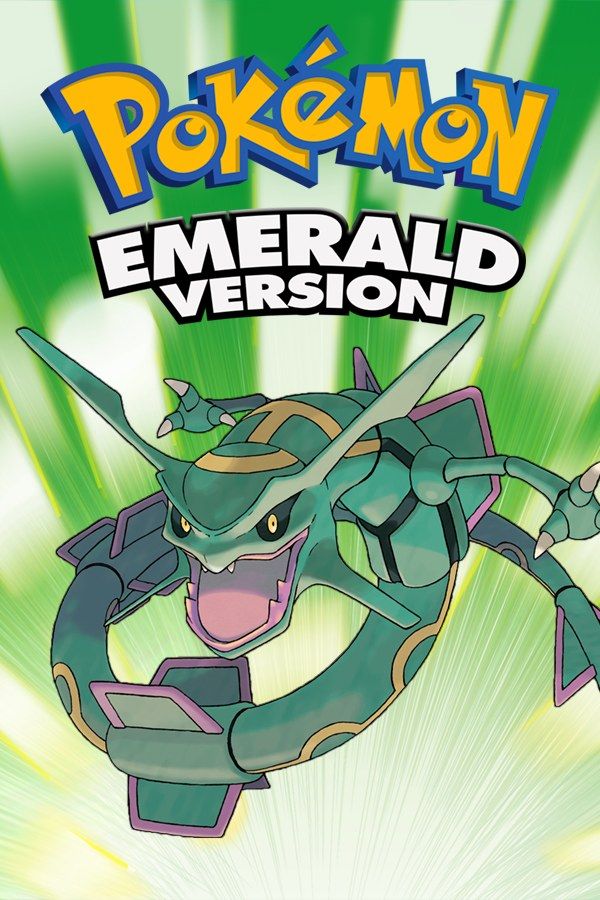
Pokémon Emerald is Game Freak’s third take on the Hoenn adventure that began with Ruby and Sapphire. You choose Treecko, Torchic or Mudkip, earn eight badges, and end up between Team Magma and Team Aqua as they wake Groudon and Kyogre, with Rayquaza at the center of the story. After the Elite Four, the Battle Frontier opens with seven battle facilities. If you own the game, Nagori lets you play it on iPhone and iPad.
What you need
- An iPhone or iPad with iOS 17.6 or later.
- Nagori from the App Store. Your first game is free.
- The game file of your copy of Pokémon Emerald in
.gbaformat, or a.zipor.rarcontaining it.
No BIOS file is needed.
How to play Pokémon Emerald on iPhone
- Install Nagori from the App Store.
- Copy your Emerald
.gbafile to the Files app, in iCloud Drive or On My iPhone. - Open Nagori, tap + and select the file. If the game is in a
.zipor.rar, select the archive and Nagori unpacks it. - Find Emerald on the GBA shelf with its box art and press Play.
Controls
Emerald uses the D-pad and the Game Boy Advance buttons, all of which are on the Standard touch layout, with L and R along the top. A talks and confirms, B cancels, and Start opens the menu. Once you have the Running Shoes, hold B to run. Register your bike in the Bag and Select gets you on and off it without opening the menu.
If a button sits where your thumb doesn’t, open Edit Layout in the pause menu. You can drag any control, pinch it bigger or smaller, and hide the ones you don’t use.
Fast Forward runs the game at twice the speed. It helps most on Hoenn’s long Surf routes, while grinding levels and during long conversations. Bind it to a controller button, or add the ×2 button to the touch screen in My Layout.
With a controller, the left stick works as the D-pad too, and pressing it opens the pause menu.
Saves
Emerald saves only when you choose Save from the Start menu, and the cartridge holds one save file. Nagori keeps that in-game save automatically. On top of it:
- Continue where you stopped. Nagori saves the moment you leave the game, even mid-battle, and Continue in the game menu picks up from there.
- Save states. Pause and choose Save before a gym leader, the Elite Four or your attempt to catch Rayquaza at Sky Pillar. If it goes badly, Load and try again. Nagori keeps your last four saves per game.
- iCloud. Save to iCloud copies your progress to your private iCloud. On your iPad, add the same game and choose Load from iCloud to keep playing there.
- Backups. Export Saves in the game menu makes a backup copy of your saves.
What needs a second console
Emerald was built to connect to other Game Boy Advance systems, and those features don’t work in Nagori, which plays GBA games for one player with no link support:
- trading Pokémon and link battles with friends,
- the Union Room and Record Mixing,
- evolutions that only happen through a trade, such as Kadabra, Machoke and Graveler.
Everything else, from the first route to the Battle Frontier, is single-player and needs no second console.
Best settings
- Picture Smoothing gives the sprites softer edges. Turn it off if you prefer the crisp, raw pixels of the GBA screen.
- Full Screen stretches the picture to fill your display. Leave it off to keep the original 3:2 shape.
- Screen Effects adds CRT scanlines, a screen curve or bloom, from Off to Strong.
On iPad you can also hold the device upright: the picture moves to the top and the controls sit below it.