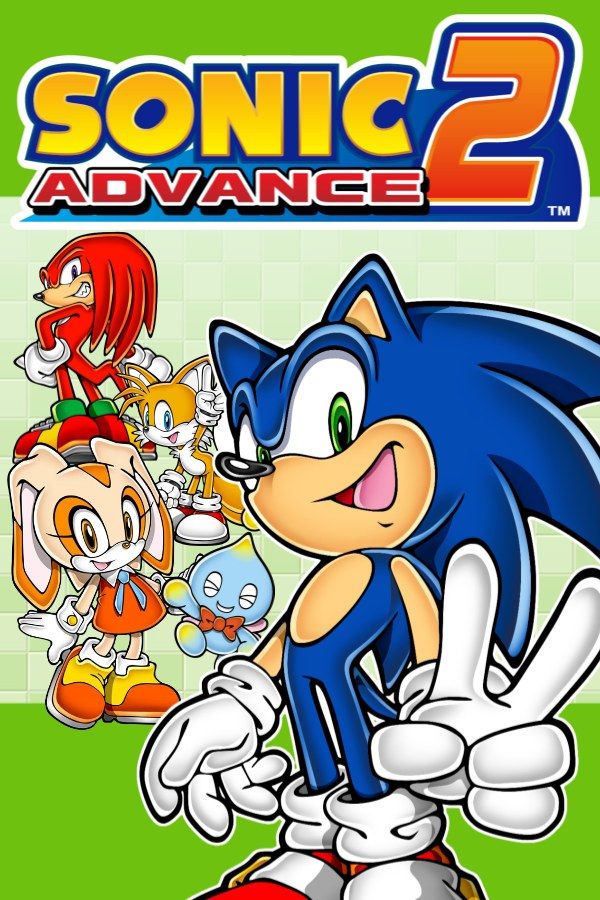
Dimps’ 2002 platformer is built around speed. Keep running without hitting anything and your character breaks into a boost and races through loops, springs and enemies even faster. It also introduced Cream the Rabbit, playable alongside Sonic, Tails and Knuckles. If you own the game, Nagori lets you play it on iPhone and iPad.
What you need
- An iPhone or iPad with iOS 17.6 or later.
- Nagori from the App Store. Your first game is free.
- Your copy of Sonic Advance 2 as a
.gbafile, or a.zipor.rarcontaining it.
No BIOS file is needed.
How to play Sonic Advance 2 on iPhone
- Install Nagori from the App Store.
- Copy your Sonic Advance 2
.gbafile to the Files app, in iCloud Drive or On My iPhone. - Open Nagori, tap + and select the file. If the game is in a
.zipor.rar, add the archive as it is and Nagori unpacks it. - Find Sonic Advance 2 on the GBA shelf with its box art and press Play.
Controls
At top speed, most lost lives come from reacting a moment too late, so the controls need to be where your thumbs expect them. The Standard touch layout gives you the D-pad and the A and B buttons, with L and R along the top. The touch D-pad follows your thumb, so you can hold right without looking down. If you keep missing jumps, open Edit Layout in the pause menu and make the buttons bigger, or drag them where your thumbs rest.
A controller suits the game even better. Bluetooth controllers that iOS supports, including DualSense, DualShock 4 and Xbox controllers, work with Nagori. A and B sit on the face buttons, L and R on the shoulder buttons, and the left stick works as the D-pad too. Press the left stick to open the pause menu.
Slow Motion runs the game at half speed. Assign it to a controller button in the pause menu, or add the ×0.5 button to My Layout, to learn a stretch that keeps catching you out, then play it again at full speed.
Saves
Sonic Advance 2 keeps your progress through the zones on the cartridge. Nagori stores that save automatically, and adds more:
- Quit any time. Leave the app in the middle of an act and Continue puts you back exactly where you were.
- Save states. Pause and choose Save before a boss or a run of bottomless pits. If it goes wrong, Load instead of losing a life. Nagori keeps your last four saves per game.
- iCloud. Save to iCloud and Load from iCloud move your progress between your iPhone and iPad.
Special Rings and Chaos Emeralds
Seven Special Rings are hidden in each act, and collecting all seven is how you reach a Special Stage, where a Chaos Emerald is the prize. The Chaos Emeralds are also your way to the game’s true ending. At boost speed the rings are easy to fly past, so a save state helps here too: make one when you’re close to a full set, and if you miss the emerald, Load and try again.
Best settings
- Picture Smoothing softens the pixels. Turn it off for sharp, raw pixels like on the Game Boy Advance screen.
- Full Screen stretches the picture to fill the display. Leave it off to keep the GBA’s 3:2 shape; in Edit Layout you can move the controls into the black bars on the sides so they don’t cover the action.
- Screen Effects → CRT Screen adds scanlines and a shadow mask if you like the look of an old tube TV.