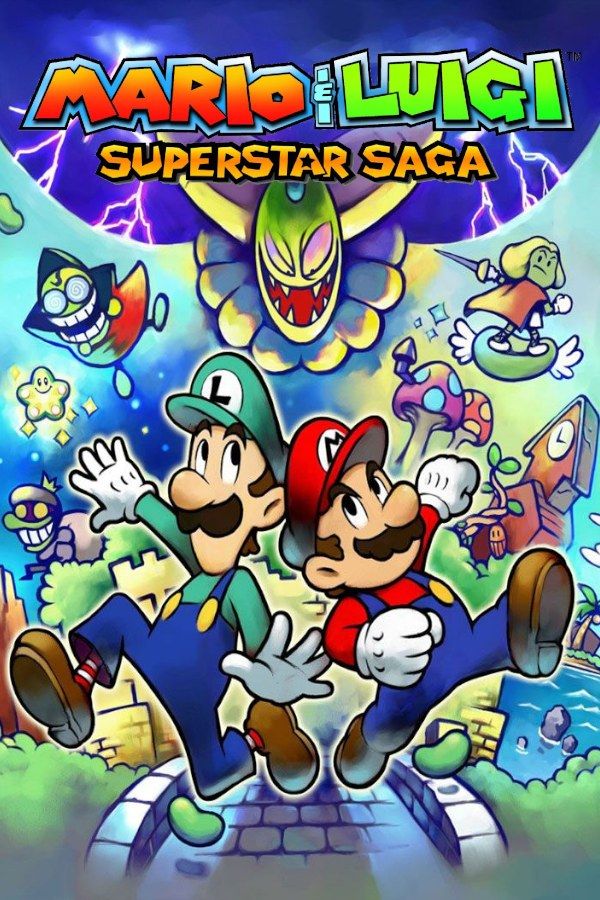
Mario & Luigi: Superstar Saga is an RPG from AlphaDream, published by Nintendo in 2003. The witch Cackletta and her henchman Fawful steal Princess Peach’s voice, and Mario and Luigi travel to the Beanbean Kingdom to get it back. You control both brothers at once, Mario with A and Luigi with B, and battles reward timing: a well-timed press makes an attack hit harder, and the right press at the right moment gets you out of an enemy’s way. If you own the game, Nagori lets you play it on iPhone and iPad.
What you need
- An iPhone or iPad with iOS 17.6 or later.
- Nagori from the App Store. Your first game is free.
- The game file of your copy of Superstar Saga in
.gbaformat, or a.zipor.rarcontaining it.
No BIOS file is needed.
How to play Mario & Luigi: Superstar Saga on iPhone
- Install Nagori from the App Store.
- Copy your Superstar Saga
.gbafile to the Files app, in iCloud Drive or On My iPhone. - Open Nagori, tap + and select the file. Nagori recognizes it as a Game Boy Advance game on its own.
- Find Superstar Saga on the GBA shelf and press Play.
Controls
Superstar Saga is built on two buttons: A is always Mario and B is always Luigi. In the field each button makes its brother jump or use his current action, in battle each brother attacks and defends with his own button, and Bros. Attacks ask for A and B in turn, in rhythm with the action.
Everything is on the Standard touch layout. Since A and B carry the game, open Edit Layout in the pause menu, pinch both bigger and drag them slightly apart, so a quick press for Luigi never lands on Mario’s button. Keep them level so one thumb can rock between them.
Physical buttons give the clearest feel for timing, so a controller is worth trying here. Bluetooth controllers that iOS supports work, including DualSense, DualShock 4 and Xbox controllers.
Learning the timing
Enemy attacks follow patterns you learn to read, and some are hard to catch the first time. Three Nagori tools help:
- Slow Motion runs the game at half speed. Turn it on against an enemy whose attack keeps hitting you, watch which brother it goes for and when, then return to normal speed once you have the rhythm. Bind it to a controller button or add the ×0.5 button in My Layout.
- Save states before bosses. Pause and choose Save before a boss such as Popple and Rookie, then Load to try again straight away. Nagori keeps your last four saves per game.
- Fast Forward, but not in battle. Double speed helps when you walk back across the Beanbean Kingdom or sit through long conversations. Turn it off before a fight: enemy attacks come twice as fast too.
Saves
Superstar Saga saves at Save Albums placed around the Beanbean Kingdom, and Nagori keeps that in-game save automatically. Between them, Nagori covers the gaps:
- Continue. Leave the app in the middle of a dungeon, and Continue in the game menu takes you back to that spot, not to the last Save Album.
- iCloud and backups. Save to iCloud copies your progress to your private iCloud for your iPad, and Export Saves makes a backup copy.
Mario Bros. Classic and link play
The cartridge also includes Mario Bros. Classic, a version of the arcade game with a link mode where friends with their own Game Boy Advance join in. Nagori plays GBA games for one player and has no link support, so that mode doesn’t work. The Superstar Saga adventure is single-player and needs no second console.
Best settings
- Picture Smoothing softens the edges of the bright, cartoon sprites. Turn it off to keep the pixels sharp.
- Full Screen stretches the picture to fill your display. Leave it off to keep the original 3:2 shape.
- Screen Effects add CRT scanlines, a screen curve or bloom, from Off to Strong.
On iPad you can hold the device upright, with the picture on top and the controls below.