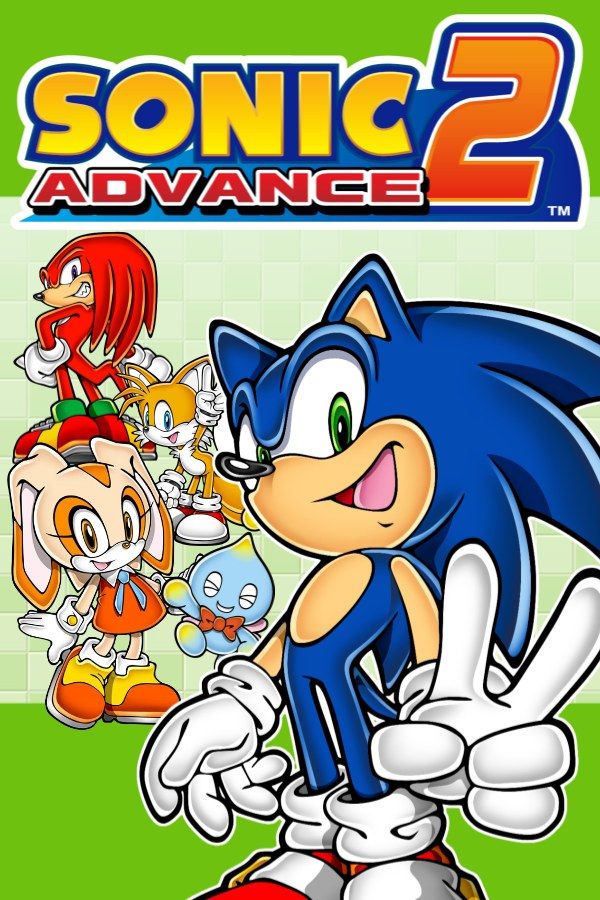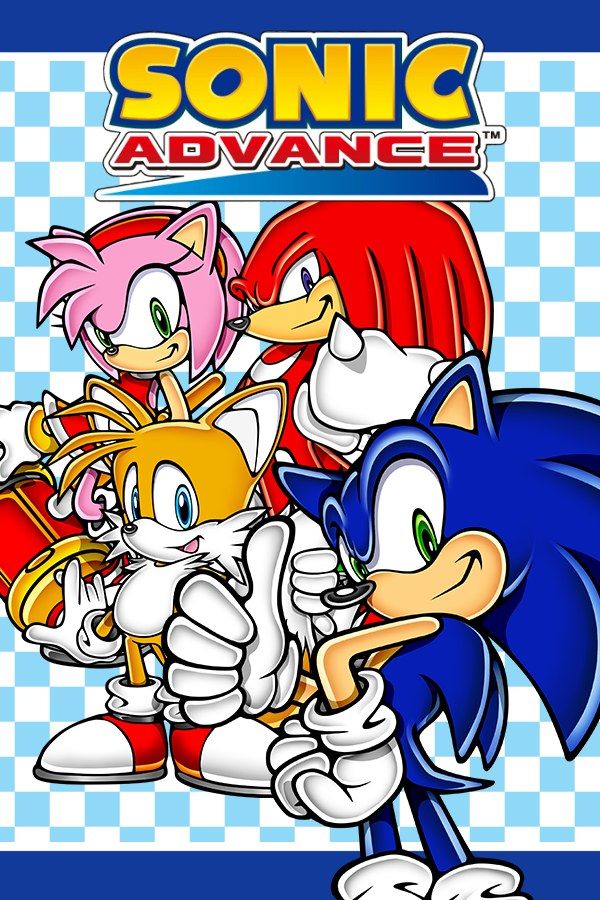
Sonic Advance is the first Sonic game made for the Game Boy Advance, developed by Dimps with Sonic Team and released by Sega in 2001. It plays like the 16-bit Sonic games: fast acts full of loops and springs, Dr. Eggman’s robots and seven Chaos Emeralds, with Sonic, Tails, Knuckles and Amy Rose to play as. If you own the game, Nagori lets you play it on iPhone and iPad.
What you need
- An iPhone or iPad with iOS 17.6 or later.
- Nagori from the App Store. Your first game is free.
- The game file of your copy of Sonic Advance in
.gbaformat, or a.zipor.rarcontaining it.
No BIOS file is needed.
How to play Sonic Advance on iPhone
- Install Nagori from the App Store.
- Copy your Sonic Advance
.gbafile to the Files app, in iCloud Drive or On My iPhone. - Open Nagori, tap + and select the file. If the game is in a
.zipor.rar, add the archive as it is and Nagori unpacks it. - Find Sonic Advance on the GBA shelf with its box art and press Play.
Controls
Sonic Advance keeps the classic moves. Hold down while running to roll through enemies. To Spin Dash, stand still, hold down and press jump to rev up, then let go of down to launch. The Standard touch layout has the D-pad and the A and B buttons, with L and R along the top.
Because the Spin Dash starts from holding down, a bigger D-pad helps. Open Edit Layout in the pause menu and pinch the D-pad larger, so your thumb stays on down instead of slipping sideways.
With a controller, A and B sit on the face buttons, L and R on the shoulder buttons, and the left stick works as the D-pad too. Bluetooth controllers that iOS supports, including DualSense, DualShock 4 and Xbox controllers, work with Nagori. Press the left stick to open the pause menu.
Saves
Sonic Advance keeps your progress through the zones on the cartridge. Nagori stores that save automatically, and adds more:
- Quit any time. Leave the app mid-act and Continue puts you back where you were.
- Save states. Pause and choose Save before a boss; if it goes wrong, Load instead of losing a life. Nagori keeps your last four saves per game.
- iCloud. Save to iCloud and Load from iCloud move your progress between your iPhone and iPad.
Four characters, four ways through
Each character plays differently, and the acts have higher and lower paths that suit them:
- Sonic is the fastest.
- Tails flies for a short time when you press jump again in the air.
- Knuckles glides and climbs walls, so he reaches places the others can’t.
- Amy Rose fights with her Piko Piko Hammer.
Playing an act you’ve finished with a different character is a good way to find routes you missed.
Special Stages and the Tiny Chao Garden
Special Springs are hidden in the acts. Bounce on one to reach a Special Stage, where collecting enough rings wins a Chaos Emerald; the full set leads to the true ending. When you find a Special Spring, pause and Save first. If the Special Stage goes wrong, Load and try it again.
The Tiny Chao Garden was built to connect to Sonic Adventure 2: Battle and Sonic Adventure DX on the GameCube through the GameCube–Game Boy Advance cable. Nagori plays games from both systems but doesn’t link them, so Chao can’t move between games. The link-cable multiplayer modes aren’t available either.
Best settings
- Picture Smoothing softens the pixels. Turn it off for the sharp, raw pixels of the Game Boy Advance screen.
- Full Screen stretches the picture. Leave it off to keep the GBA’s 3:2 shape, and use Edit Layout to move the controls into the black bars on the sides.
- Screen Effects → CRT Screen adds scanlines for the look of an old TV.