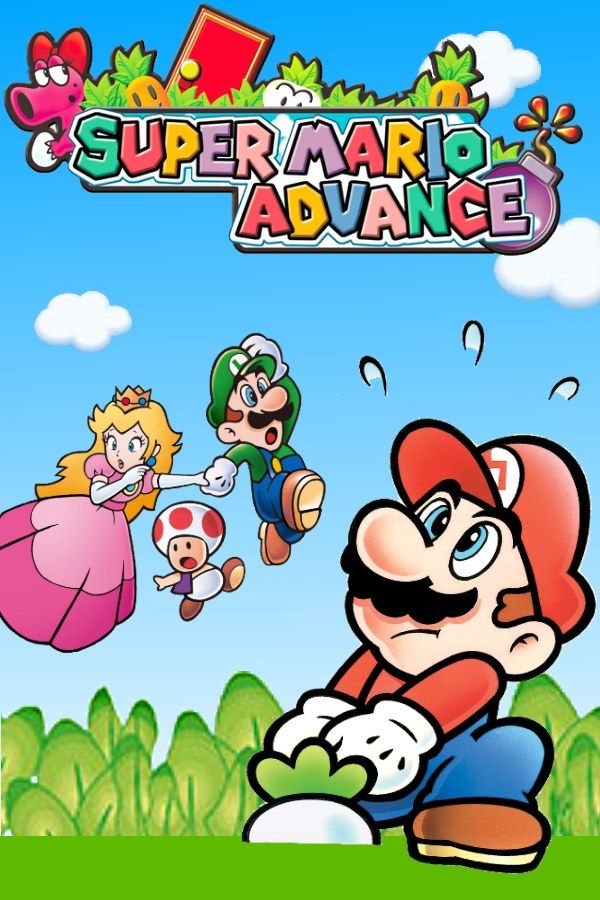
Super Mario Advance was one of the Game Boy Advance’s launch games in 2001: Nintendo’s remake of Super Mario Bros. 2, the NES game set in the dream world of Subcon. You pick Mario, Luigi, Peach or Toad, pull vegetables out of the ground, throw them at Shy Guys and work your way to Wart. If you own the game, Nagori lets you play it on iPhone and iPad.
What you need
- An iPhone or iPad with iOS 17.6 or later.
- Nagori from the App Store. Your first game is free.
- The game file of your copy of Super Mario Advance in
.gbaformat, or a.zipor.rarcontaining it.
No BIOS file is needed.
How to play Super Mario Advance on iPhone
- Install Nagori from the App Store.
- Copy your Super Mario Advance
.gbafile to the Files app, in iCloud Drive or On My iPhone. - Open Nagori, tap + and select the file. If the game is in a
.zipor.rar, select the archive and Nagori unpacks it. - Find Super Mario Advance on the GBA shelf with its box art and press Play.
Controls
The game keeps the NES controls. A jumps. B pulls up vegetables, picks up enemies and throws whatever you carry, and holding B makes you run. Everything is on the Standard touch layout.
The move that matters most is the super jump: hold down on the D-pad until your character flashes, then press A. You’ll hold down a lot, so open Edit Layout in the pause menu and pinch the D-pad bigger until it sits comfortably under your thumb.
Bluetooth controllers that iOS supports, including DualSense, DualShock 4 and Xbox controllers, work too. The left stick doubles as the D-pad, and pressing it opens the pause menu.
Choosing a character
You pick a character before every level, and the choice changes how a stage plays. Mario is the all-rounder. Luigi jumps the highest. Peach floats for a moment if you keep holding A after a jump, which carries her over wide gaps. Toad is the fastest and strongest. If a level keeps beating you, try it with someone else.
Saves
The NES original had no save. Super Mario Advance saves to the cartridge, and Nagori keeps that save automatically. On top of it:
- Continue. Nagori saves the moment you leave the game, even mid-level, and Continue picks up from there.
- Save states. Pause and choose Save before a boss, such as Robirdo, the robot Birdo this version adds, or Wart. If it goes badly, Load. Nagori keeps your last four saves per game.
- iCloud. Save to iCloud and Load from iCloud move your progress between iPhone and iPad.
Ace Coins and the Yoshi Challenge
This version adds five red Ace Coins to every level, and collecting all five in one run earns an extra life. A fall near the end costs you the whole set, so make a save state each time you grab one and Load if you miss.
Beat the game and the Yoshi Challenge opens: two Yoshi Eggs are hidden in every level, in Subspace, the shadow world behind the door a Magic Potion creates. Make a save state before you throw a potion; if no egg is there, Load and try another spot. Fast Forward (×2) speeds through stretches you know by heart; bind it to a controller button or add the ×2 button in My Layout.
Mario Bros. Classic
The cartridge also holds Mario Bros. Classic, a remake of the arcade game, which you can play on your own. Its multiplayer modes need a link cable, which Nagori doesn’t support.
Best settings
- Picture Smoothing softens the large sprites. Turn it off for sharp, raw pixels.
- Full Screen stretches the picture. Leave it off to keep the 3:2 shape and move the controls into the black bars with Edit Layout.
- Screen Effects adds CRT scanlines, a screen curve or bloom, from Off to Strong.