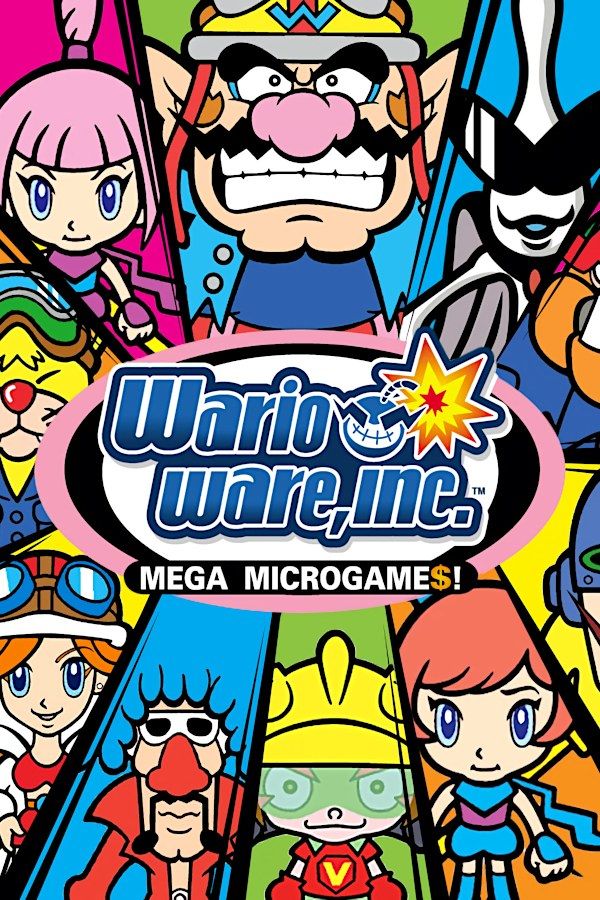
WarioWare, Inc.: Mega Microgame$! is Nintendo’s 2003 Game Boy Advance game built from microgames: more than 200 tiny games that last a few seconds each and give you a one- or two-word order to follow. Wario starts a game company to get rich quick and hires his friends to make the games. Each stage throws microgames at you faster and faster, up to a boss game. If you own the game, Nagori lets you play it on iPhone and iPad.
What you need
- An iPhone or iPad with iOS 17.6 or later.
- Nagori from the App Store. Your first game is free.
- The game file of your copy of WarioWare, Inc. in
.gbaformat, or a.zipor.rarcontaining it.
No BIOS file is needed.
How to play WarioWare, Inc. on iPhone
- Install Nagori from the App Store.
- Copy your WarioWare
.gbafile to the Files app, in iCloud Drive or On My iPhone. - Open Nagori, tap + and select the file. Or share it from the Files app and choose NGR, Nagori’s name on the Home Screen.
- Find WarioWare, Inc. on the GBA shelf with its box art and press Play.
Controls: two inputs, no time to look
Every microgame in WarioWare, Inc. uses only the D-pad and the A button. You get a few seconds to read the order and react, so those two controls have to be exactly where your thumbs are. Open Edit Layout in the pause menu and:
- Make the D-pad and A bigger. Pinch them up to twice their size, so a quick press never lands between buttons.
- Hide what you don’t need. L, R and Select do nothing in the microgames. Keep Start and B for the menus.
- Move them into the black bars. On iPhone the 3:2 picture leaves room on both sides. Drag the D-pad and A there, so your thumbs never cover the action.
Your custom layout isn’t saved per game, so bring the hidden buttons back before you play a game that uses them.
Haptic Feedback makes each touch button vibrate slightly when pressed, so you feel the A press land without looking.
A controller is the most precise way to play. The left stick works as the D-pad too, and pressing it opens the pause menu.
Speed, Slow Motion and save states
WarioWare speeds up on its own as a stage goes on, so leave Fast Forward off here. Slow Motion is the useful one: at half speed you can see what a microgame you keep losing actually wants from you. Bind it to a controller button, or add the ×0.5 button in My Layout.
Each stage ends in a longer boss game. Pause and choose Save when a stage starts; if you run out of lives before the boss, Load and try again. Nagori keeps your last four saves per game.
WarioWare: Twisted! is a different cartridge
WarioWare: Twisted!, the later Game Boy Advance game, has a gyro sensor inside the cartridge, and you play by turning the console. Nagori doesn’t support sensor cartridges, so Twisted! doesn’t work. WarioWare, Inc. has no sensor and plays normally.
Saves
The cartridge keeps your high scores and the extras you unlock, and Nagori keeps that save automatically. Quit in the middle of a stage and Continue puts you back in it. Save to iCloud copies your progress to your private iCloud, and Load from iCloud picks it up on your iPad.
Best settings
- Picture Smoothing softens the art. Turn it off for the sharp pixels of the GBA screen.
- Full Screen stretches the picture. Leave it off to keep the 3:2 shape and the black bars for your controls.
- Screen Effects add CRT scanlines, a screen curve or bloom. Keep them light, so the small details you have a second to spot stay clear.