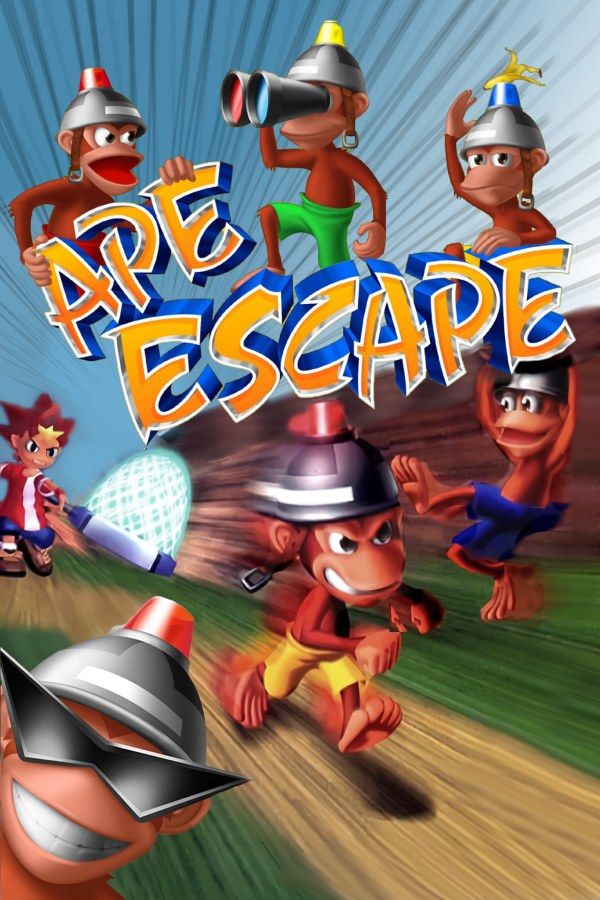
Ape Escape is a 1999 platformer from SCE Japan Studio. A monkey named Specter puts on a helmet that makes him a genius, hands helmets to the other monkeys and scatters them across history with the Professor’s time machine. Spike goes after them with a net and a growing set of gadgets. The game was built around the DualShock controller and needs both of its analog sticks. If you own the game, Nagori lets you play it on iPhone and iPad.
What you need
- An iPhone or iPad with iOS 17.6 or later.
- Nagori from the App Store. Your first game is free.
- A disc image of your copy of Ape Escape:
.chd,.cue+.bin,.pbp,.isoor.img, or a.zipor.rarcontaining it. The game fits on a single disc.
No BIOS file is needed.
How to play Ape Escape on iPhone
- Install Nagori from the App Store.
- Copy your Ape Escape disc image to the Files app, in iCloud Drive or On My iPhone.
- Open Nagori, tap + and select the file. For a
.cueimage, select the.cuetogether with all of its.binfiles, or add the archive they came in. - Find Ape Escape on the PS1 shelf with its box art and press Play.
- Switch to a touch layout with two sticks, as described below, or connect a controller.
Controls
Ape Escape uses both sticks at once. The left stick moves Spike. The right stick works the gadget in his hands: push it in a direction to swing the Stun Club or the Time Net that way, and rotate it to spin gadgets such as the Sky Flyer. Each of the four face buttons holds a gadget, so pressing one switches to it. Jumping sits on a shoulder button.
A controller with two sticks is the closest thing to the original DualShock: the sticks and buttons sit where they did on the PlayStation pad, and the touch controls hide as soon as it connects. Press the left stick to open the pause menu.
Two sticks on a touch screen
The Standard touch layout has no sticks, so it doesn’t work for Ape Escape. Switch to one that has both:
- Pause and open Settings → Touch Layout.
- Choose Twin Sticks or DualShock. Twin Sticks gives both sticks the most room and makes the D-pad and buttons smaller. DualShock is the full pad: the D-pad and left stick on the left, the buttons and right stick on the right.
- Fit it to your hands in Edit Layout. Drag the right stick to where your right thumb rests and make it bigger, then move the shoulder buttons so your index fingers reach them while your thumbs stay on the sticks. Tap OK, and the result is saved as My Layout.
The sticks follow your thumb, so you don’t have to hit their exact center. Your touch layout applies to every game, so switch back to Standard when you return to a game made for the D-pad.
Saves
Ape Escape keeps your progress on a memory card. In Nagori, each game has its own memory card, written every few seconds, so those saves work as they did on the console. On top of that:
- Quit any time. Leave in the middle of a level and Continue puts you back exactly where you were.
- Save states. Monkeys run off when they spot Spike. Pause and choose Save before you creep up on a tricky one, and Load if it gets away. Nagori keeps your last four saves per game.
Best settings
- Quality: High, the default, renders the game’s 3D at twice the original resolution.
- Precise Geometry, in Advanced Settings, steadies the slight wobble of PS1 polygons as the camera swings around Spike.
- Screen Effects → CRT Screen adds scanlines if you want the game to look like it did on a 1990s TV.