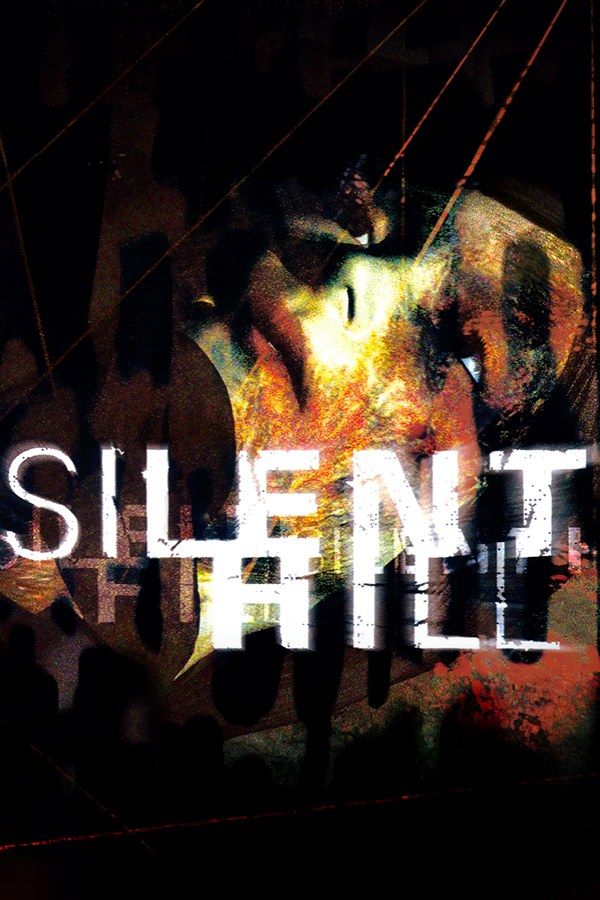
Konami’s 1999 survival horror game opens with a car crash outside the town of Silent Hill. Harry Mason wakes up to find his daughter Cheryl gone and walks into the fog to look for her, with a flashlight that only lights a few steps ahead and a pocket radio that bursts into static when a creature is near. If you own the game, Nagori lets you play it on iPhone and iPad.
What you need
- An iPhone or iPad with iOS 17.6 or later.
- Nagori from the App Store. Your first game is free.
- A disc image of your copy of Silent Hill:
.chd,.cue+.bin,.pbp,.isoor.img, or a.zipor.rarcontaining it. The game fits on a single disc.
No BIOS file is needed.
How to play Silent Hill on iPhone
- Install Nagori from the App Store.
- Copy your Silent Hill disc image to the Files app, in iCloud Drive or On My iPhone.
- Open Nagori, tap + and select the file. For a
.cueimage, select the.cuetogether with its.binfile, or add the archive they came in. - Find Silent Hill on the PS1 shelf with its box art and press Play.
Controls
Silent Hill works with the D-pad and also supports the DualShock’s analog stick. The Standard touch layout gives you the D-pad, the face buttons and the shoulder buttons. If you’d rather walk Harry with a thumbstick, pause and pick D-Pad + Stick or DualShock under Settings → Touch Layout. Edit Layout, in the same place, lets you make the buttons bigger or drag them to where your thumbs rest, so you don’t fumble a button when something comes out of the fog.
With a controller, every button sits where it did on the PlayStation pad, the left stick moves Harry, and the game’s rumble comes through the controller. Without one, turn on iPhone Vibration in Settings to feel it in your hands. Press the left stick to open the pause menu.
Saves: get around the save points
On the PlayStation, Silent Hill only lets you save at save points, so a death far from the last one sends you back a long way. Nagori takes the pressure off:
- Quit any time. Leave the app in the middle of a street and Continue puts you back exactly where you were.
- Save states. Pause and choose Save before you open a door you’re unsure about or walk into a boss fight. If it goes wrong, Load and try again. Nagori keeps your last four saves per game.
- The memory card still works. Saves made at the game’s save points go to the game’s own memory card, as on the console.
Silent Hill has five endings, one of them a joke ending, and which one you see depends on what you do along the way. With a save state from before a mistake, you can step back a few minutes instead of replaying hours of the game.
Turn the sound up
The radio is your early warning. Its static often tells you a creature is close before you can see it through the fog or the dark, so play with headphones or the volume up. If the game is louder than you want next to other sounds, lower it with Game Volume in Settings instead of muting it.
Best settings
- Quality: High, the default, renders the game’s 3D at twice the original resolution.
- Precise Geometry, in Advanced Settings, steadies the slight wobble of PS1 polygons, which shows on walls and floors as the camera moves.
- Quality: Low keeps the original resolution with raw pixels, if you want the rougher look of the original.
- Screen Effects → CRT Screen adds scanlines if you want the game to look like it did on a 1990s TV.