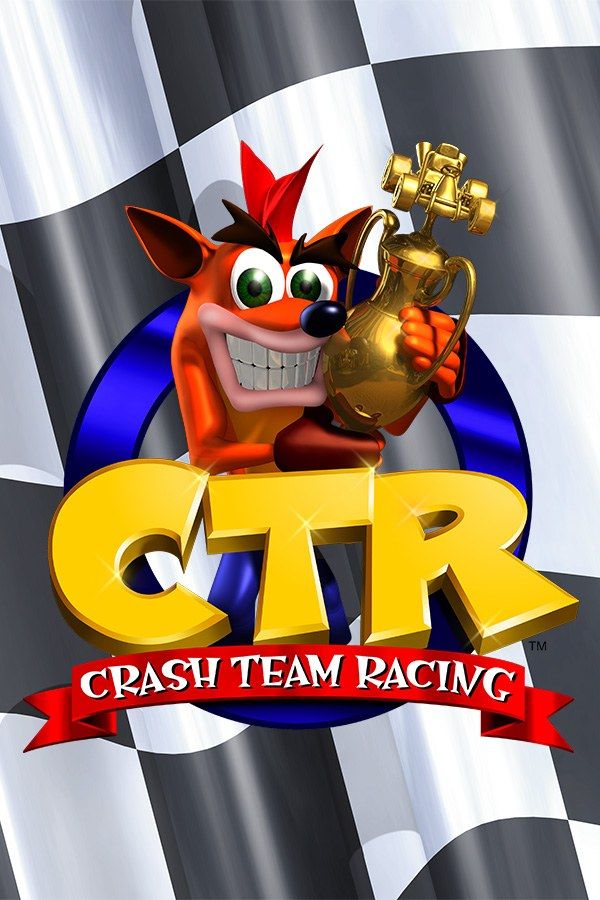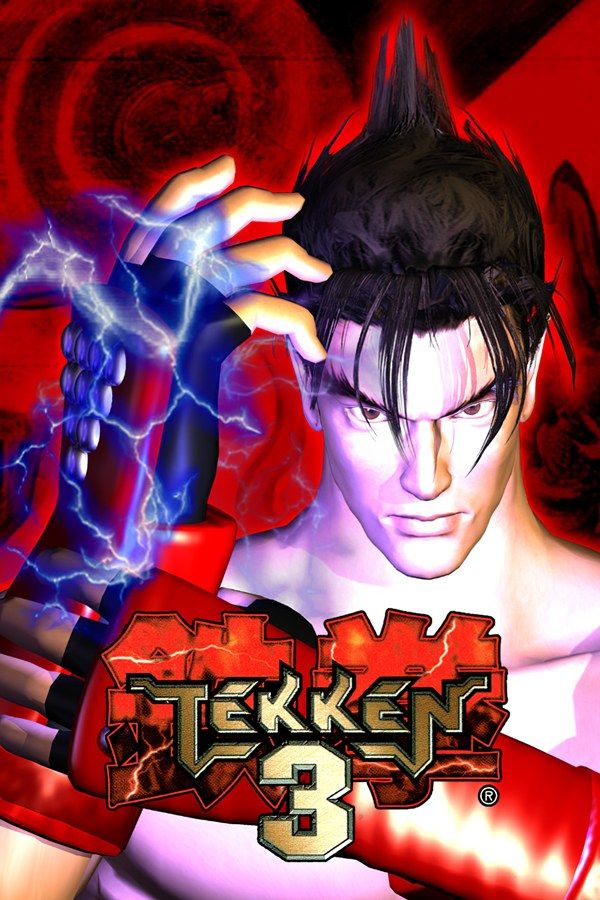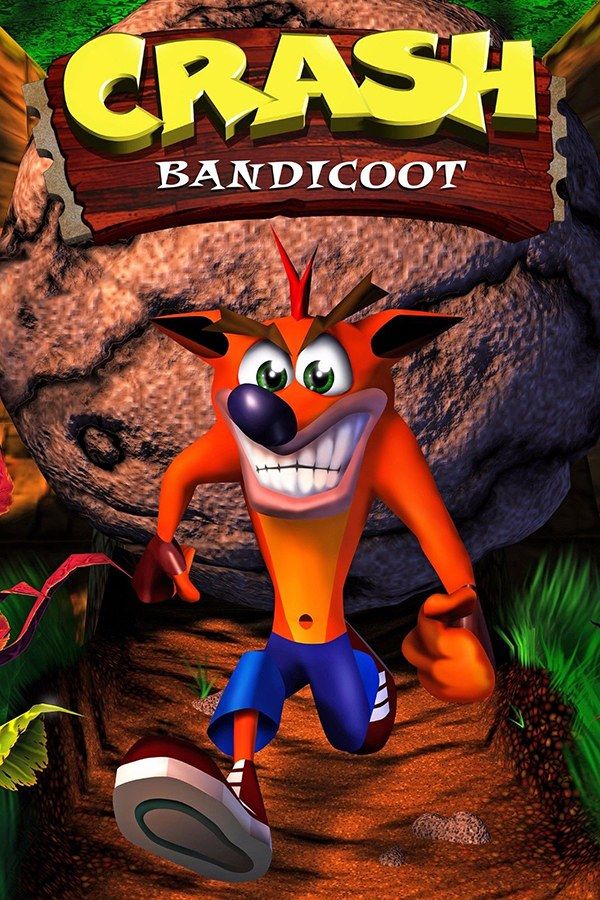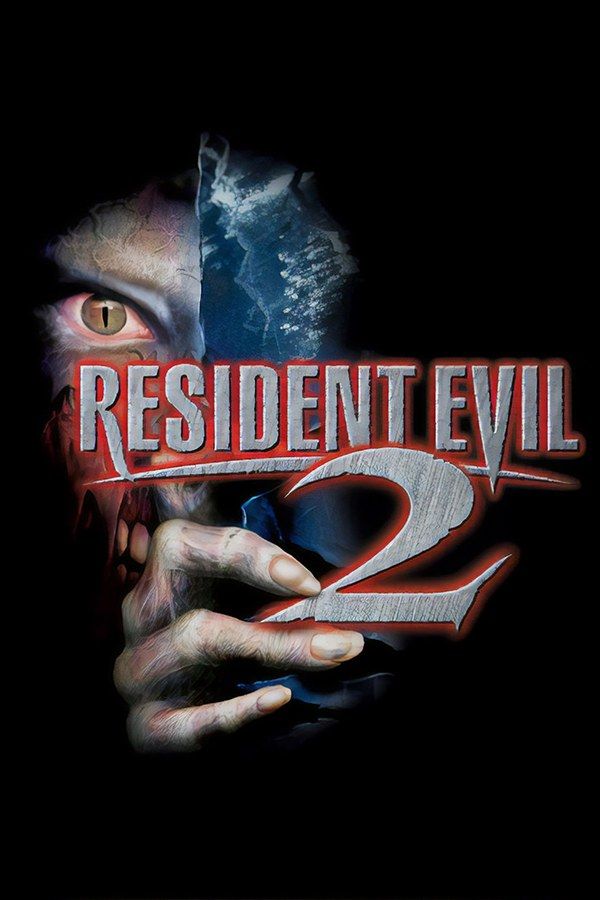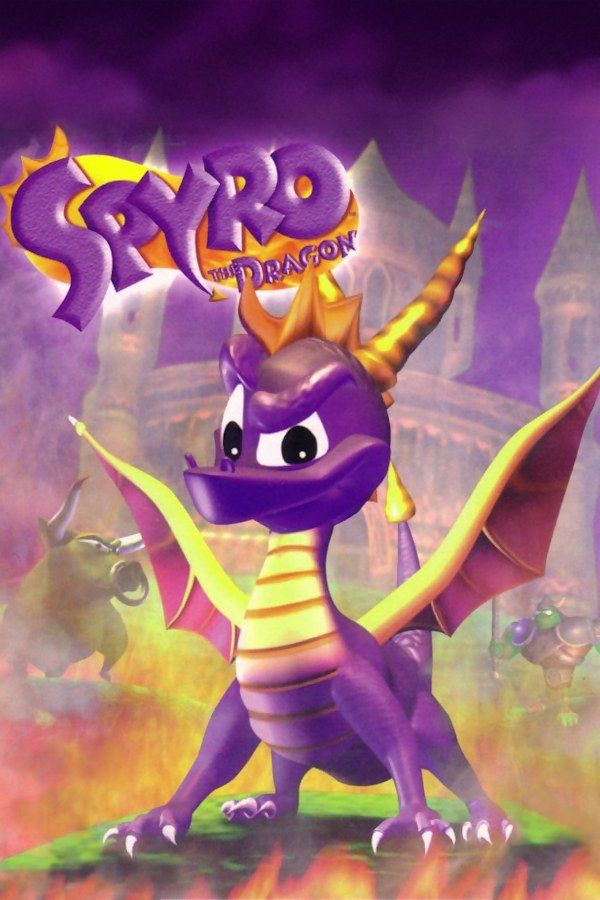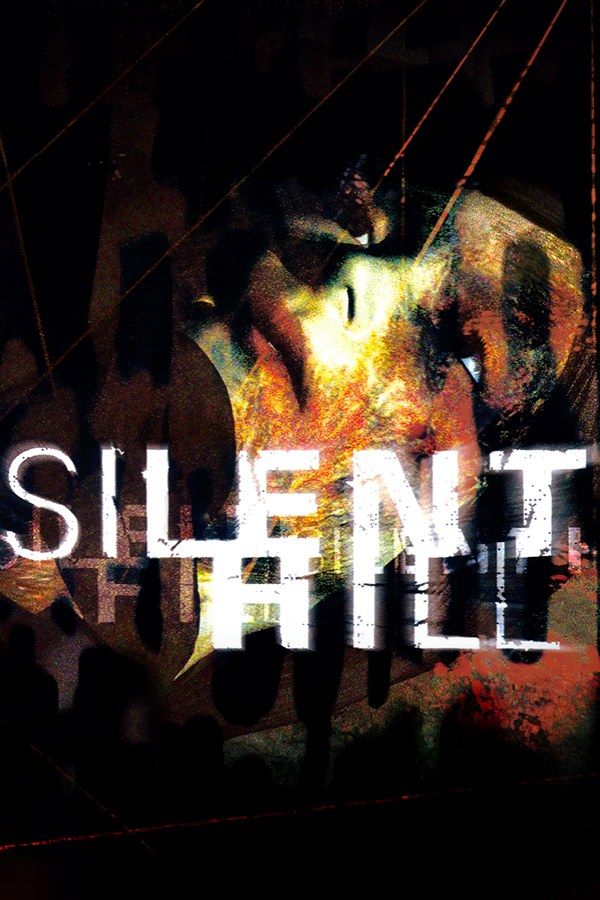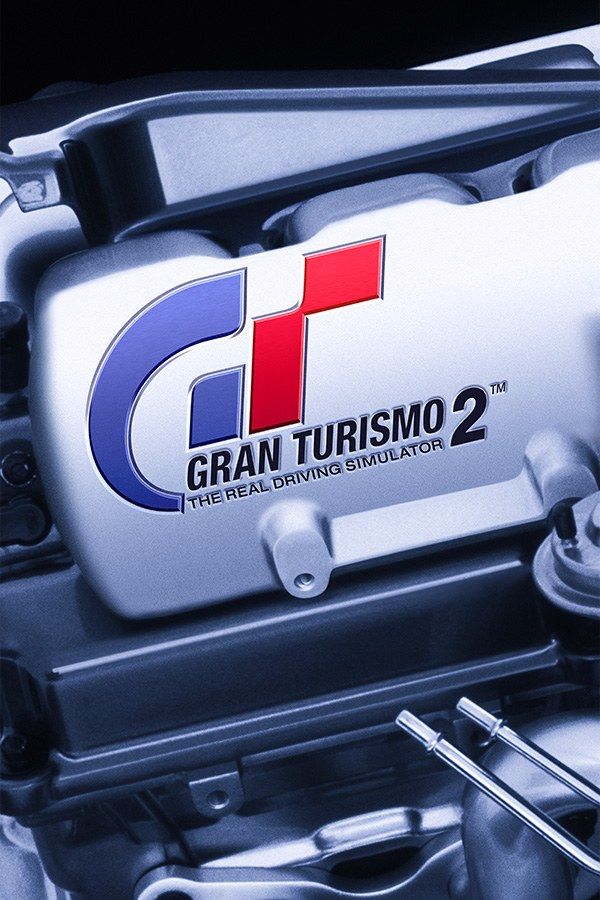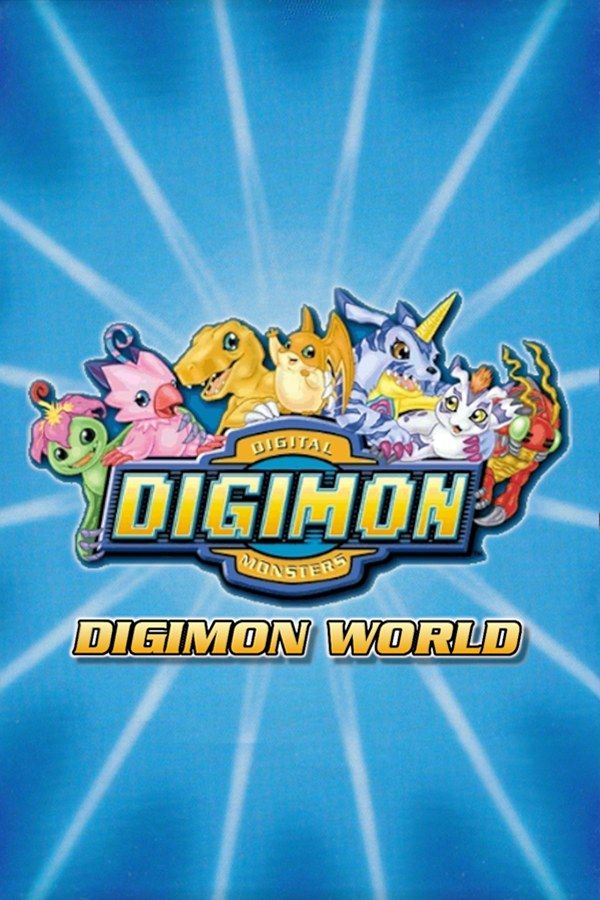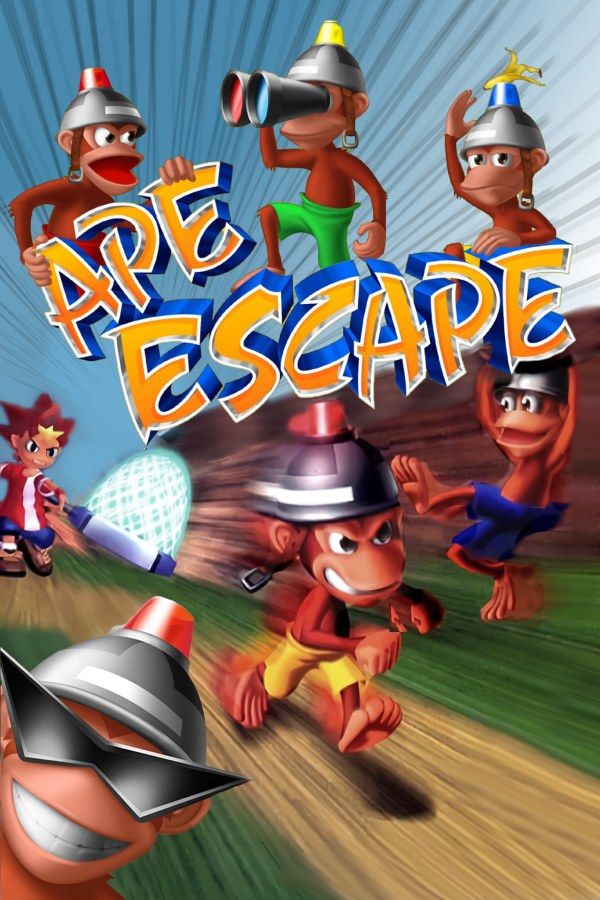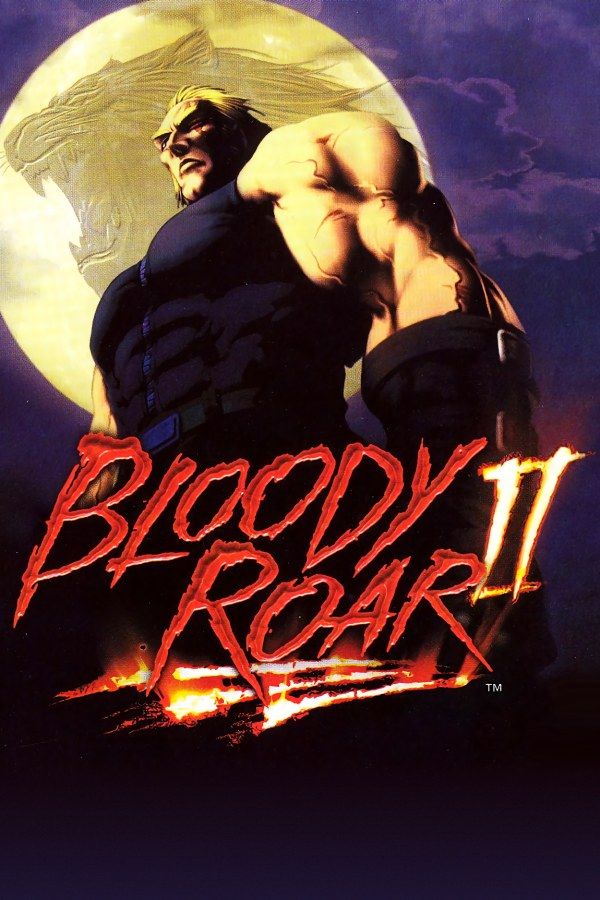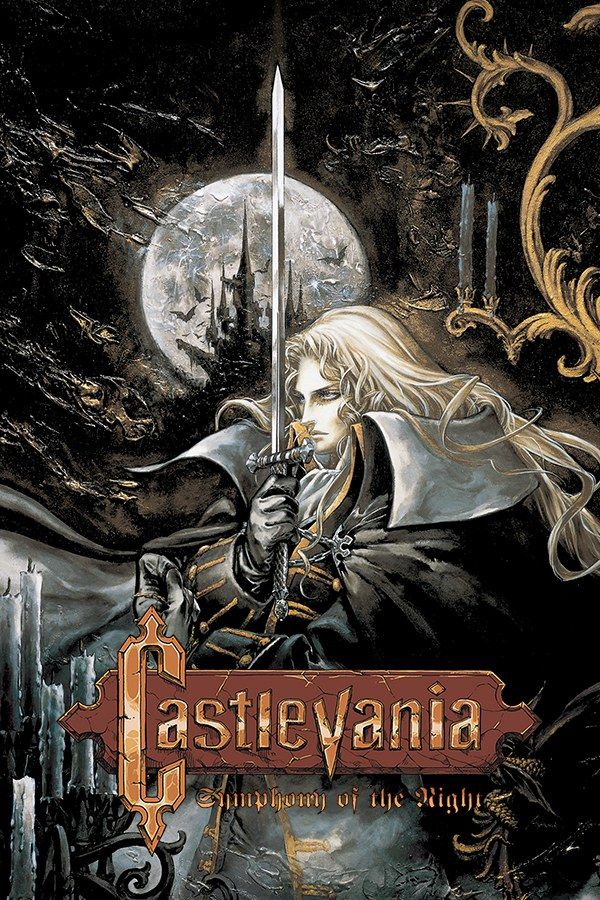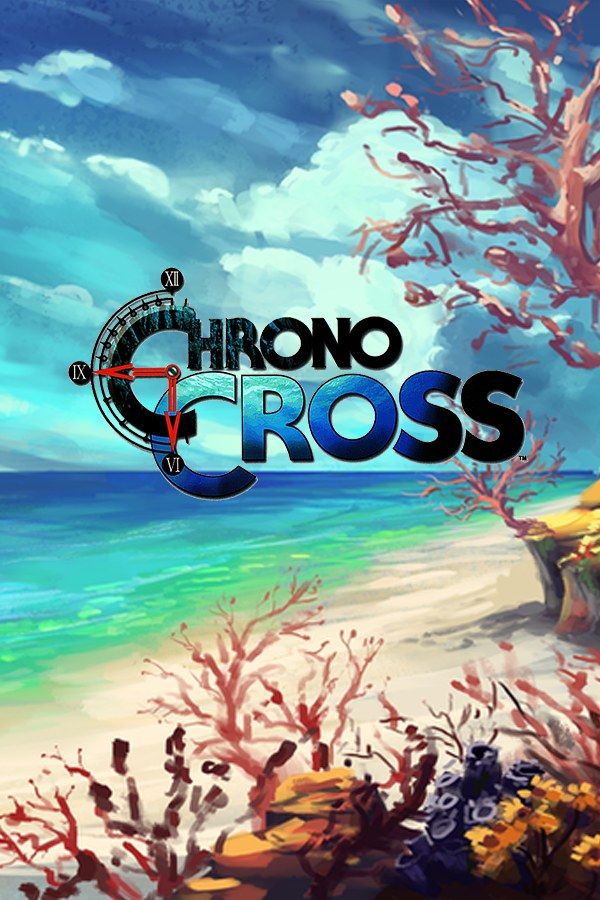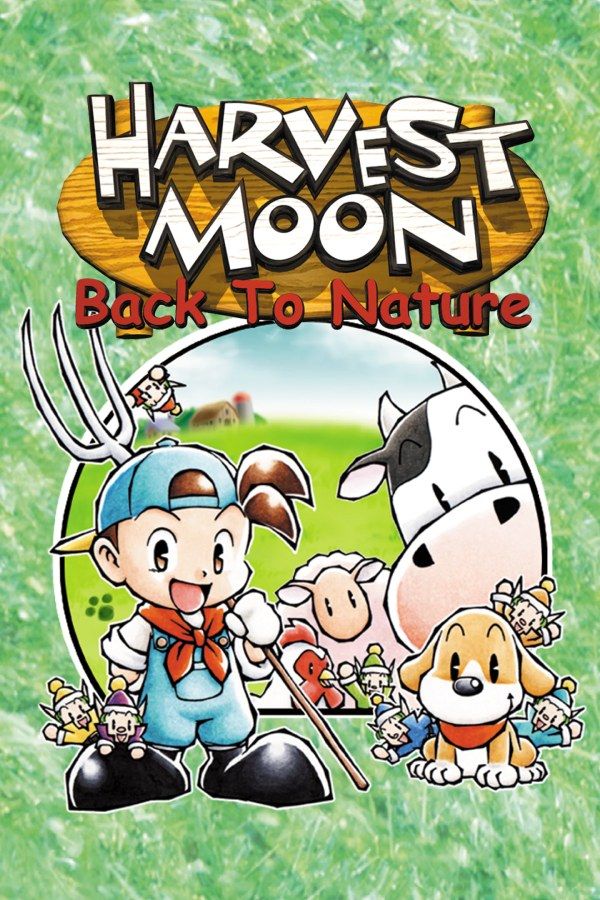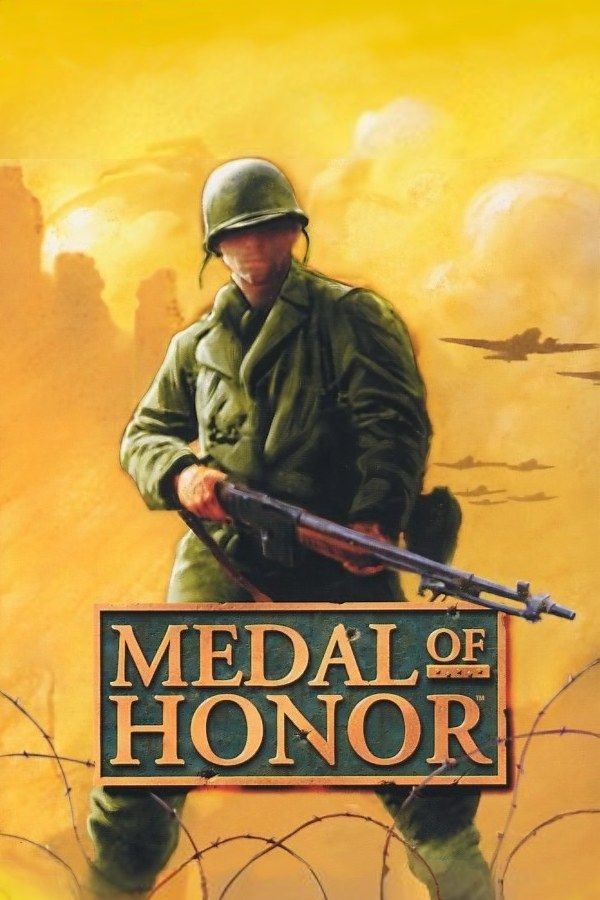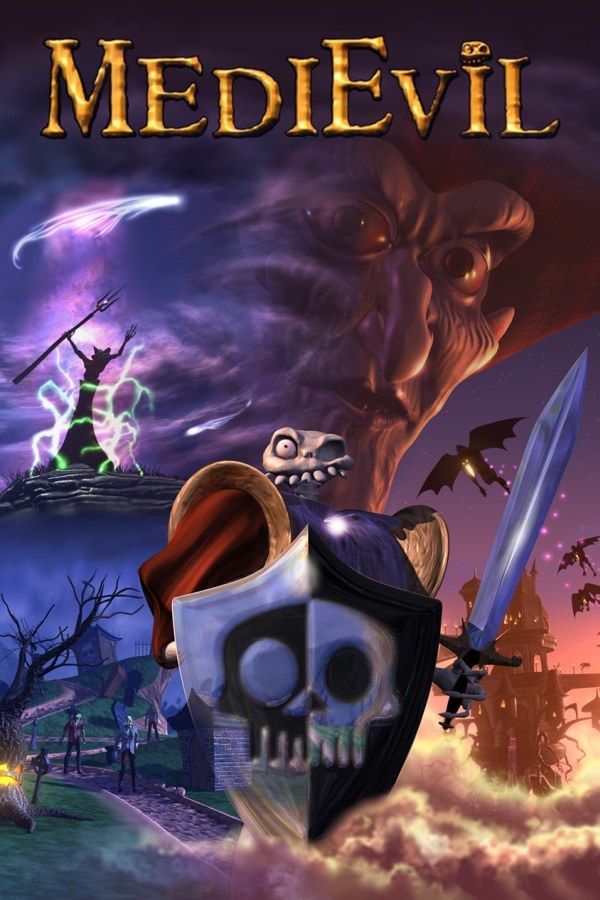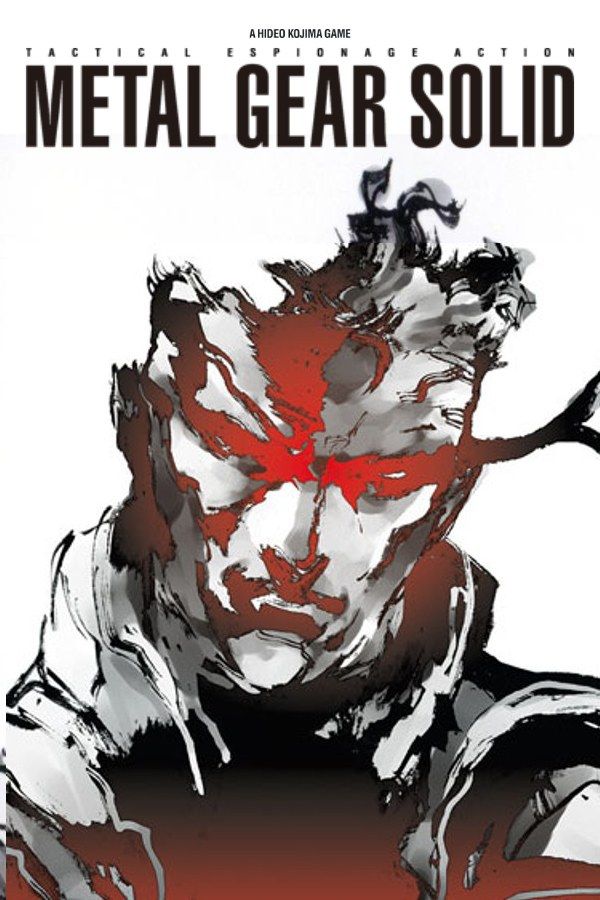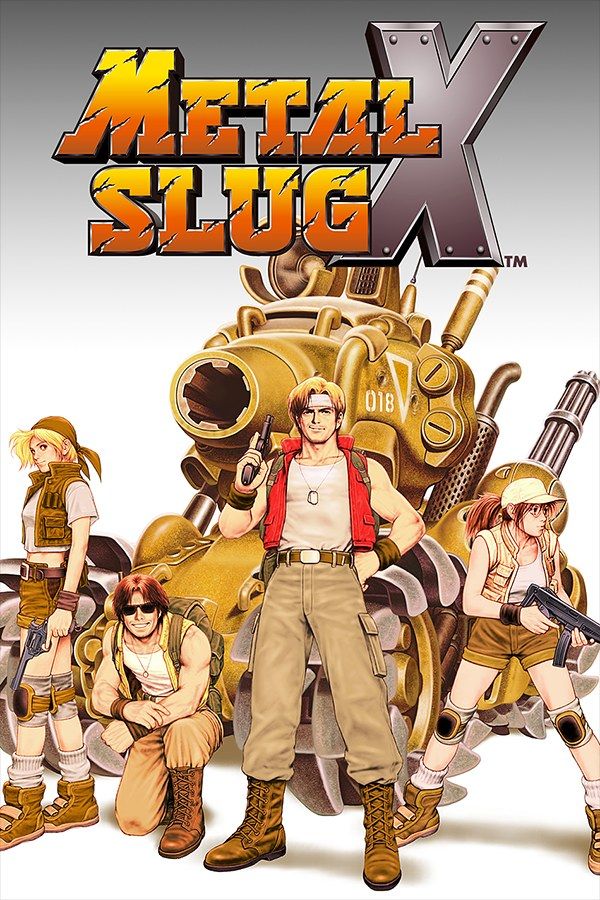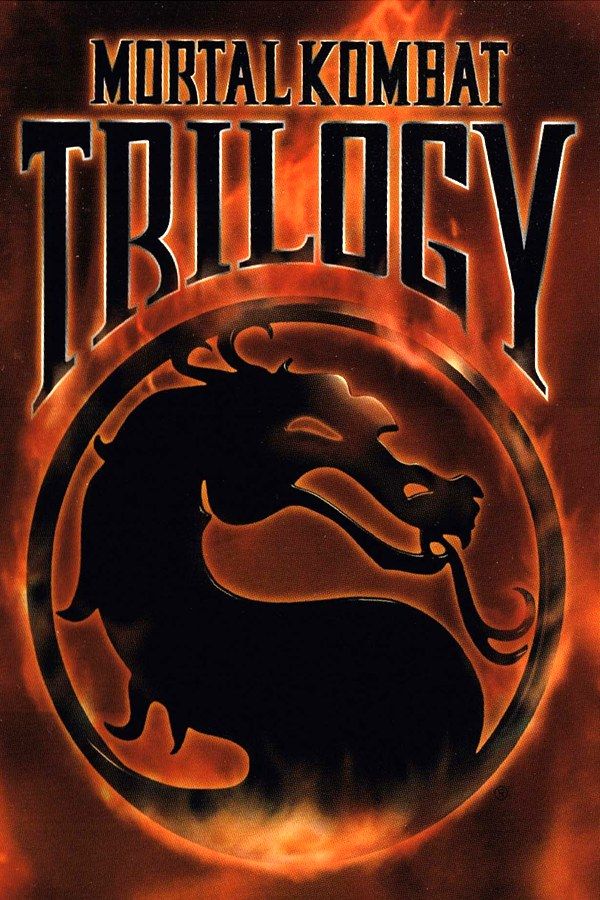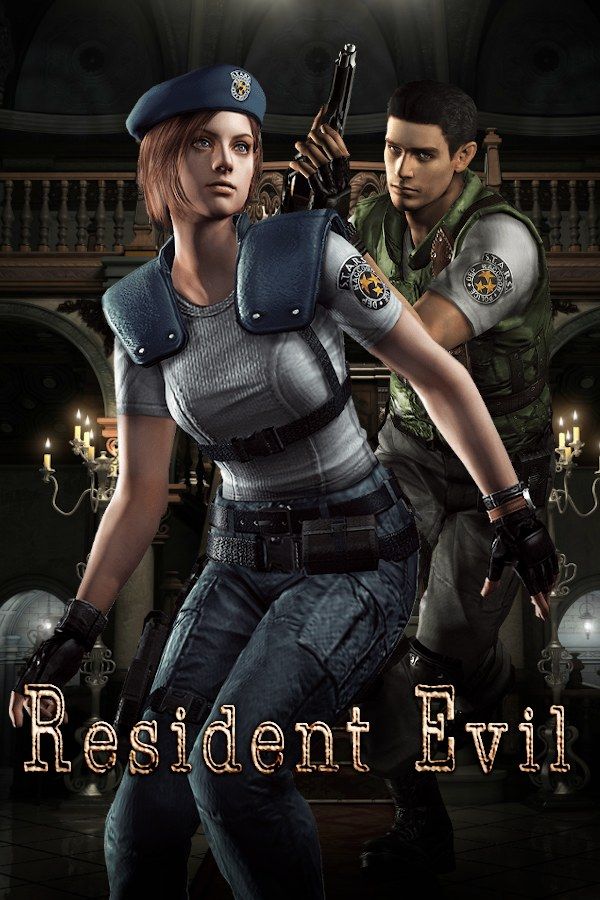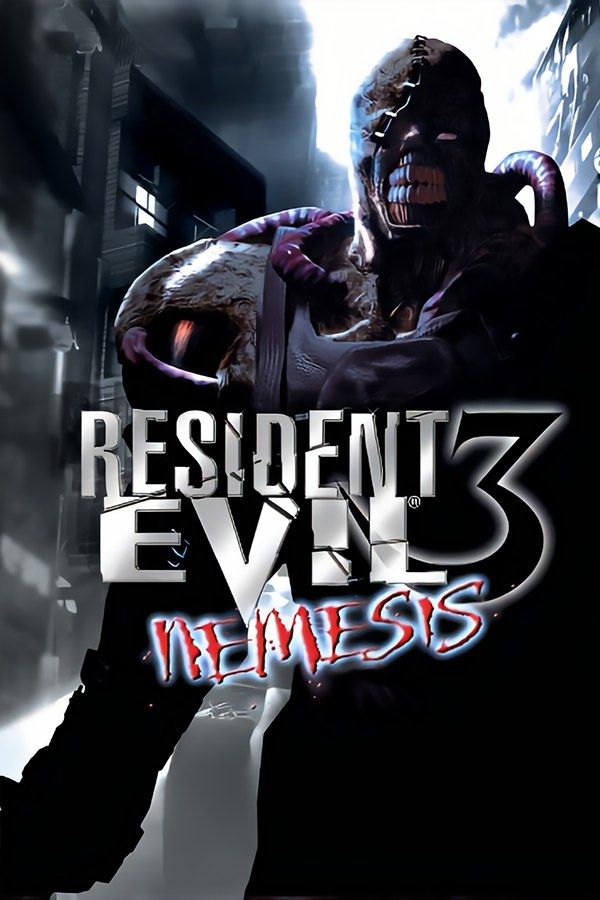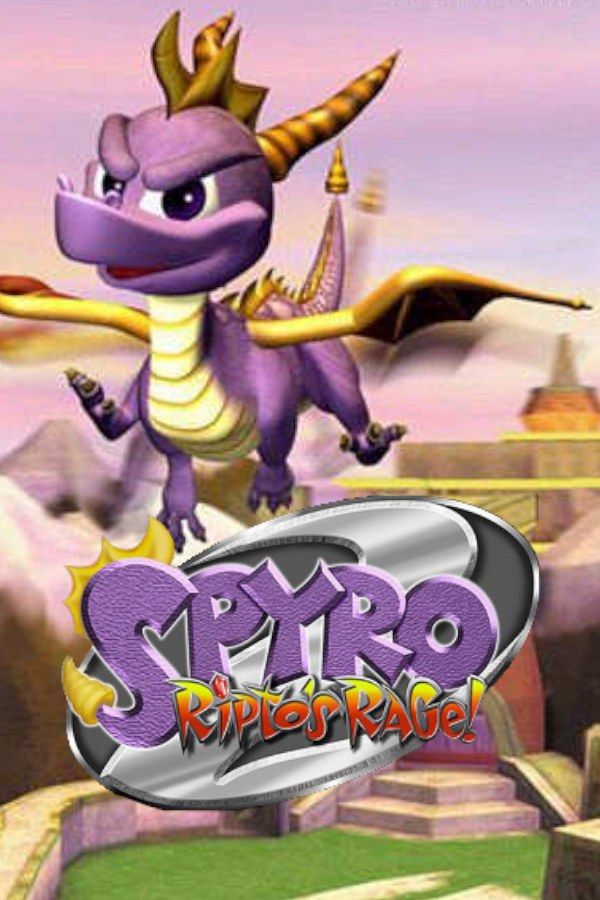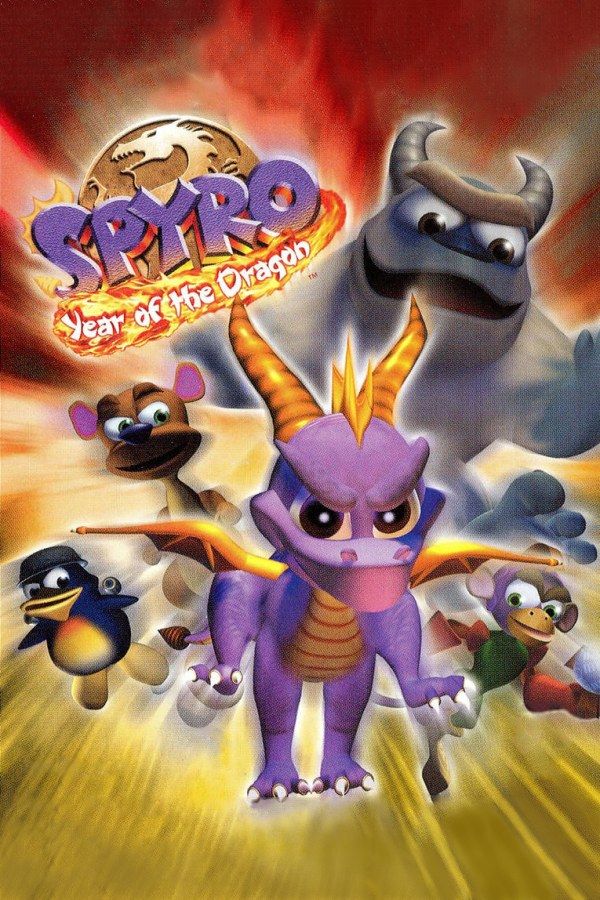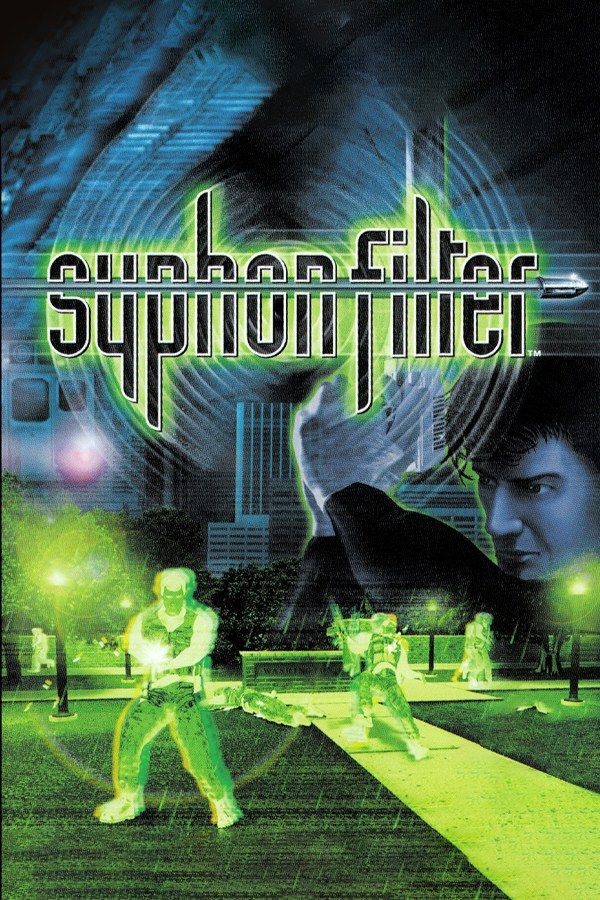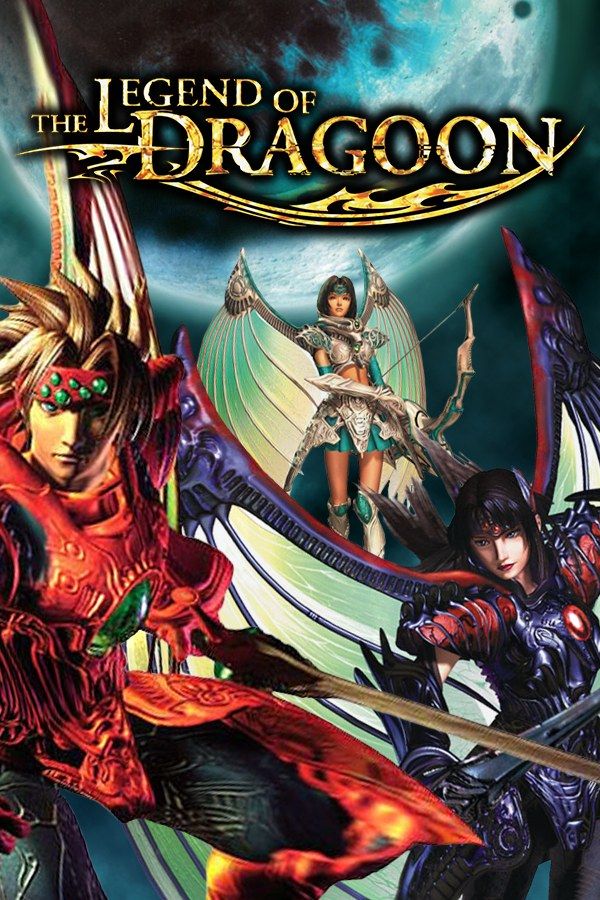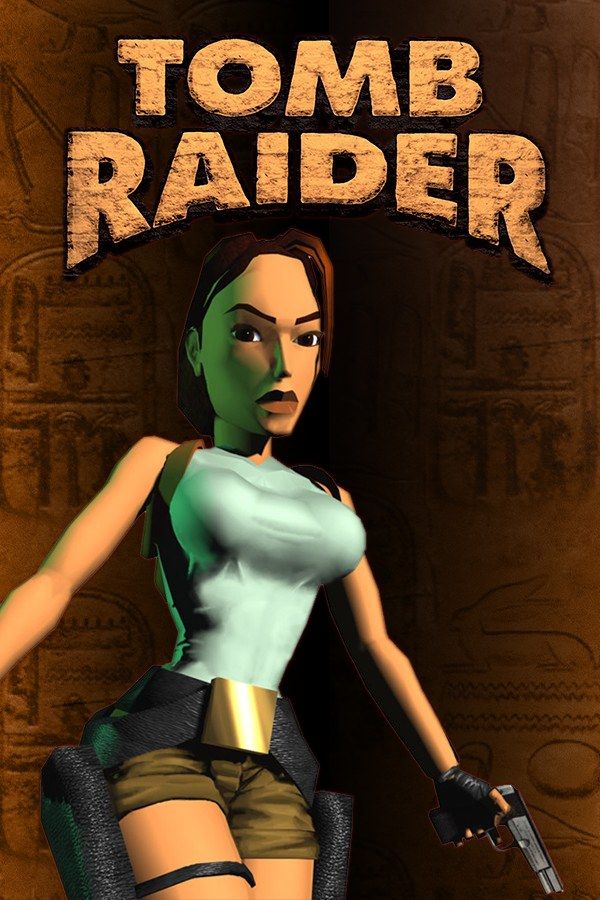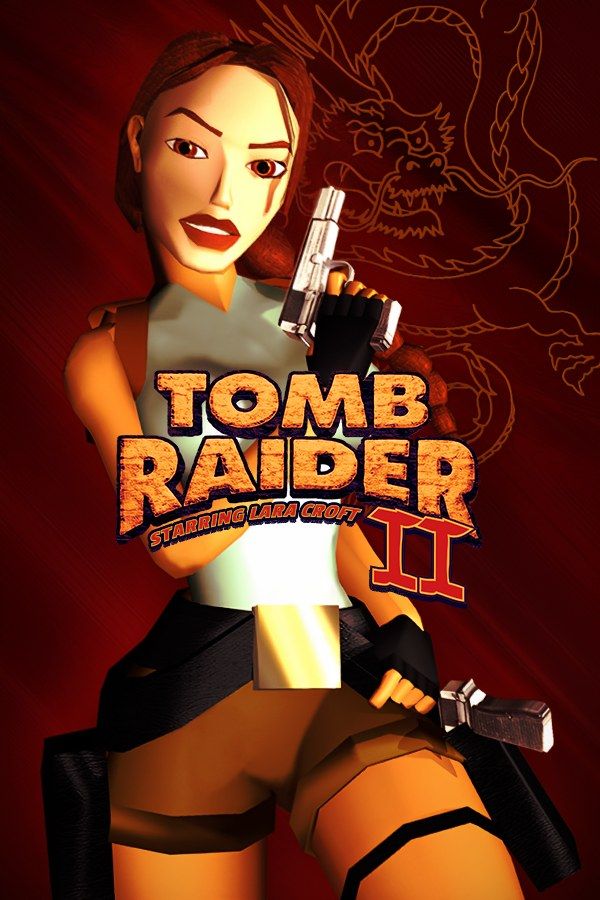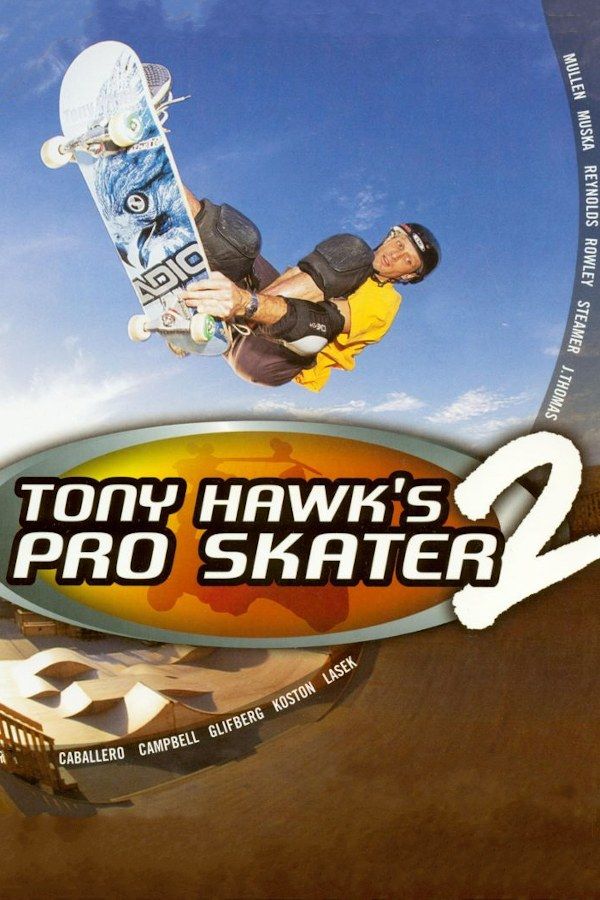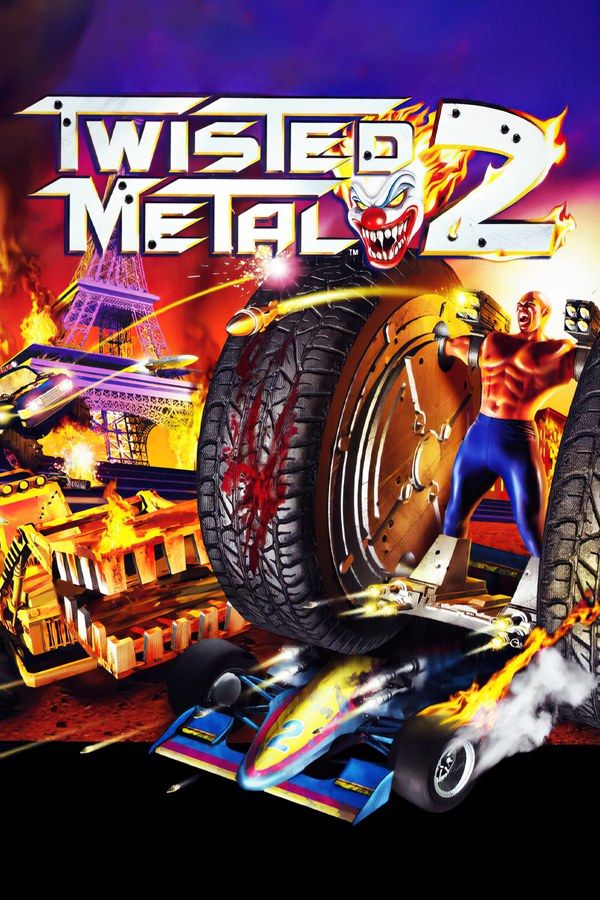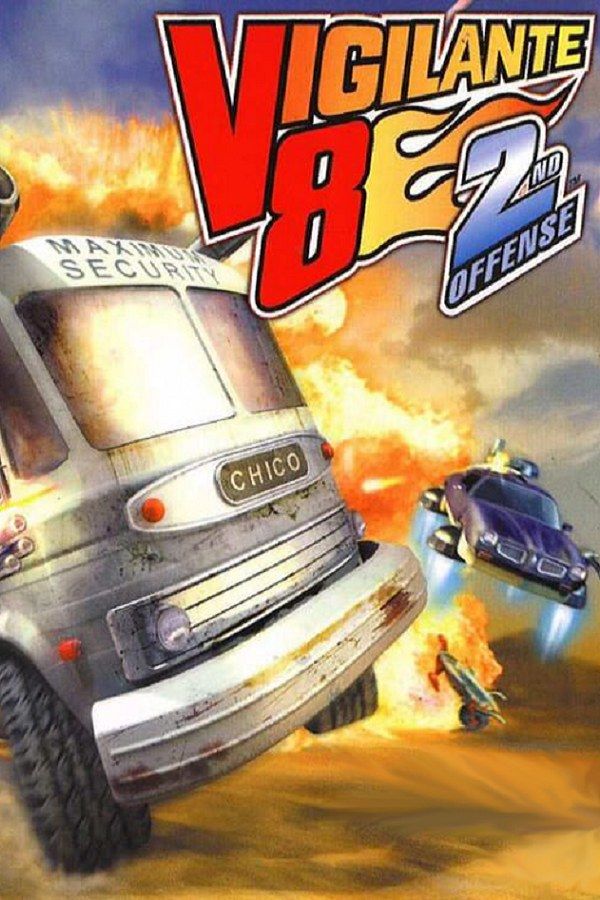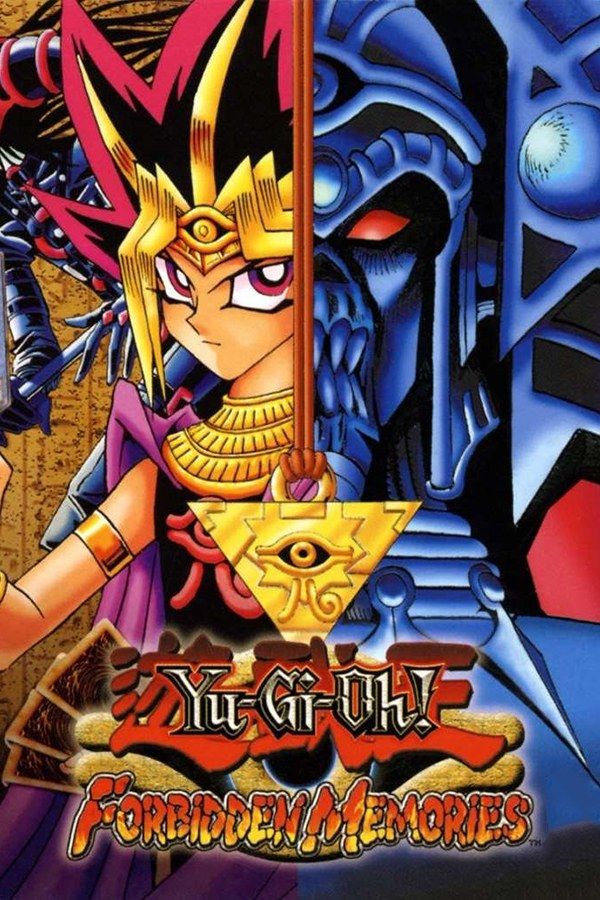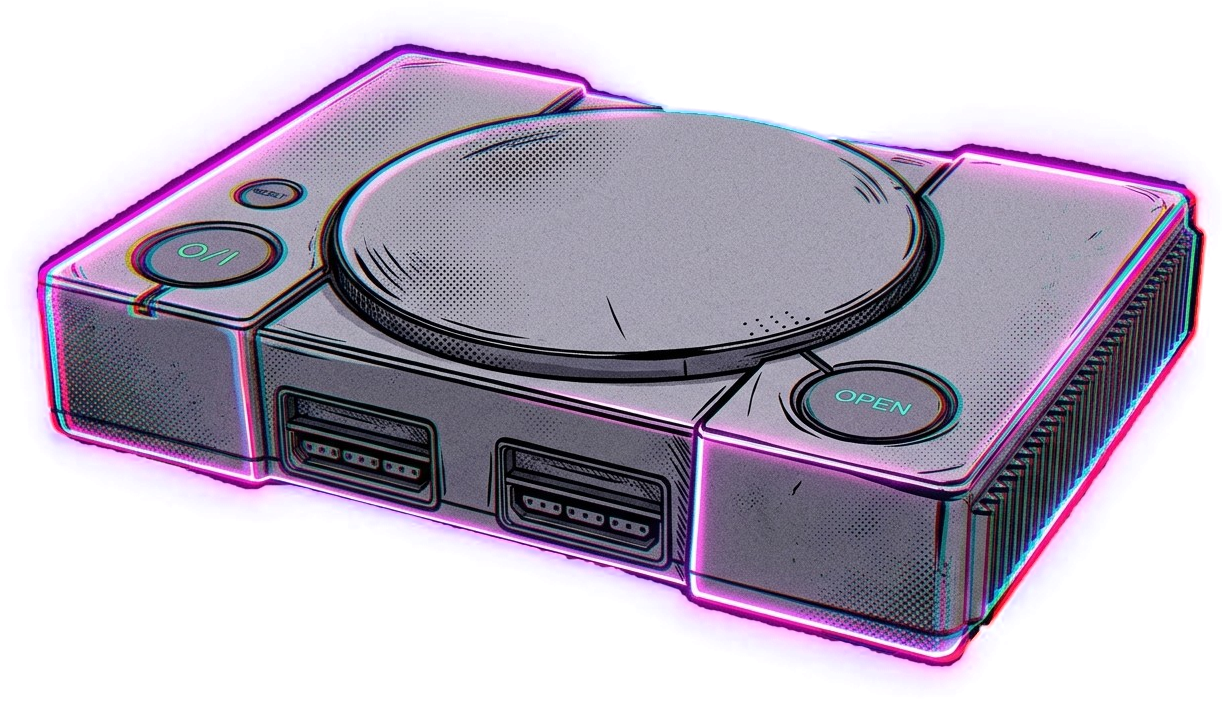
Nagori is a PS1 emulator from the App Store. You add disc images of the PlayStation games you own, and they line up on a shelf of game cases with their box art. Pick one and press Play: there is nothing to set up first and no BIOS file to find. When you leave, the game waits exactly where you stopped.
What you need
- An iPhone or iPad with iOS 17.6 or later. On iPhone, games play in landscape. On iPad, any orientation works; in portrait the picture sits on top and the controls below it.
- Nagori from the App Store. Your first game is free.
- Your game as a disc image, in one of the formats below. Nagori doesn’t include games.
You don’t need a PlayStation BIOS: Nagori starts PS1 games on its own.
How to play PS1 games on iPhone
- Install Nagori from the App Store.
- Copy your disc image to the Files app. iCloud Drive and On My iPhone both work, and so does a whole
.zipor.rararchive. - Open Nagori and tap +, or the empty Add Games case at the end of the PS1 shelf, then select your files. For a
.cueimage, select the.cuetogether with all of its.binfiles, or add the archive they came in. - Choose the game on the shelf and press Play. Box art downloads by itself.
- Pause any time with the menu button on screen, or by pressing the left stick on a controller. Quit whenever you like: next time, Continue takes you back to where you left off.
You can also open a disc image straight from the Files app or Safari and send it to Nagori, which appears as NGR in the share sheet.
Supported formats
| Format | What to add |
|---|---|
.chd |
One file per disc. Compressed, so it takes the least space. |
.cue + .bin |
The .cue together with every .bin it lists, or a .zip of them. |
.pbp |
A PS1 game in the EBOOT format. |
.iso, .img |
Single-file disc images. |
.zip, .rar |
Archives with any of the above. Nagori unpacks them for you. |
Nagori checks each disc as you add it. If a file comes from another console, such as a PS2 or PSP disc, it tells you instead of adding a game that won’t start. The game is copied into Nagori, so you don’t need to keep the original file around.
Multi-disc games
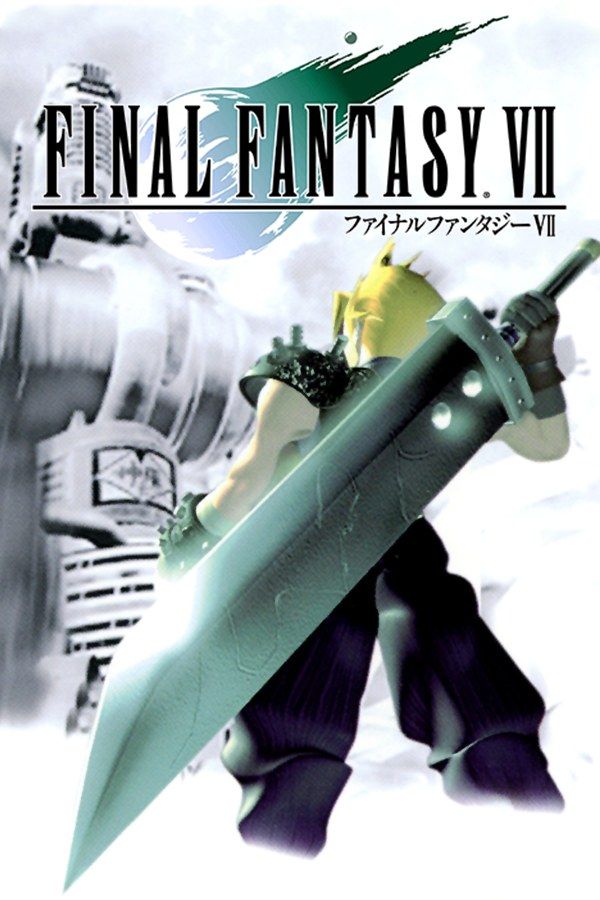
Games that span several discs, like Final Fantasy VII or Metal Gear Solid, become a single game in Nagori when the files are named with the disc number, for example (Disc 1) and (Disc 2). When the game asks for the next disc, open the pause menu and choose Change Disc. Your saves carry over. An .m3u playlist works too.
Picture: sharper 3D or the original pixels
Pause the game and open Settings → Quality to choose a preset:
- High (the default) renders 3D at twice the original resolution, smooths the image and fixes the texture seams that higher resolution would otherwise show.
- Low keeps the original resolution with sharp, unfiltered pixels.
Advanced Settings has more:
- Precise Geometry steadies the wobbly polygons PS1 games are known for. It works together with the doubled resolution.
- Screen Effects: CRT Screen with scanlines, Screen Curve, Bloom and Chromatic Aberration, each Off, Medium or Strong.
- Full Screen fills your display. Turn it off to keep the original 4:3 picture.
Games run at their original speed: 60 Hz for American and Japanese releases, 50 Hz for European ones.
Controls
On screen, choose from several touch layouts, including DualShock with both analog sticks. Edit Layout lets you move, resize and hide every button and set how see-through they are. The D-pad and sticks follow your thumb, and buttons forgive near misses.
Nagori also works with Bluetooth controllers that iOS supports, including DualSense, DualShock 4 and Xbox controllers. The touch controls hide as soon as one connects.
- Rumble comes through your controller, or through your iPhone’s vibration if you prefer.
- Two players: connect a second controller for two-player games on one screen.
- Fast Forward (2×) and Slow Motion (½×) can be assigned to any spare controller button.
- The whole library and every menu can be used with a controller.
Saves
- Continue where you left off. Nagori saves automatically whenever you leave a game, even if you swipe the app away.
- Four save states per game, each with a screenshot, plus the autosave.
- A memory card for every game, and a second card shared by all of them, written every few seconds.
- Your old memory cards:
.mcd,.mcrand.srmfiles from other emulators can be imported into a game. - iCloud: Save to iCloud and Load from iCloud move a game’s progress between your iPhone and iPad.
- Cheats: paste GameShark codes, each with its own on/off switch.
Price
Your first game is free. A subscription lets you add as many games as you like. Everything else is free for everyone: the best picture quality, screen effects, saves, iCloud and controller support.