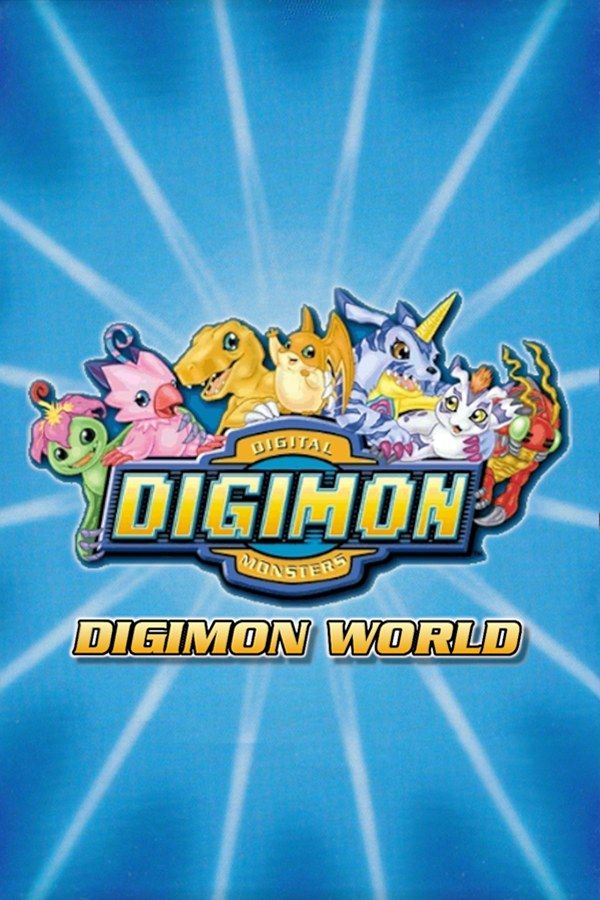
Bandai’s monster-raising RPG came out in Japan in 1999 and in North America in 2000. Jijimon brings you to File Island, where you raise a Digimon partner from an egg: feed it, let it rest, take it to the toilet and train it, then fight wild Digimon and win them over to come and work in File City. If you own the game, Nagori lets you play it on iPhone and iPad.
What you need
- An iPhone or iPad with iOS 17.6 or later.
- Nagori from the App Store. Your first game is free.
- A disc image of your copy of Digimon World:
.chd,.cue+.bin,.pbp,.isoor.img, or a.zipor.rarcontaining it. The game fits on a single disc.
No BIOS file is needed.
How to play Digimon World on iPhone
- Install Nagori from the App Store.
- Copy your Digimon World disc image to the Files app, in iCloud Drive or On My iPhone.
- Open Nagori, tap + and select the file. For a
.cueimage, select the.cuetogether with its.binfile, or add the archive they came in. - Find Digimon World on the PS1 shelf with its box art and press Play.
Controls
Digimon World was made for the original PlayStation controller, without analog sticks, so the Standard touch layout fits: the D-pad, the face buttons, the shoulder buttons, Start and Select. If your thumb keeps slipping off the D-pad on long walks, pause and open Settings → Edit Layout to make it bigger or drag it to where your thumb rests.
With a controller, every button sits where it did on the PlayStation pad, and the left stick works as the D-pad too. Press the left stick to open the pause menu.
Speed up training and long walks
Raising a partner takes a lot of repetition: training session after training session, and long walks across the island and back to town. Nagori’s Fast Forward runs the game at twice its speed:
- With a controller, assign Fast Forward to a spare button under Settings → Fast Forward.
- On touch, open Edit Layout and add the ×2 button to My Layout.
Everything speeds up, the game’s clock included. Your partner gets hungry and tired twice as fast in real time, so keep an eye on it while you fast-forward.
Saves
Your partner doesn’t stay with you forever. It ages, fades away and comes back as an egg you have to raise again, and what it digivolves into depends on how you raised it. Nagori helps you keep the run you want:
- Quit any time. Leave the app mid-walk and Continue puts you back exactly where you were.
- Save states. Pause and choose Save before a tough fight, or when you think your partner is close to digivolving. If the fight goes wrong or it turns into a Digimon you didn’t want, Load and try again. Nagori keeps your last four saves per game.
- The memory card still works. Saves made in the game itself go to the game’s own memory card, as on the console.
- Bring an old save. If you played on another emulator, import its
.mcd,.mcror.srmmemory card file with Import Saves in the game’s menu.
Best settings
- Quality: High, the default, renders the game’s 3D at twice the original resolution.
- Precise Geometry, in Advanced Settings, steadies the slight wobble of PS1 polygons.
- Quality: Low keeps the original resolution with raw pixels, if you prefer the original look.
- Screen Effects → CRT Screen adds scanlines if you want the game to look like it did on a 1990s TV.