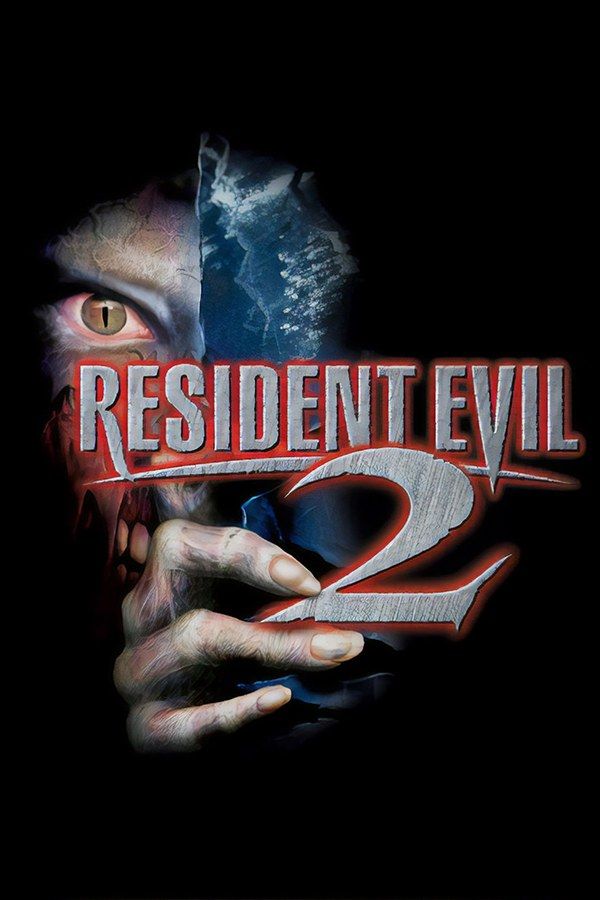
Capcom’s 1998 sequel moves the outbreak to Raccoon City. Leon S. Kennedy, a rookie cop on his first day, and Claire Redfield, who came to the city looking for her brother Chris, fight their way through a police station overrun by zombies. Each of them has a disc of their own. If you own the game, Nagori lets you play both on iPhone and iPad.
What you need
- An iPhone or iPad with iOS 17.6 or later.
- Nagori from the App Store. Your first game is free.
- Disc images of both discs of your copy of Resident Evil 2:
.chd,.cue+.bin,.pbp,.isoor.img, or.zipor.rararchives containing them. Disc 1 is Leon’s, Disc 2 is Claire’s.
No BIOS file is needed.
How to play Resident Evil 2 on iPhone
- Install Nagori from the App Store.
- Name the disc images with their disc number, for example
Resident Evil 2 (Disc 1).chdandResident Evil 2 (Disc 2).chd, and copy them to the Files app, in iCloud Drive or On My iPhone. - Open Nagori, tap + and select both discs. For
.cueimages, select each.cuetogether with all of its.binfiles, or add the archives they came in. - Find Resident Evil 2 on the PS1 shelf, one game with its box art, and press Play.
Two discs: Leon and Claire
The (Disc 1) and (Disc 2) in the file names tell Nagori that the discs belong together (Disk and CD work too, and so does an .m3u playlist you made yourself). The game gets one case on the shelf and one memory card shared by both discs.
- Play starts from Disc 1, Leon’s disc.
- Change Disc in the pause menu swaps to the other disc, like opening the lid on the console. The menu shows which one is in, for example Disc 1 of 2.
- Your saves carry over. A save made on one disc is on the memory card after you switch to the other, and a save state remembers which disc was in when you made it.
When you finish one character’s scenario, the game offers to save. Loading that save starts the second scenario, in which the other character lives through the same night from another side.
Controls
Resident Evil 2 uses tank controls: up walks forward, down walks backward, and left and right turn on the spot, whichever way the camera faces. That suits the D-pad, so the Standard touch layout works well. Aiming uses a shoulder button, and on the touch layouts the shoulder buttons sit in the top corners of the screen. Open Edit Layout in the pause menu to move them closer to your thumb or make them bigger.
The Dual Shock Ver. of the game, released later in 1998, adds analog stick and vibration support. With that version, the DualShock touch layout gives you a stick, and rumble comes through your controller or your iPhone.
With a controller, every button sits where it did on the PlayStation pad. Press the left stick to open the pause menu.
Saves: no ink ribbons needed
On the console, you can only save at a typewriter, and every save uses up an ink ribbon. Nagori keeps that system and adds its own:
- Typewriter saves work as before. They go to the game’s own memory card, written every few seconds.
- Save states. Pause and choose Save anywhere, with no typewriter and no ink ribbon. Make one before a boss fight, or before you open a door with little ammo left, and Load if it goes wrong. Nagori keeps your last four saves per game.
- Quit any time. Leave in the middle of a corridor and Continue puts you back exactly where you were.
Best settings
- Quality: High, the default, renders Leon, Claire and the creatures at twice the original resolution. The backgrounds are pre-rendered pictures, so they keep their original detail.
- Quality: Low keeps everything at the original resolution, if you’d rather the sharp characters didn’t stand out against the softer backgrounds.
- Precise Geometry, in Advanced Settings, steadies the slight wobble of PS1 polygons on the characters.
- Screen Effects → CRT Screen adds scanlines that soften the gap between the 3D characters and the backgrounds, as a 1990s TV did.