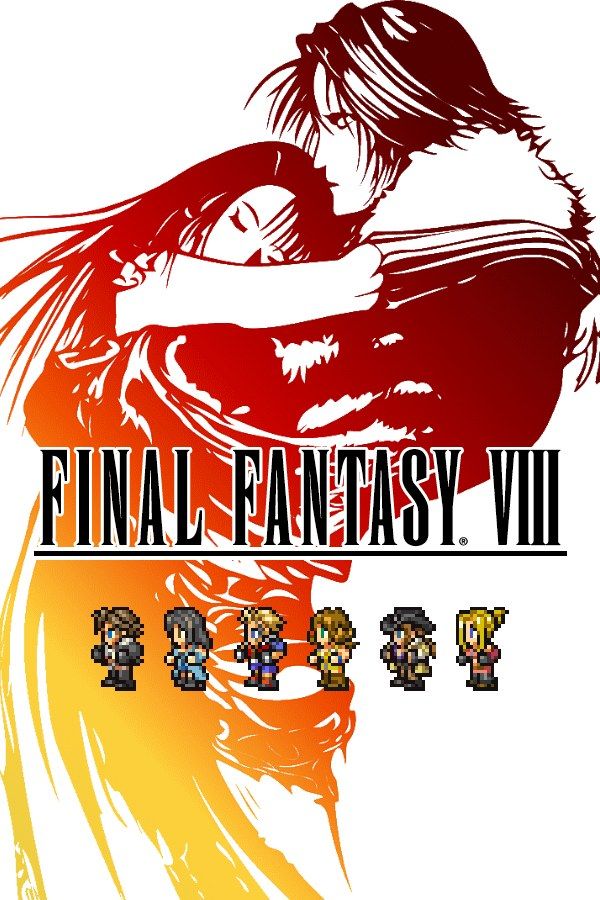
Square’s 1999 role-playing game follows Squall Leonhart, a student at Balamb Garden who trains to join SeeD, its force of elite mercenaries, as a war with Galbadia pulls his squad into a fight against a sorceress. There are no magic points: you draw spells from enemies and junction them, along with Guardian Forces, to your characters’ stats. If you own the game, Nagori lets you play all four discs on iPhone and iPad.
What you need
- An iPhone or iPad with iOS 17.6 or later.
- Nagori from the App Store. Your first game is free.
- Disc images of all four discs of your copy of Final Fantasy VIII:
.chd,.cue+.bin,.pbp,.isoor.img, or.zipor.rararchives containing them.
No BIOS file is needed.
How to play Final Fantasy VIII on iPhone
- Install Nagori from the App Store.
- Copy the four disc images to the Files app, in iCloud Drive or On My iPhone, named
Final Fantasy VIII (Disc 1).chdto(Disc 4). - Open Nagori, tap + and select all four discs. For
.cueimages, select each.cuetogether with its.binfiles, or add the archives they came in. - Find Final Fantasy VIII on the PS1 shelf, one game with its box art, and press Play.
Four discs, one game
Nagori groups the files by the disc number in their names (Disk, CD or your own .m3u playlist work too). Rename any file without one before you add it, or that disc ends up as a separate game.
- When a disc ends, the game asks you to insert the next one. Pause, choose Change Disc, and play on. The row shows the disc that’s in, for example Disc 2 of 4, and each time you choose it, the next disc goes in.
- Play always starts from Disc 1. Load a save from a later disc and the game asks for that disc: choose Change Disc until it’s in. Continue returns to the disc you were on.
- One memory card for all four. Every disc reads and writes the same card, so your saves carry over.
Controls
The Standard touch layout covers every button the game uses, and the one that matters most is R1. Squall’s gunblade has a trigger: press R1 just as his attack lands and it hits harder, and his Limit Break works the same way. On touch, R1 sits in the top-right corner. Pause, open Settings → Edit Layout, drag R1 down next to the face buttons and make it bigger, so you can hit it on time.
With a controller, R1 and every other button sit where they did on the PlayStation pad, and the left stick works as the D-pad too. Press the left stick to open the pause menu.
Saves
Final Fantasy VIII saves at save points and on the world map. On top of that:
- Quit any time. Leave the app mid-dungeon and Continue puts you back exactly where you were.
- Save states. Pause and choose Save before a boss and Load if it goes wrong. Nagori keeps your last four saves per game.
- Triple Triad. Under some regions’ rules, losing a card game costs you a card. Make a save state before a match you care about, and Load if a rare card is gone.
Draw magic at double speed
Junctioning works best with a full stock of a spell, up to 100 per character, and that means drawing from enemies over and over. Nagori’s Fast Forward runs the game at twice its speed, Guardian Force animations included:
- With a controller, assign Fast Forward to a spare button under Settings → Fast Forward.
- On touch, open Edit Layout and add the ×2 button to My Layout.
Play on iPhone and iPad
To carry on on another device, pause and choose Save to iCloud. On the other device, add your copy of the game, open its menu on the shelf and choose Load from iCloud. Your place in the game and the memory card come along; save states stay on the device where you made them.
Best settings
- Quality: High, the default, renders the characters and battles at twice the original resolution. Most locations are pre-rendered backgrounds that keep their original detail.
- Precise Geometry, in Advanced Settings, steadies the wobble of PS1 polygons.
- Screen Effects → CRT Screen adds the scanlines of a 1990s TV.