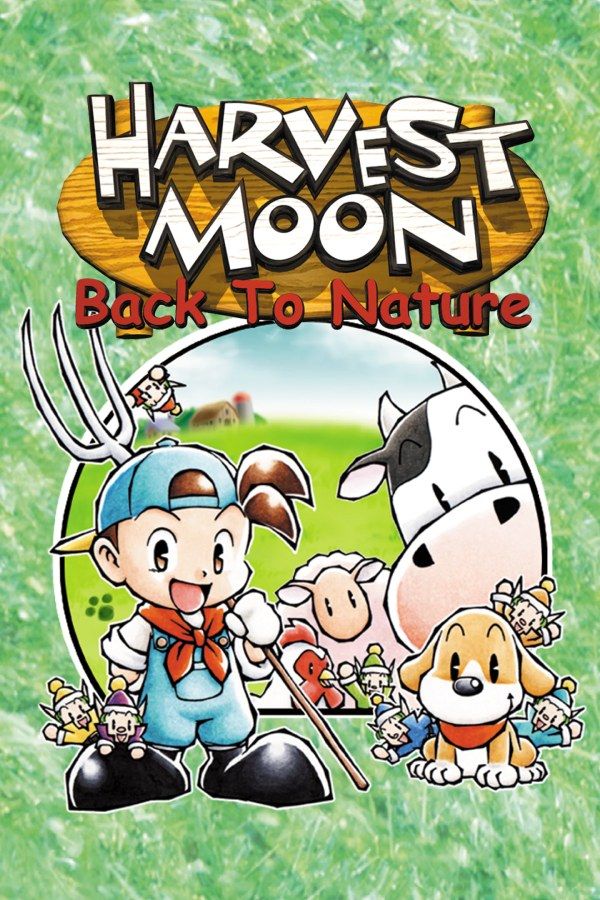
Harvest Moon: Back to Nature hands you your late grandfather’s run-down farm outside Mineral Town. You clear the fields, grow crops through the seasons, raise cows, sheep and chickens, and get to know the people in town, one of whom you can marry. If you own the game, Nagori lets you play it on iPhone and iPad.
What you need
- An iPhone or iPad with iOS 17.6 or later.
- Nagori from the App Store. Your first game is free.
- A disc image of your copy of Harvest Moon: Back to Nature:
.chd,.cue+.bin,.pbp,.isoor.img, or a.zipor.rarcontaining it. The game fits on a single disc.
No BIOS file is needed.
How to play Harvest Moon: Back to Nature on iPhone
- Install Nagori from the App Store.
- Copy your Harvest Moon: Back to Nature disc image to the Files app, in iCloud Drive or On My iPhone.
- Open Nagori, tap + and select the file. For a
.cueimage, select the.cuetogether with its.binfile, or add the archive they came in. - Find Harvest Moon: Back to Nature on the PS1 shelf with its box art and press Play.
Controls
You walk with the D-pad and use the face buttons to swing a tool, pick things up, talk and open menus, so the Standard touch layout covers everything. You’ll press the tool button hundreds of times a season: pause, open Settings → Edit Layout and make the face buttons bigger, or drag them to where your right thumb rests.
A controller is more comfortable for long sessions, with every button where it was on the PlayStation pad and the left stick working as the D-pad. Press the left stick to open the pause menu.
Saves: the diary by your bed
The game saves when you write in the diary next to your bed. On the console, everything since your last entry was lost when you switched off. In Nagori the diary still saves to the game’s own memory card, and you also get:
- Quit mid-day. Leave the app in the middle of a field and Continue puts you back at the same hour.
- Save states. Pause and choose Save as you step out of the house in the morning. If the day goes badly, Load and play it again. Nagori keeps your last four saves per game.
- Bring an old farm. If you played on another emulator, import its
.mcd,.mcror.srmmemory card with Import Saves in the game’s menu.
Long days: Fast Forward
Much of a day is routine: watering every crop, feeding the animals, walking into town and back. Nagori’s Fast Forward runs the game at twice its speed for those stretches.
- With a controller, pause, open Settings → Fast Forward and pick a spare button. Hold it to speed up.
- On touch, open Settings → Edit Layout, turn on the ×2 button and tap OK, which switches you to My Layout. Tap ×2 once to speed up and again to go back to normal.
The game’s clock speeds up too, so you don’t get more hours in a day. You get your own time back: a morning of chores takes half as long.
Play on iPhone and iPad
A farm takes seasons to build, and you can carry it between devices on the same iCloud account. Choose Save to iCloud in the pause menu or in the game’s menu on the shelf. On the other device, add your copy of the game to Nagori as well, then choose Load from iCloud in its menu. Your memory card and the spot where you stopped come with it. Save states stay on the device where you made them.
Best settings
- Quality: High, the default, renders 3D graphics at twice the original resolution and smooths the picture.
- Quality: Low keeps the original pixels, sharp and unfiltered, if you want the game exactly as it looked on the console.
- Screen Effects → CRT Screen adds scanlines, and Screen Curve bends the picture like the glass of an old TV.