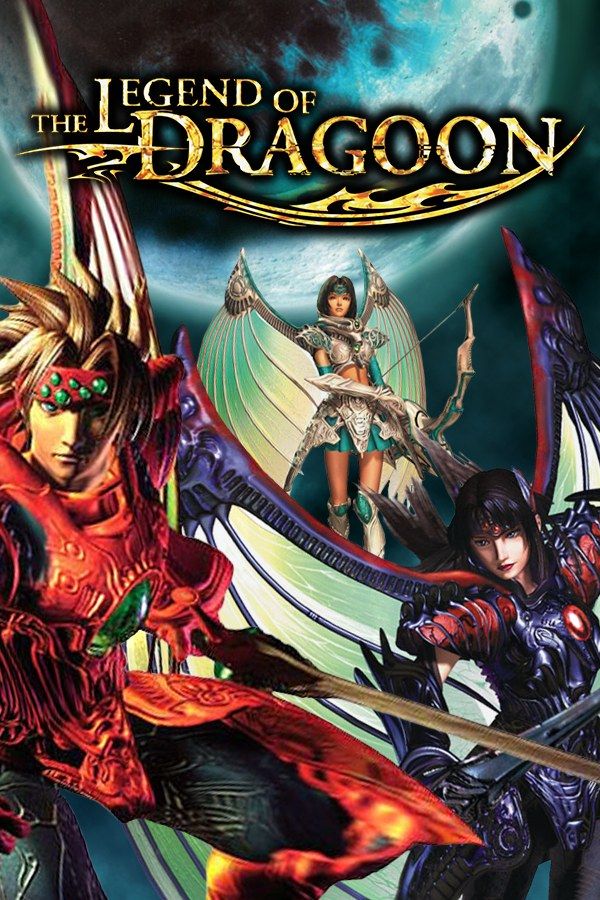
Sony’s 1999 RPG follows Dart, a young swordsman who sets out to rescue his childhood friend Shana and gains the power of a Dragoon, a warrior who fights with the spirit of a dragon. Its battles make attacking a test of timing: Additions are chains of strikes that only land in full if you press the button at the right moment. The story fills four discs. If you own the game, Nagori lets you play all of them on iPhone and iPad.
What you need
- An iPhone or iPad with iOS 17.6 or later.
- Nagori from the App Store. Your first game is free.
- Disc images of all four discs of your copy of The Legend of Dragoon:
.chd,.cue+.bin,.pbp,.isoor.img, or.zipor.rararchives containing them.
No BIOS file is needed.
How to play The Legend of Dragoon on iPhone
- Install Nagori from the App Store.
- Name the disc images with their disc number, from
The Legend of Dragoon (Disc 1).chdtoThe Legend of Dragoon (Disc 4).chd, and copy them to the Files app, in iCloud Drive or On My iPhone. - Open Nagori, tap + and select all four discs. For
.cueimages, select each.cuetogether with its.binfile, or add the archives they came in. - Find The Legend of Dragoon on the PS1 shelf, one game with its box art, and press Play.
Four discs, one game
The disc numbers in the file names tell Nagori that the four images belong together, so the shelf shows one case and all four discs share one memory card. Without the numbers you’d get four separate games, so rename the files first.
- Play always starts from Disc 1.
- When the game asks for the next disc, pause and choose Change Disc. Each time you choose it, Nagori moves on by one disc, and from Disc 4 back to Disc 1. The row shows the disc that’s in, for example Disc 2 of 4.
- Your saves carry over. The save you make before a switch is on the memory card when the next disc starts.
- Loading from the title screen? If the game asks for a later disc, choose Change Disc until the pause menu shows the one it wants. Continue skips all this and puts you back exactly where you stopped.
Controls
Walking, talking and battle menus all work on the Standard touch layout. Additions are the exception. When Dart or another character attacks, you press X each time the squares on screen line up to keep the chain going, and when an enemy counters in the middle of one, the button changes to Circle.
On touch, pause, open Settings → Edit Layout and make the face buttons bigger, so X and Circle are easy to hit without looking. A controller makes Additions much easier, and every button sits where it did on the PlayStation pad. Press the left stick to open the pause menu.
Practice Additions with Slow Motion
Additions grow stronger the more often you complete them, so landing them early pays off for the rest of the game. Nagori’s Slow Motion runs the game at half speed, which doubles the time you have for each press:
- With a controller, pause, open Settings → Slow Motion and pick a spare button. Hold it during an Addition.
- On touch, open Settings → Edit Layout, turn on the ×0.5 button and tap OK, which switches you to My Layout. Tap ×0.5 to slow down and again to return to normal speed.
Saves
The game saves at save points, to a memory card that all four discs share in Nagori. On top of that:
- Save states. Pause and choose Save before a boss fight. If it goes wrong, Load and try again. Nagori keeps your last four saves per game.
- Quit any time. Leave in the middle of a dungeon and Continue puts you back on the same screen.
Best settings
Towns and dungeons are pre-rendered backgrounds with 3D characters, while battles are fully 3D.
- Quality: High, the default, renders the characters, battles and Dragoon transformations at twice the original resolution. The backgrounds keep their original detail.
- Precise Geometry, in Advanced Settings, steadies the slight wobble of PS1 polygons in battle.
- Screen Effects → Bloom adds a soft glow to bright magic and fire, and CRT Screen adds scanlines for the look of a 1990s TV.