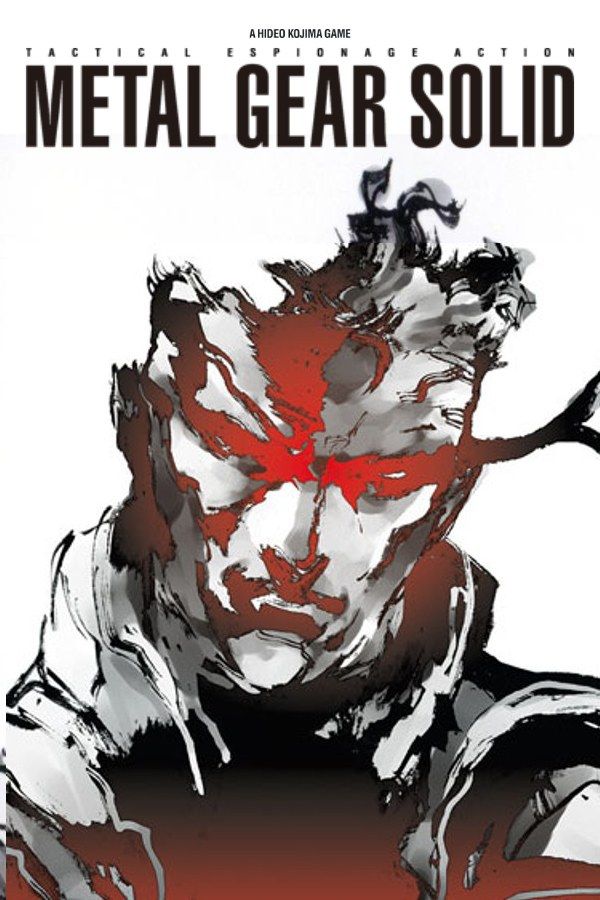
Hideo Kojima’s 1998 stealth game sends Solid Snake alone onto Shadow Moses Island, Alaska. FOXHOUND, a rogue special forces unit led by Liquid Snake, has seized a nuclear weapons disposal facility there, along with Metal Gear REX, a walking tank that can launch a nuclear strike. You get through by staying out of sight, with your support team on the Codec. If you own the game, Nagori lets you play both discs on iPhone and iPad.
What you need
- An iPhone or iPad with iOS 17.6 or later.
- Nagori from the App Store. Your first game is free.
- Disc images of both discs of your copy of Metal Gear Solid:
.chd,.cue+.bin,.pbp,.isoor.img, or.zipor.rararchives containing them.
No BIOS file is needed.
How to play Metal Gear Solid on iPhone
- Install Nagori from the App Store.
- Name the disc images with their disc number, for example
Metal Gear Solid (Disc 1).chdandMetal Gear Solid (Disc 2).chd, and copy them to the Files app, in iCloud Drive or On My iPhone. - Open Nagori, tap + and select both discs. For
.cueimages, select each.cuetogether with all of its.binfiles, or add the archives they came in. - Find Metal Gear Solid on the PS1 shelf, one game with its box art, and press Play.
Two discs, one game
The (Disc 1) and (Disc 2) in the file names tell Nagori that the discs belong together (Disk, CD or an .m3u playlist you made yourself work too). The game gets one case on the shelf and one memory card for both discs.
- Play always starts from Disc 1.
- When the game asks for Disc 2, pause and choose Change Disc. The menu shows which disc is in, for example Disc 1 of 2. Do the same if the game asks for Disc 2 after you load a later save.
- Your saves carry over from one disc to the other, and Continue and save states remember which disc was in.
Controls
Metal Gear Solid uses the whole pad: the face buttons attack, crouch and switch to a first-person view, the shoulder buttons open the weapon and item windows, and Select calls the Codec. The Standard touch layout has all of it. You open the Codec and those windows all the time, so open Edit Layout in the pause menu, make Select bigger, and drag the shoulder buttons down from the top corners to where your thumbs reach them.
With a controller, every button sits where it did on the PlayStation pad, and the game’s vibration comes through it, or through your iPhone with iPhone Vibration turned on. Press the left stick to open the pause menu.
Saves: Mei Ling and save states
On the console, you save by calling Mei Ling on the Codec at 140.96. Her saves still go to the game’s own memory card, written every few seconds. Nagori adds:
- Save states. Pause and choose Save before a boss such as Revolver Ocelot or Sniper Wolf, or before a stretch where one guard spotting you starts an alert, and Load if it goes wrong. Nagori keeps your last four saves per game.
- Quit any time. Leave in the middle of a vent crawl and Continue puts you back exactly where you were.
Early on, the game says that Meryl’s Codec frequency is on the back of the CD case. If yours isn’t at hand, it’s 140.15.
Ocelot’s torture scene
Partway through the story, Revolver Ocelot straps Snake to a machine. To hold out, you press a button as fast as you can, and whether Snake holds out or gives in decides which ending you see. Fast tapping on glass is tiring: a controller helps, and a save state made just before the scene lets you try again.
Best settings
- Quality: High, the default, renders Snake, the guards and Shadow Moses at twice the original resolution.
- Precise Geometry, in Advanced Settings, steadies the slight wobble of PS1 polygons on walls and floors.
- Screen Effects → CRT Screen adds scanlines, closer to how the game looked on a 1990s TV.