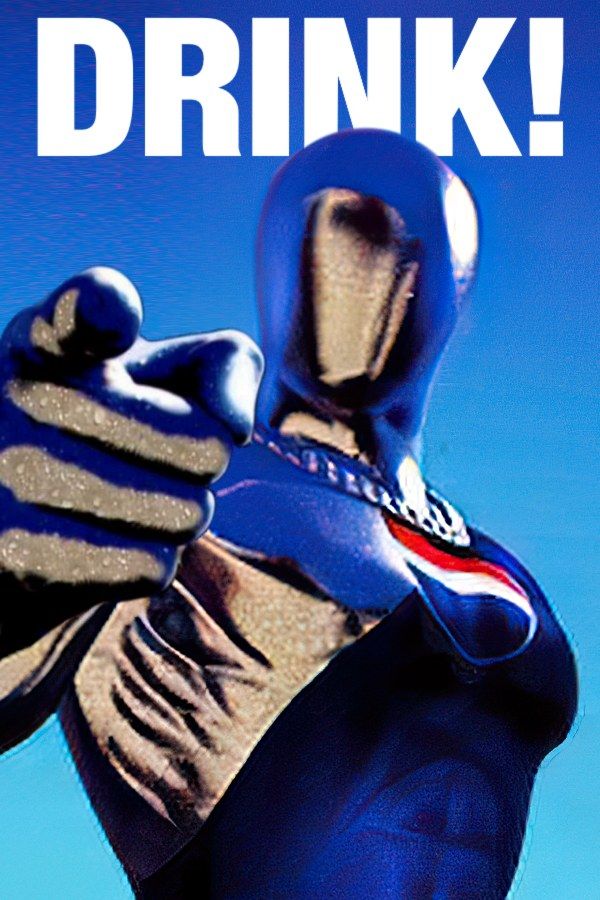
Pepsiman is a 1999 PlayStation action game by KID, released only in Japan. The hero runs forward on his own through each stage, and your job is to steer him past obstacles, jump at the right moment and grab the cans along the way. If you own the game, Nagori lets you play it on iPhone and iPad.
What you need
- An iPhone or iPad with iOS 17.6 or later.
- Nagori from the App Store. Your first game is free.
- A disc image of your copy of Pepsiman:
.chd,.cue+.bin,.pbp,.isoor.img, or a.zipor.rarcontaining it. The game fits on a single disc.
No BIOS file is needed. Since Pepsiman was only released in Japan, your copy is a Japanese disc, and Nagori plays it like any other PS1 disc. Japanese discs run at 60 Hz, the speed the game had on a Japanese console.
How to play Pepsiman on iPhone
- Install Nagori from the App Store.
- Copy your Pepsiman disc image to the Files app, in iCloud Drive or On My iPhone.
- Open Nagori, tap + and select the file. For a
.cueimage, select the.cuetogether with all of its.binfiles, or add the archive they came in. - Find Pepsiman on the PS1 shelf and press Play.
Controls
Pepsiman is about quick sideways moves and well-timed jumps, which suits the D-pad and the face buttons of the Standard touch layout. Obstacles come at you fast, and a thumb that lands next to a button costs you. Pause, open Settings → Edit Layout, make the D-pad and the face buttons bigger, and drag them to where your thumbs rest. The D-pad follows your thumb, so you don’t have to hit its exact center.
With a controller, every button sits where it did on the PlayStation pad, and the left stick works as the D-pad too. Press the left stick to open the pause menu.
Practice runs with Slow Motion and save states
Pepsiman doesn’t wait for you, so the hard part is reacting in time. Nagori gives you two ways to practice a stretch that keeps catching you:
- Save states. Pause and choose Save just before the tricky part, then Load to try it again right away. Nagori keeps your last four saves per game.
- Slow Motion. At ×0.5 speed you can see each obstacle coming and learn the timing. Pause, open Settings → Slow Motion to put it on a controller button, or show the on-screen ×0.5 button in Edit Layout. Once you know the stretch, play it again at full speed.
Saves
- Quit any time. Leave in the middle of a stage and Continue puts you back exactly where you were.
- The memory card works as on the console. Each game gets its own memory card in Nagori, written every few seconds, so anything Pepsiman saves stays with the game.
Best settings
- Quality: High, the default, renders the game’s 3D at twice the original resolution.
- Precise Geometry, in Advanced Settings, steadies the slight wobble of PS1 polygons on the scenery rushing past.
- Screen Effects → CRT Screen adds scanlines if you want the game to look like it did on a 1990s TV.