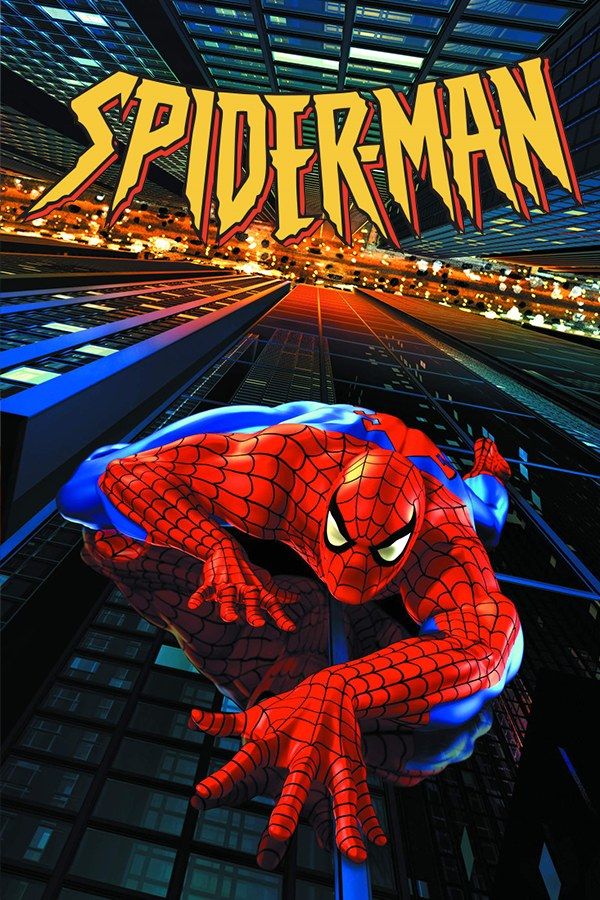
Neversoft’s Spider-Man came out in 2000, built on the engine the studio made for Tony Hawk’s Pro Skater. After an impostor frames him at a science expo, Spider-Man crawls up walls, swings and zips across New York’s rooftops, and fights Scorpion, Rhino, Venom, Mysterio and Carnage on the way to Doctor Octopus, with Stan Lee narrating. It’s not the 2002 movie game. If you own it, Nagori lets you play it on iPhone and iPad.
What you need
- An iPhone or iPad with iOS 17.6 or later.
- Nagori from the App Store. Your first game is free.
- A disc image of your copy of Spider-Man:
.chd,.cue+.bin,.pbp,.isoor.img, or a.zipor.rarcontaining it. The game fits on a single disc.
No BIOS file is needed.
How to play Spider-Man on iPhone
- Install Nagori from the App Store.
- Copy your Spider-Man disc image to the Files app, in iCloud Drive or On My iPhone.
- Open Nagori, tap + and select the file. For a
.cueimage, select the.cuetogether with its.binfile, or add the archive they came in. - Find Spider-Man on the PS1 shelf with its box art and press Play.
Controls
Spider-Man uses almost the whole pad: jump, punch and kick on the face buttons, web attacks by pairing Triangle with a direction, and swinging, zip lines and web targeting on the shoulder buttons. The game was made for the DualShock and reads its analog stick, so a stick layout suits it better than Standard. Pause, open Settings → Touch Layout and pick D-Pad + Stick, which adds a stick under the D-pad.
You swing all the time, and the touch layouts put the shoulder buttons in the top corners. Open Edit Layout in the pause menu and drag them down toward your thumbs, or make them bigger.
A controller is the most comfortable way to play. Bluetooth controllers that iOS supports, including DualSense, DualShock 4 and Xbox controllers, work with Nagori. Every button sits where it did on the PlayStation pad, and the left stick moves Spider-Man. Rumble comes through the controller, or through your iPhone with iPhone Vibration in Settings. Press the left stick to open the pause menu.
Retry boss fights with save states
Spider-Man’s villains come one after another: Scorpion, Rhino, Venom, Mysterio, Carnage, Doctor Octopus, and Monster-Ock, Doctor Octopus fused with the Carnage symbiote, made for this game. Your web fluid is limited too, and you refill it by picking up web cartridges. Nagori takes the pressure off:
- Pause and choose Save as a boss fight starts. If it goes badly, Load and take the fight again with the same health and webbing, instead of replaying the level.
- Nagori keeps your last four saves per game, so an older one is still there if a newer one lands in a bad spot.
Save states help with collecting too. The comic books hidden in the levels unlock their covers in the game’s menus, and a save before you go looking lets you explore without risking the level.
Saves
Spider-Man saves your progress to a memory card. In Nagori, each game has its own memory card, written every few seconds, so those saves work as they did on the console. On top of that:
- Quit any time. Leave mid-level and Continue puts you back exactly where you were.
- iCloud. Save to iCloud and Load from iCloud move your progress between your iPhone and iPad.
Best settings
- Quality: High, the default, renders the city and the characters at twice the original resolution.
- Precise Geometry, in Advanced Settings, steadies the slight wobble of PS1 polygons on the buildings and walls you crawl over.
- Screen Effects → CRT Screen adds scanlines if you want the game to look like it did on a 1990s TV.