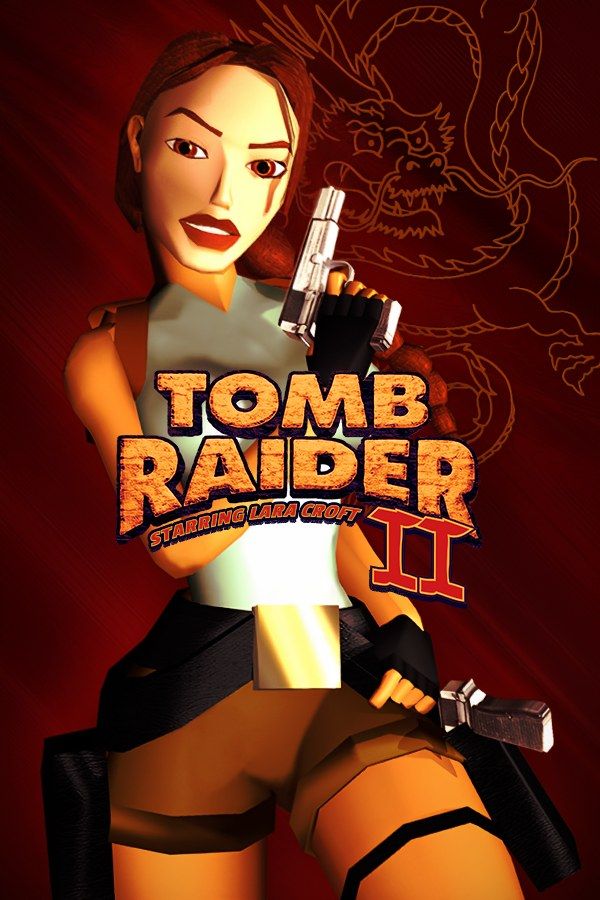
In Core Design’s 1997 sequel, Lara goes after the Dagger of Xian, a legendary weapon that Marco Bartoli and his cult also want, from the Great Wall of China to Venice, an offshore oil rig, a shipwreck on the sea floor and the mountains of Tibet. The sequel adds climbing, wading, flares and vehicles. If you own the game, Nagori lets you play it on iPhone and iPad.
What you need
- An iPhone or iPad with iOS 17.6 or later.
- Nagori from the App Store. Your first game is free.
- A disc image of your copy of Tomb Raider II:
.chd,.cue+.bin,.pbp,.isoor.img, or a.zipor.rarcontaining it. The game fits on a single disc.
No BIOS file is needed.
How to play Tomb Raider II on iPhone
- Install Nagori from the App Store.
- Copy your Tomb Raider II disc image to the Files app, in iCloud Drive or On My iPhone.
- Open Nagori, tap + and select the file. For a
.cueimage, select the.cuetogether with all of its.binfiles, or add the archive they came in. - Find Tomb Raider II on the PS1 shelf with its box art and press Play.
Controls
Like the first game, Tomb Raider II is played with the D-pad: up runs, left and right turn Lara, and down hops back. Stay on the Standard touch layout. The face buttons jump, act, roll and draw weapons, and the shoulder buttons handle walking and looking around.
Climbing is where touch controls get tested. Lara only holds on to a wall or a ledge while the action button stays pressed, so on a long climb one thumb holds that button while the other steers. Open Edit Layout in the pause menu, make the action button bigger and put it where your right thumb rests. Croft Manor, the training level on the start menu, is a good place to try your layout before the Great Wall.
With a controller, every button sits where it did on the PlayStation pad, and the left stick works as the D-pad too. Press the left stick to open the pause menu.
Speedboat, snowmobile and flares
The speedboat in Venice and the snowmobile in Tibet steer with the D-pad like Lara does, so the same layout works for them. They move much faster than she does on foot, so make a save state before you start an engine, and Load if a stretch goes wrong.
Flares light up dark rooms and passages, but you only have the ones you’ve picked up. A save state before a dark section lets you retry it without burning through more of them.
Saves: two ways to save anywhere
Tomb Raider II dropped the first game’s save crystals: on the PlayStation you can save at any point from the game’s menu, and those saves go to a memory card. In Nagori, each game has its own memory card, written every few seconds, so the game’s saves work as they did on the console. On top of that:
- Quit any time. Leave the app mid-level and Continue puts you back exactly where you were.
- Save states. Pause and choose Save for a quick retry before a tricky jump, without a trip through the game’s menus. Nagori keeps your last four saves per game, each with a screenshot.
- iCloud. Save to iCloud in the game menu copies your resume point and memory card. On another iPhone or iPad where you’ve added the game, Load from iCloud picks up from there.
Best settings
- Quality: High, the default, renders the game’s 3D at twice the original resolution.
- Precise Geometry, in Advanced Settings, steadies the slight wobble of PS1 polygons, which is easy to spot on long walls and floors.
- Screen Effects → CRT Screen adds scanlines if you want the game to look like it did on a 1990s TV.