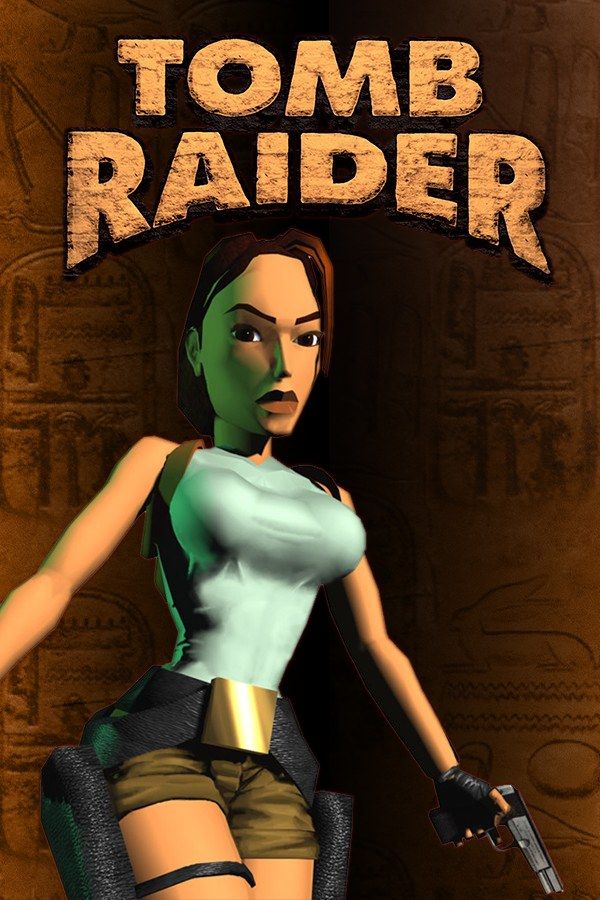
Core Design’s 1996 action-adventure introduced Lara Croft, an archaeologist hired by Jacqueline Natla to find the Scion, an artifact split into three pieces. The search takes her through tombs and ruins in Peru, Greece and Egypt and on to the lost island of Atlantis, past wolves, bears and dinosaurs, across long jumps and through puzzles built from switches and blocks you push and pull. If you own the game, Nagori lets you play it on iPhone and iPad.
What you need
- An iPhone or iPad with iOS 17.6 or later.
- Nagori from the App Store. Your first game is free.
- A disc image of your copy of Tomb Raider:
.chd,.cue+.bin,.pbp,.isoor.img, or a.zipor.rarcontaining it. The PlayStation version fits on a single disc.
No BIOS file is needed.
How to play Tomb Raider on iPhone
- Install Nagori from the App Store.
- Copy your Tomb Raider disc image to the Files app, in iCloud Drive or On My iPhone.
- Open Nagori, tap + and select the file. For a
.cueimage, select the.cuetogether with all of its.binfiles, or add the archive they came in. - Find Tomb Raider on the PS1 shelf with its box art and press Play.
Controls
Tomb Raider came out before the PlayStation had analog sticks, and Lara moves with tank controls on the D-pad: up runs forward, left and right turn her on the spot, and down hops back. The Standard touch layout fits the game. Besides jumping, grabbing ledges and pulling switches, Lara walks, sidesteps, rolls, looks around and draws her pistols, so the game uses nearly every button on the pad.
Walking is the move to get comfortable with: Lara never walks off an edge, she only runs off one. You hold the walk button while you steer, so open Edit Layout in the pause menu and move it to where a finger can rest on it, or make it bigger.
With a controller, every button sits where it did on the PlayStation pad, and the left stick works as the D-pad too. Press the left stick to open the pause menu.
Lara’s Home: set up your layout first
The start menu has a training level, Lara’s Home, set in Croft Manor. There are no enemies, so it’s the place to get used to the touch controls before Peru. Run, jump, climb onto ledges and hang from them: Lara only holds on while you keep the action button pressed. If a jump comes up short or she drops because your thumb slid off a button, make that button bigger or move it in Edit Layout, then try again.
Saves: between the save crystals
On the PlayStation, Tomb Raider only lets you save at save crystals, the blue crystals placed through each level. Between them, a missed jump, a rolling boulder or a spike pit sends you back to your last save. Nagori fills the gaps:
- Quit any time. Leave the app mid-level and Continue puts you back exactly where you were.
- Save states. Pause and choose Save before a long running jump or a room full of traps. If Lara falls, Load and try again from that spot instead of from the last crystal. Nagori keeps your last four saves per game.
- The crystals still work. Saves made at a crystal go to the game’s own memory card, as on the console.
Best settings
- Quality: High, the default, renders the tombs at twice the original resolution.
- Precise Geometry, in Advanced Settings, steadies the slight wobble of PS1 polygons. Tomb Raider’s levels are built from square blocks and long straight walls, where the difference shows.
- Screen Effects → CRT Screen adds scanlines if you want the game to look like it did on a 1990s TV.
A European (PAL) disc runs at 50 Hz in Nagori, as it did on the console; American copies run at 60 Hz.