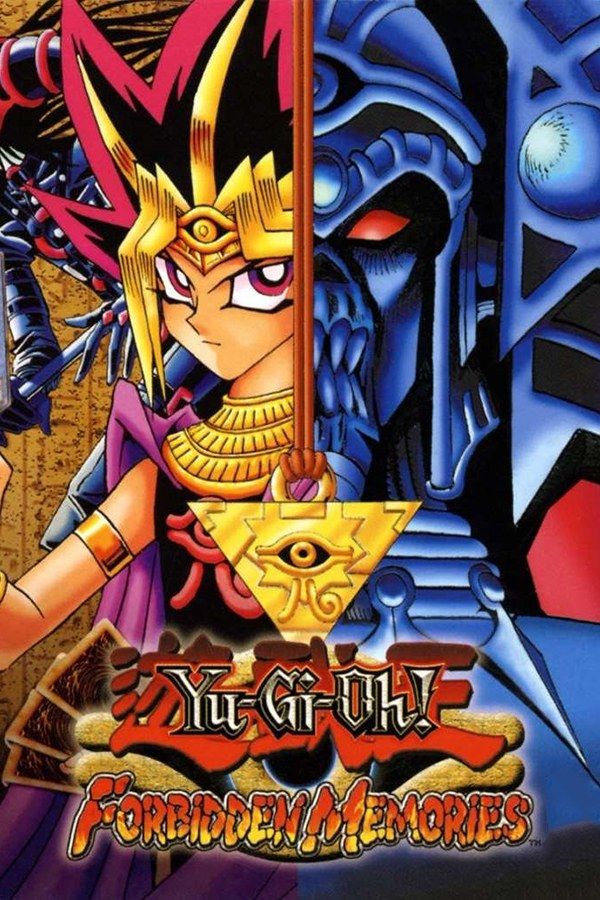
Konami’s Yu-Gi-Oh! card game for the PlayStation came out in Japan in 1999 and in North America in 2002. Its story begins in ancient Egypt and crosses over to Yugi’s time, and everything in it is settled by duels against computer opponents. You build a 40-card deck, fuse cards from your hand into stronger monsters, and win new cards with every victory. If you own the game, Nagori lets you play it on iPhone and iPad.
What you need
- An iPhone or iPad with iOS 17.6 or later.
- Nagori from the App Store. Your first game is free.
- A disc image of your copy of Yu-Gi-Oh! Forbidden Memories:
.chd,.cue+.bin,.pbp,.isoor.img, or a.zipor.rarcontaining it. The game fits on a single disc.
No BIOS file is needed.
How to play Yu-Gi-Oh! Forbidden Memories on iPhone
- Install Nagori from the App Store.
- Copy your Forbidden Memories disc image to the Files app, in iCloud Drive or On My iPhone.
- Open Nagori, tap + and select the file. For a
.cueimage, select the.cuetogether with all of its.binfiles, or add the archive they came in. - Find Forbidden Memories on the PS1 shelf with its box art and press Play.
Controls
Forbidden Memories is played through menus and card choices: the D-pad moves between cards and spaces on the field, and the face buttons confirm and go back. There’s nothing to steer, so the Standard touch layout is all you need.
Building a deck means scrolling through long card lists. If your thumb keeps slipping off the D-pad, pause, open Edit Layout and make the D-pad bigger, or drag it to where your thumb rests. A controller is more comfortable for long sessions: every button sits where it did on the PlayStation pad, and the left stick works as the D-pad too. Press the left stick to open the pause menu.
Speed up the card grind
New cards come slowly. After each win, the game hands you a card, and which one depends on the opponent and on the rank you earned for the duel. To get a card you want, players duel the same opponent in Free Duel again and again. Wins also earn starchips, which buy cards in the Password menu if you know a card’s password.
Nagori’s Fast Forward runs the game at twice its speed, so the animations, card flips and menus of each rematch go by faster:
- With a controller, assign Fast Forward to a spare button under Settings → Fast Forward.
- On touch, open Edit Layout and add the ×2 button to My Layout.
Fast Forward only changes the speed. The game’s rules and the cards opponents can drop stay the same.
Saves
Your deck, your card collection and your progress in the story all live on the game’s memory card. Nagori keeps them safe and adds its own saves:
- The memory card still works. Saves made in the game itself go to the game’s own memory card, as on the console.
- Save states. Pause and choose Save in the middle of a duel, before you attack a face-down card or play your strongest monster. If it goes wrong, Load and try another move. Nagori keeps your last four saves per game.
- Quit any time. Leave in the middle of a duel and Continue puts you back on the same turn.
- Keep a copy in iCloud. Save to iCloud in the game’s menu copies your memory card to your own iCloud, and Load from iCloud brings it to your iPad.
- Bring an old save. If you played on another emulator, import its
.mcd,.mcror.srmmemory card file with Import Saves in the game’s menu.
Best settings
- Quality: High, the default, renders the game’s 3D at twice the original resolution and smooths the picture.
- Quality: Low keeps the original resolution with raw pixels, if you prefer the card art and text as they looked on the console.
- Screen Effects → CRT Screen adds scanlines if you want the game to look like it did on a 1990s TV.